
Turn Labeled Gmail Messages Into Calendar Event Drafts
By Anu Verma
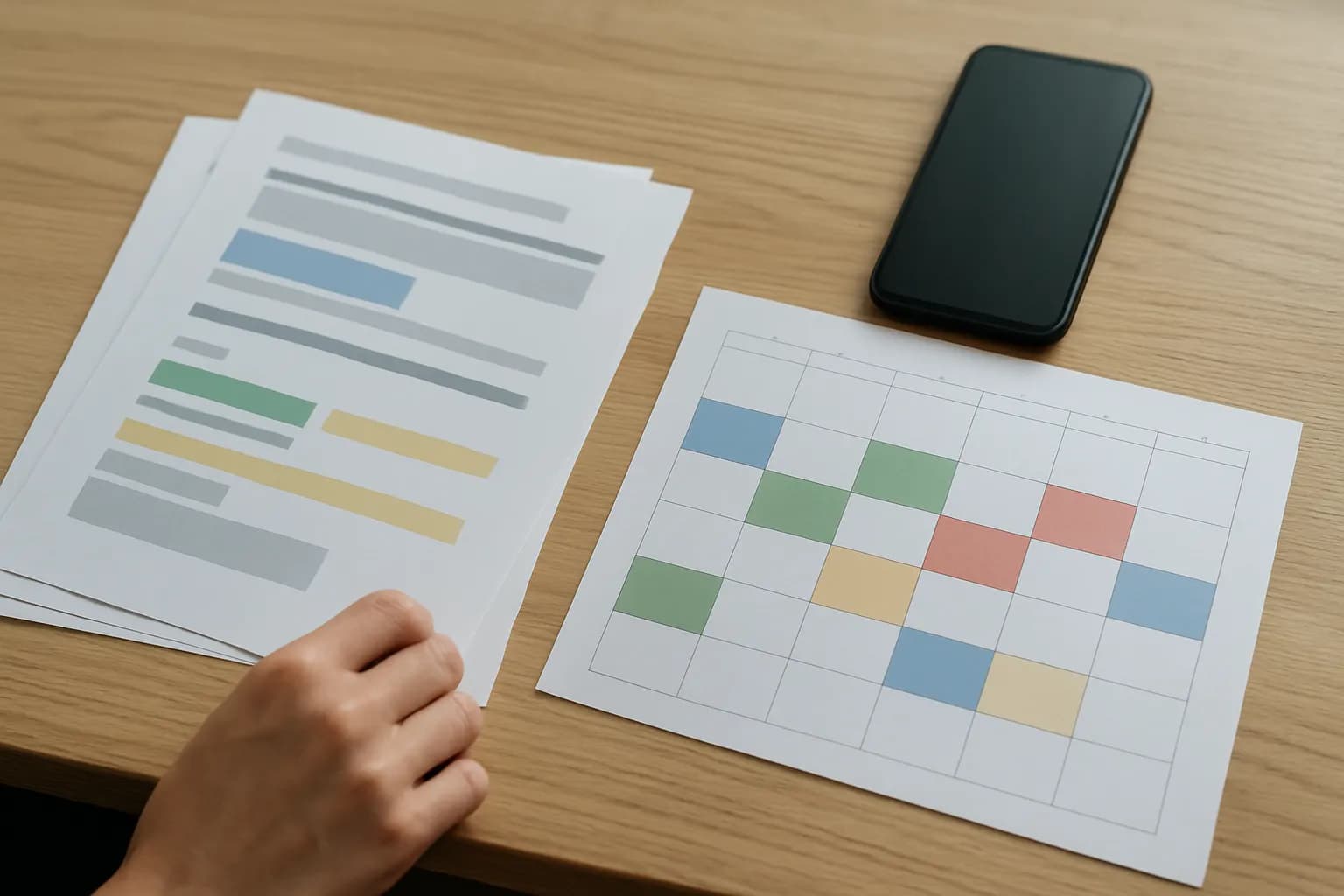
To turn labeled Gmail messages into calendar event drafts, send each message to a review queue with its proposed date, time and time zone. Create the Google Calendar event only after a person approves the details, especially when the invitation is ambiguous.
To turn labeled Gmail messages into calendar event drafts, send each message to a review queue with its proposed date, time and time zone. Create the Google Calendar event only after a person approves the details, especially when the invitation is ambiguous.
A Gmail label is the starting point, not permission to book
A Gmail label can start a calendar workflow, but it should not authorize an event on its own. Apply a dedicated label only to messages that might contain a meeting request. An automation tool can watch that label and pass each new match to an extraction step. Keep unrelated mail out of the workflow by using a narrow label rather than a broad inbox search.
Decide whether the workflow handles individual messages or whole conversations. A thread can contain an initial suggestion, a correction and a final agreement. If the trigger supplies only a conversation, check which message text reaches the next step. Otherwise, the automation may read an old proposed time after someone has changed it. Keep the message identifier and a reference to the original email with every proposed event so a reviewer can inspect the source.
Gmail and Google Calendar also offer some built-in ways to work with events mentioned in email. Those may be enough when a person is happy to read the message and enter the event manually. For recurring requests that need a shared review process, use a no-code automation tool and a staging sheet or task list. Unlike creating calendar events from form responses, email requires you to interpret unstructured text and later replies.
Extract the proposed meeting details into separate fields
A useful event draft records what the email actually says and what the automation thinks it means. Ask an AI extraction step, or use fixed rules for consistently formatted mail, to return separate fields for the event title, date, start time, end time, time zone, location or meeting link, and relevant source text. Include an explicit status for each field, such as stated, inferred or missing. A blank field is safer than a plausible invention.
Tell the extractor to distinguish a confirmed meeting from a suggestion. “Could you do Thursday afternoon?” is not an agreed appointment, even if a date can be calculated. Likewise, a quoted earlier email may contain a time that the latest reply rejects. The extraction instructions should favor the newest relevant message, preserve conflicting proposals for review and avoid treating a signature or forwarded itinerary as the meeting request.
Store the result in a review queue, such as a spreadsheet row or task, rather than sending it straight to Google Calendar. Include the original wording beside the proposed values. A reviewer can then spot whether “Friday at ten” became the right Friday and whether an end time came from the message or from a default. If you use AI, the AI output review checklist offers a broader way to check extracted work before acting on it.
Dates and time zones need explicit review rules
Meeting dates should be converted only when the email gives enough context to identify a specific calendar day. A written date can often be parsed directly, but “next Tuesday” depends on when the message was sent and how the sender uses “next.” Record the message date alongside any interpretation. If two reasonable readings remain, mark the draft for clarification rather than choosing the nearer day.
Time zones deserve a separate field. “At ten” does not say whose ten it is, and a sender’s address or location does not settle the question. If the email names a city-based time zone, keep that information with the draft so daylight saving changes can be handled for the event date. If it gives a time-zone abbreviation that could mean different places, flag it. Do not silently substitute the calendar owner’s time zone for an unstated sender time zone.
Treat durations with the same care. An explicit start and end can be checked for order. A start time with no end needs either a clearly disclosed office default or a reviewer’s choice. Check whether an event crosses midnight after conversion and whether the calendar displays the intended local time. The goal is not to make every email fit an event form. The goal is to show a person exactly which details are ready and which still need an answer.
Zapier can route an email to review before Google Calendar
To turn an email into a calendar event with Zapier, use a Gmail trigger for the chosen label, an extraction step and a review destination before any Google Calendar creation step. Zapier’s available triggers and action fields can change, so check its current Gmail and Google Calendar app pages while building the workflow. In particular, confirm whether your chosen trigger returns the individual message you need or a conversation with multiple replies.
Map the extracted fields into a spreadsheet row or review task. Give the row a status such as needs review, needs clarification or approved. Show the proposed calendar details, the original email reference and any uncertainty together. The reviewer can correct values in the row, ask the sender a question or reject the proposal. A second workflow can watch for approval and create the event from the corrected fields.
Test with a clear invitation, a changed time in a reply and an email with no time zone. Inspect the review row before enabling event creation. A Google Calendar create-event action generally creates an actual event, not a saved, unpublished draft. Keep guest addresses out of the event-creation mapping until your team has decided when invitations should go out. If an email is really an action request rather than a meeting, turning Gmail emails into Notion tasks is the more suitable workflow.
Approval is what turns a proposal into an event
A calendar event draft in this workflow is a proposed record outside Google Calendar, not an unsaved Calendar event. That distinction matters because a calendar creation action can place a real appointment on someone’s calendar. Depending on how the event and guests are configured, it can also affect other people. Keep the proposed title, timing, time zone and attendee list in the review queue until a person confirms them.
Set a clear rule for approval. A reviewer should be able to compare the proposal with the source email, correct any fields, and mark it approved. The event-creation workflow should read the reviewed fields, not rerun extraction against the email after approval. Otherwise, a changed prompt or a new reply could produce different details from those the person checked. If your automation tool cannot reliably act only on an approval change, stop at the review queue and let the reviewer create the Google Calendar event manually.
Separate placing an event on an internal calendar from inviting external guests. A team may want an internal hold while it waits for confirmation, but that hold is still an event and should be visibly marked as tentative. If the message proposes several alternatives or asks for availability rather than acceptance, leave it in clarification. Approval should mean the meeting is agreed, not merely that the automation extracted a readable date.
Duplicate checks and corrections keep the calendar usable
A reliable Gmail-to-calendar workflow needs a way to recognize an email it has already handled. Store the Gmail message identifier with the review record and, after creation, store the Google Calendar event identifier there too. Before creating an event, check whether the record already has an event identifier. This helps prevent a repeated trigger, a relabeled message or a reviewer’s second edit from creating another appointment.
Replies require a separate decision. If a later message changes an approved meeting, it should not quietly create a fresh event. Send the new details to review with a reference to the existing event so a person can decide whether to update, cancel or leave it alone. If the original meeting request was never approved, the reviewer can use the later reply to settle the pending proposal. Keep the source messages available for that comparison.
Run a small set of representative emails through the workflow before using it routinely. Include a clear request, a vague day, an unstated time zone, a corrected time and a forwarded thread. Check the proposed fields, approval behavior and duplicate handling, then check the resulting event’s displayed time and guests. For teams that rely on their calendar during absences, the same attention to accurate event details helps when preparing an out-of-office handover.
Sources consulted
- Google Help (support.google.com)
- Zapier (zapier.com)
Frequently asked questions
Can Gmail create Google Calendar events from emails automatically?
Gmail and Google Calendar can recognize some event information in email, but that does not make every meeting request safe to book automatically. For labeled messages, a no-code automation can extract proposed details and queue them for review. Create the event only after someone confirms the date, time, time zone and whether the meeting was accepted.
Does Google Calendar have event drafts for an automation to save?
Do not assume a Google Calendar create-event action saves an unpublished draft. Treat a spreadsheet row or review task as the draft, then use approval to create a real event. If you need only a personal reminder to assess the email, a manual calendar entry may be simpler than building an approval workflow.
What should happen when an invitation omits its time zone?
Mark the time zone as missing and send the proposal for clarification or review. Do not infer it from the sender’s address, the recipient’s calendar or a meeting link. A reviewer can confirm the intended local time with the sender before the workflow creates an event that might appear at the wrong hour.
How do I stop replies from creating duplicate calendar events?
Keep a record of the source message identifier and the created calendar event identifier. Check that record before event creation, and route later replies about the same meeting to review. A changed time may call for an update to the existing event, while an unapproved proposal can simply be revised before creation.
Related guides
 Create Google Calendar Events From Google Form ResponsesConnect Google Forms to Google Calendar with a no-code automation, then check missing times, time zones and repeat submissions before sending invites.
 Send Personalized Gmail Emails From Google Sheets SafelyUse a Google Sheet to personalize Gmail messages, test the merge before sending, and decide when an ordinary draft is safer.
 Automatically Email New Files in a Folder for Your TeamUse a new-file trigger, Gmail action, and a processed-folder rule to email your team without code. Compare attachments, links, and duplicate controls.
Drafted with AI assistance and checked automatically before publishing. Tools and prices change; check the official source before you act.