
Create Google Calendar Events From Google Form Responses
By Anu Verma
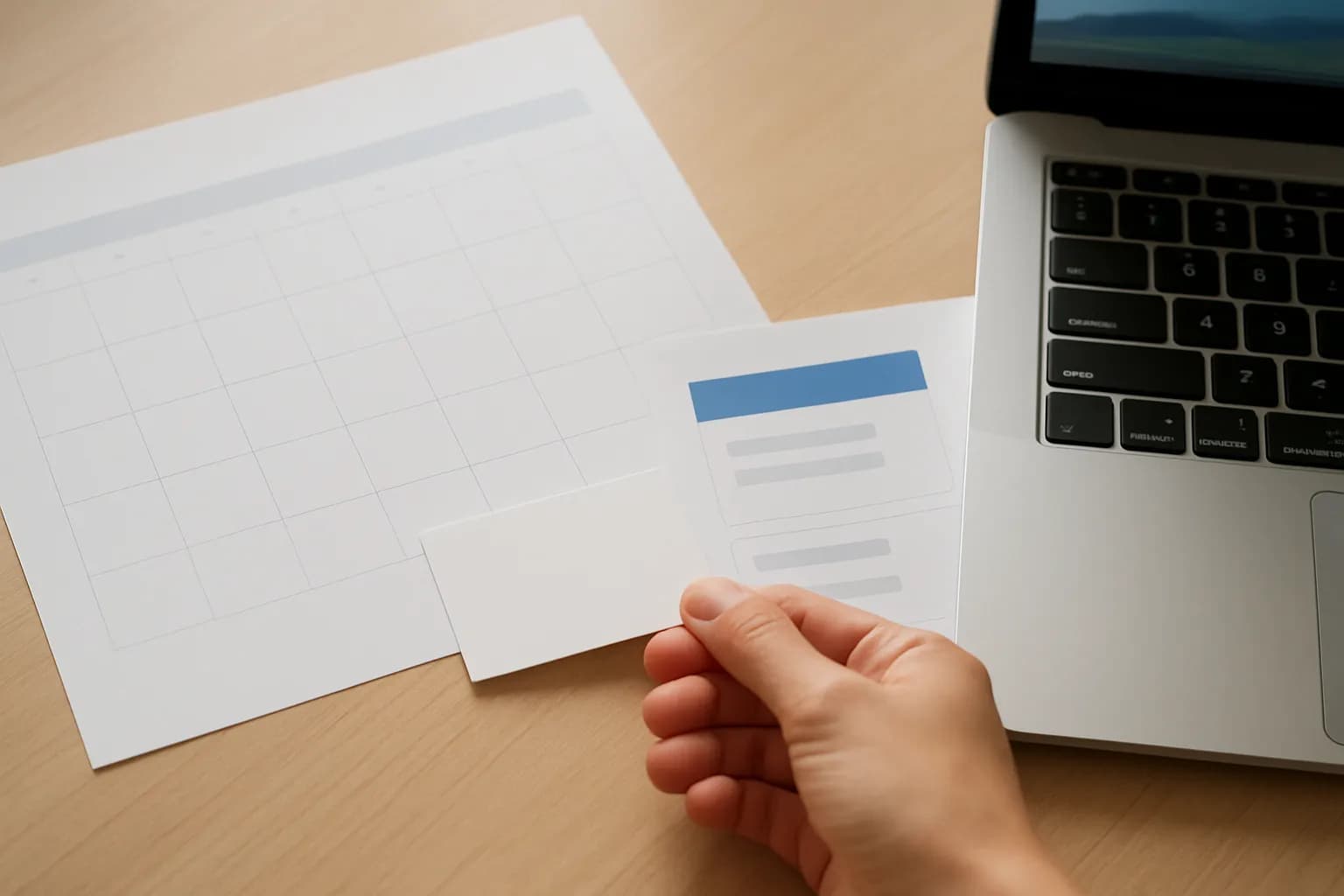
To create Google Calendar events from Google Form responses automatically, connect the form to a no-code automation tool and map each submission to a calendar event. Check the time, time zone and repeat submissions before creating the event or inviting guests.
To create Google Calendar events from Google Form responses automatically, connect the form to a no-code automation tool and map each submission to a calendar event. Check the time, time zone and repeat submissions before creating the event or inviting guests.
The form-to-calendar workflow to build
A no-code automation tool can turn a Google Forms response into a Google Calendar event when the form collects enough information to schedule it. The workflow starts with a new response, checks its fields, creates an event in the chosen calendar and records what happened. Zapier and Make are examples of tools that connect forms and calendars without requiring code.
Decide whether the form is requesting a time or booking a confirmed time. A request may need someone to approve availability before an event is created. If people must choose only from open slots, a calendar booking page may be simpler than a form-to-calendar automation. An ordinary Google Form does not, by itself, reserve a slot while someone is filling it out.
Choose the calendar before building the workflow. A shared team calendar keeps work appointments separate from personal ones, provided the automation's connected account can create events there. Also decide whether a new submission should create an internal event immediately or wait for review. That choice determines whether the respondent receives an invite, a separate confirmation, or nothing until a person approves the request.
The form fields needed for a usable event
A Google Form needs a date, a start time and a way to determine the end time before its response can reliably become a calendar event. Ask for an end time or set a standard duration in the automation. Collect a short event title or enough information to make one, and add a location or meeting details only when the appointment needs them.
Ask for a time zone if respondents may be in different places. A city or named time zone is clearer than asking people to calculate an offset. If everyone works in the same zone, state that zone beside the time question and configure the automation to interpret responses in it. Check how the automation handles changes to local clocks; a date and time without a zone may otherwise be interpreted using the connected account's settings.
Collect an email address only if the workflow needs to invite or contact the respondent, and tell them what will happen with it. Keep private form answers out of the calendar description unless attendees should see them. If the submission also needs a document, make a PDF from the form response as a separate action rather than putting every answer in the event.
How to connect a response to Google Calendar
To automatically schedule events from form submissions, set a new Google Forms response as the trigger and Google Calendar event creation as the action in your automation tool. Some tools read responses through the spreadsheet linked to the form instead. Use the trigger your tool supports, and confirm that the account connecting it has access to the form or response sheet and permission to write to the destination calendar.
Map each field deliberately. Put the appointment subject in the event title, combine the submitted date and start time into the start, and map the submitted end time or calculated duration to the end. Select the intended calendar rather than accepting a default. If the form collects a guest email, map it to the event's guest field only when you intend to send a calendar invite from the Google Form response. Check the tool's event and guest settings before assuming an invite will be sent.
Run the tool's preview with a sample response before turning the workflow on. Look at the created event in Google Calendar, not just the automation's success message. Verify its date, local start and end times, calendar, description and guest list. A field can be accepted by an automation but still produce an event you would not want anyone to receive.
The checks that prevent wrong or incomplete bookings
Missing or unclear times should stop event creation and go to a review queue. Before the calendar action, add conditions that require a date and start time, confirm that the end is later than the start, and reject values the tool cannot interpret. A missing end time is acceptable only when the workflow applies a duration you chose in advance.
Treat time zones as part of the appointment, not as a display preference. Configure the automation to interpret the submitted time in the stated zone, then inspect how Google Calendar displays the resulting event. If respondents can choose among zones, test each allowed choice. Send an unfamiliar or ambiguous zone to review rather than guessing. Dates near a local clock change deserve particular attention because some local times may be unclear or unavailable.
Keep rejected requests visible. The automation can write a status beside the response in its linked sheet or notify the person who manages bookings, with enough detail to correct the request. Do not send a calendar invite as a substitute for checking a doubtful time. If the form also feeds a sales process, route form leads to your CRM separately so a booking problem does not silently discard the lead.
The rule for repeat submissions and later changes
A repeat Google Form submission should not automatically mean another calendar event. Choose a rule before launch: every submission may be a separate appointment request, or repeated requests for the same booking may need review. A person's email alone is not a safe duplicate key because that person may book more than once.
For retries of the same response, keep a record of the form response identifier, or a stable row identifier if the workflow starts from a response sheet, alongside the created calendar event identifier and processing status. Before creating an event, have the automation check that record. If the tool cannot make the check and write reliably during overlapping runs, use its sequential processing option where available or send suspected repeats for review. A simple lookup helps, but it cannot guarantee that simultaneous runs will never create duplicates.
Decide separately what edits mean. Changing a response sheet row does not necessarily update an event already on the calendar, and a second form submission may be a correction rather than a new booking. Either require staff to amend the existing event manually or build a separate update path that finds the recorded event identifier. Never create a replacement invite without first checking what happened to the earlier event.
The test that makes the workflow safe to switch on
Test the form-to-calendar workflow with realistic submissions before inviting anyone to use it. Try a complete request, a missing time, an end time before the start, a different time zone and a repeat of a request. Inspect both the automation history and the calendar after each run. If guests are part of the workflow, use an address you control to check what invitation arrives.
Keep a small operating record in the response sheet or another place the team already checks. Record whether each request is pending review, created or failed, plus the event identifier when creation succeeds. Make failures visible to a named person. A tool can fail after creating an event but before saving its status, so check the calendar before retrying an uncertain run; otherwise a retry may send another invite.
Once the workflow is live, review early submissions against the calendar and revisit it when the form questions, connected account or calendar permissions change. Remove unnecessary personal details from event descriptions, and confirm who can view the destination calendar. The useful measure is not whether the automation ran, but whether each valid request produced the intended event without inviting anyone to the wrong time.
Sources consulted
- Google Forms Help (support.google.com)
- Google Calendar Help (support.google.com)
- Zapier (zapier.com)
- Make (make.com)
Frequently asked questions
Can Google Forms create a Google Calendar event by itself?
A Google Form collects responses, but a form response does not by itself provide the checked form-to-calendar workflow described here. Use a no-code automation tool to read new responses and create events, or consider a calendar booking page if respondents need to select from available times.
How do I create a calendar invite from a Google Form response?
Collect the guest's email address, then map it to the guest field of the Google Calendar event action in your automation tool. Check the action's invitation settings and test with an address you control. Do not add guests until the submitted time and time zone have passed your checks.
What happens if someone submits the form twice?
Without a repeat-submission check, both responses may create events. Record which response produced each calendar event and check that record before creating another. Decide whether a second submission represents a new appointment or a correction, and send uncertain cases for review rather than automatically issuing another invite.
What if the form response has no end time?
Set a standard duration in the automation if all appointments are meant to be the same length. Otherwise, require an end time on the form and send incomplete responses for review. In either case, check that the resulting end is later than the start before creating the event.
Related guides
 Create a Shared Microsoft Bookings Page for Your TeamCreate a shared Microsoft Bookings page, assign staff and set availability so customers can book open times without seeing private calendars.
 Make a PDF Automatically From Each Google Form ResponseConnect Google Forms to a document template, fill blank answers safely, and save a PDF for each new response without code.
 Send Calendly Appointment Reminders AutomaticallyUse Calendly’s built-in reminders for ordinary bookings, and add an automation only when reminders depend on information outside Calendly.
Drafted with AI assistance and checked automatically before publishing. Tools and prices change; check the official source before you act.