
Make a PDF Automatically From Each Google Form Response
By Anu Verma
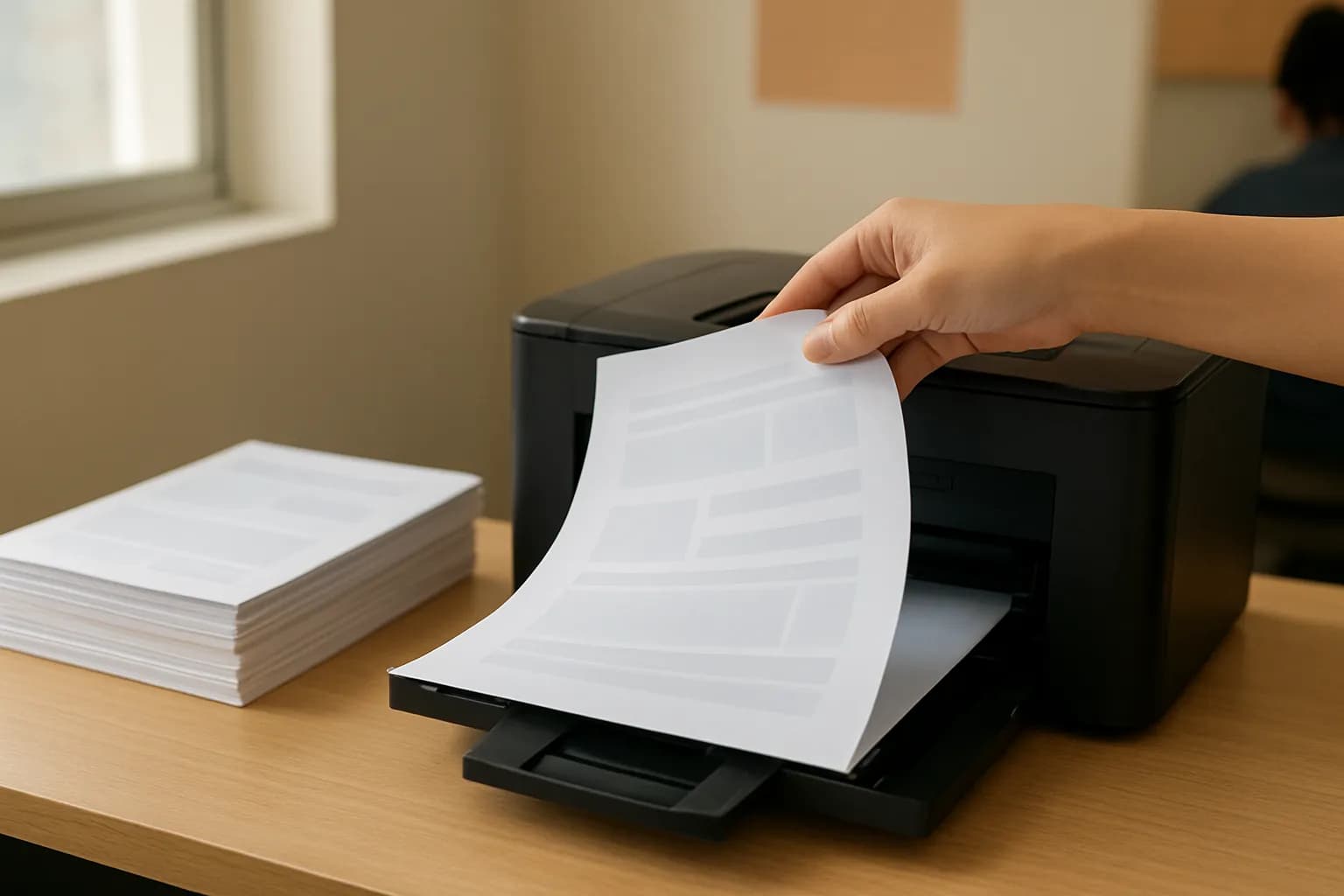
To make a PDF automatically from each Google Form response, connect the form to a no-code document workflow. The workflow fills a template with the answers, handles empty fields, converts the document to PDF, and saves it.
To make a PDF automatically from each Google Form response, connect the form to a no-code document workflow. The workflow fills a template with the answers, handles empty fields, converts the document to PDF, and saves it.
A Google Forms response needs a document workflow to become a PDF
Google Forms collects answers, but a separate document workflow is needed to turn each response into a formatted PDF. Start by deciding what the PDF is for: an internal request record, a customer copy, or a document someone must review. That decision determines which answers belong in it and where the file should go.
You can connect the form to a response spreadsheet and use new rows as the workflow trigger. Some automation and document-generation tools can instead start from a new form response. Either way, check that the trigger provides the answers you need, including responses to optional questions. A connection that only reports that a submission happened is not enough to fill a document.
Keep the PDF workflow separate from other things you do with the same form. For example, routing form leads to a CRM is about moving contact details into a sales record, not producing a readable file. Make a short list of the form answers the PDF needs, the folder where it should be saved, and who may see that folder before choosing a tool.
A filled-in document template controls the finished PDF
A document template turns Google Form answers into a PDF by giving each answer a specific place on the page. Make a Google Docs template that looks like the document you want to hand to someone. Write the fixed wording once, then put clearly distinct placeholders where submitted answers should appear.
For an equipment request, the template might read, “Requested by: {{requester}}” and “Equipment: {{equipment}}”. A longer section could read, “Reason for request: {{reason}}”. When you set up the document-generation step, map each placeholder to the matching form question or spreadsheet column. The submitted name replaces {{requester}}, while the equipment answer replaces {{equipment}}. The PDF conversion happens after those replacements, so the PDF keeps the document's layout rather than looking like a raw response sheet.
Keep placeholder names short and consistent. If a form question changes, check its mapping before relying on the workflow again. Avoid placing an entire paragraph around an optional answer until you know what should happen when that answer is blank. A PDF used as an invoice record has different source data and checks; extracting data from PDF invoices covers that reverse direction.
Blank answers need defaults before document creation
Blank optional answers should be handled before the document is created, or the PDF may contain an empty label, awkward sentence, or visible placeholder. Decide what each optional field should say when no answer is supplied. For an optional request note, “Additional notes: None provided” is clearer than “Additional notes: {{notes}}”.
The easiest approach is to create a cleaned value in the workflow. If the notes answer contains text, use that text. If it is empty, use “None provided”. Map the cleaned value, not the raw answer, to {{notes}}. A response spreadsheet can also hold a separate column for cleaned values, but check that those values are ready when the workflow reads the new row.
Sometimes a default is misleading. An unanswered delivery question does not mean delivery is unnecessary. In that case, use “Not specified”, or omit the entire delivery line if your document tool supports conditional content. If it cannot remove a line, write a complete sentence that still reads well with a neutral default. Finally, check whether your chosen tool leaves an unmapped placeholder unchanged. A blank answer, an unmapped field, and a question that was never shown can require different fixes.
A no-code workflow connects each response to a PDF
A no-code workflow can create a PDF from each new Google Form response by joining a trigger, a template step, and a file-saving step. Choose a document-generation service or an automation platform that supports your form or response spreadsheet, your document template, PDF output, and your storage destination. Check those specific actions in the tool's current documentation before building around it.
Set the trigger to a new submission or new response row. In the next step, match the form answers to the template fields and apply the blank-answer defaults. Then generate a new document from the template, convert or export that new document as a PDF, and save the PDF in a chosen folder. Do not overwrite the template: later submissions still need a clean copy.
Give the saved file a name that helps you identify its response without exposing more personal information than necessary. If the workflow also emails the PDF, send it only after the file has been created successfully and confirm the recipient comes from the intended field. A folder-saving workflow is simpler when nobody needs an immediate email. If your next task is distributing files that arrive by email instead, saving email attachments to a folder addresses that different starting point.
A preview test catches broken placeholders and repeat runs
Test the PDF workflow with answers that expose its weak spots, not just a perfectly filled form. Submit a response with every relevant answer, then another with optional answers left blank. Open the resulting PDFs and look for literal placeholders such as {{notes}}, empty labels, cut-off text, missing pages, and answers in the wrong fields.
Check the source document as well as the PDF if your tool creates both. If the source document is wrong, revisit the field mapping or blank-answer rule. If the source document looks right but the PDF does not, inspect the conversion and page layout. Long answers deserve a test because they may push later content onto another page or beyond a table cell.
Finally, submit a fresh response and confirm that it produces its own file rather than replacing the previous PDF. Check what happens when a workflow is retried after an error: an automatic retry may create a duplicate. If duplicates matter, use a response identifier or another stable value in the file name, and check whether your tool can look for an existing file before creating another. Keep test files away from the folder used for real records.
The simple option is enough for routine documents
A basic template workflow is enough when every response produces the same kind of PDF and optional answers can use clear default text. Choose a document-generation tool or a no-code automation platform based on the steps it actually supports, not the number of features it advertises. The essential checks are field mapping, blank-value handling, PDF creation, and saving the file where your team can find it.
A more flexible automation platform becomes useful when the document changes substantially depending on the answers. You may need to omit whole sections, choose among templates, request approval, or send different copies to different people. Those choices add places for a workflow to fail, so make the plain PDF work first. If you are comparing platforms, the Make alternatives guide can help frame that broader choice, but verify the document and PDF actions you need with each vendor.
Before using a form for sensitive requests, consider whether the PDF should exist at all and who can access the source responses, generated documents, and destination folder. A PDF is another copy of the submitted information. Limit access, choose a sensible retention practice, and avoid putting private answers in file names.
Sources consulted
- Google Forms Help (support.google.com)
- Google Docs Editors Help (support.google.com)
- Make (make.com)
Frequently asked questions
Can I create a PDF from Google Forms without code?
Yes. Use a document-generation tool or no-code automation platform to take each new response, fill a document template, convert it to PDF, and save the file. Check that the tool supports your chosen trigger, template, PDF output, and blank-answer rules before setting it up.
Does Google Forms automatically make a PDF for every response?
Google Forms collects and stores responses, but collecting a response is not the same as generating a formatted PDF from it. For a separate PDF per submission, set up a document workflow that maps answers into a template and then creates the PDF.
What should I do if an optional form answer is blank?
Give the blank answer a suitable default before filling the template, such as “None provided” or “Not specified”. If the whole section should disappear, choose a tool that supports conditional content. Test an empty submission to make sure no placeholder or stranded label remains.
Will existing Google Form responses become PDFs when I turn on the workflow?
A trigger for new submissions or new spreadsheet rows generally applies to responses that arrive after it is enabled. For older responses, check whether your tool offers a separate way to process existing rows. Test with a fresh response before deciding that the live workflow is working.
Related guides
 Create a New-Hire Onboarding Checklist AutomaticallyCreate a new-hire checklist from a reusable template, assign owners and dates, and prevent duplicate tasks when a form is submitted again.
 Route Form Leads to Your CRM Automatically, No CodeSend new form leads to your CRM with Zapier or Make, prevent duplicates, add AI qualification, and test the workflow before launch.
 Send Calendly Appointment Reminders AutomaticallyUse Calendly’s built-in reminders for ordinary bookings, and add an automation only when reminders depend on information outside Calendly.
Drafted with AI assistance and checked automatically before publishing. Tools and prices change; check the official source before you act.