
Draft a Client Proposal From a Google Form Response
By Anu Verma
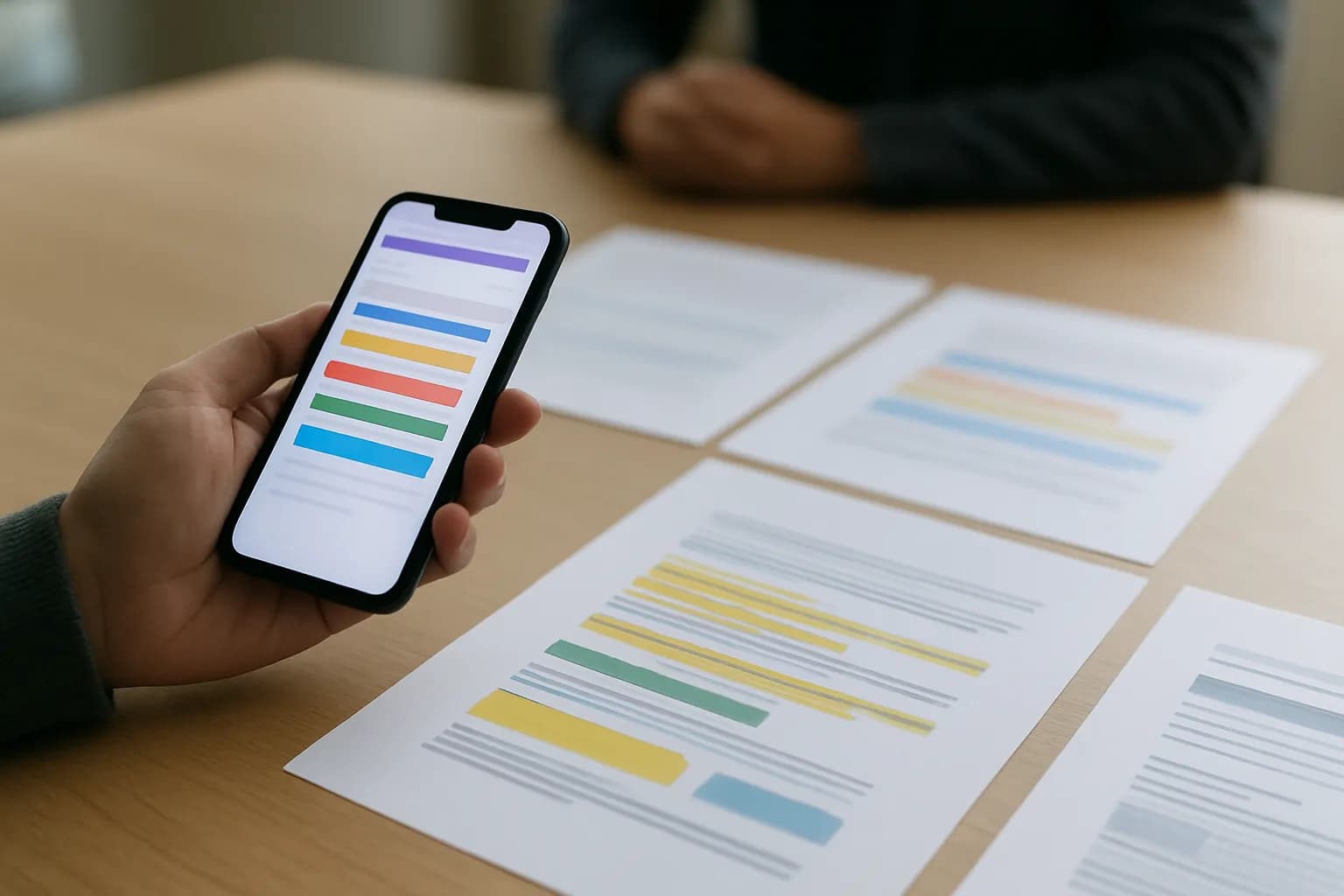
A Google Form response can supply the details for a Google Docs client proposal draft. Use a template or a no-code workflow to assemble it, but have a person confirm the scope, price and delivery commitments before sending.
A Google Form response can supply the details for a Google Docs client proposal draft. Use a template or a no-code workflow to assemble it, but have a person confirm the scope, price and delivery commitments before sending.
The form should collect requests, not approve scope
A client proposal starts with a clear record of what the client asked for, not an assumption that every request is feasible. In Google Forms, ask for the client's contact details, the problem they want solved, the work they have in mind, their preferred timing and any constraints. Use separate questions for essential work and optional ideas so the proposal does not quietly turn a wish list into a commitment.
Keep the form short enough for a client to complete accurately. Open questions are useful for context, while consistent choices can make responses easier to sort. A question about budget can help you judge fit, but the client's answer is not your quoted price. A preferred start date is not an agreed start date either.
Before collecting confidential materials, decide whether they belong in this intake process at all. If you need supporting files, collect client files without sharing your folders rather than treating access to your working folders as part of the proposal exchange. Check who can view the form responses and any linked spreadsheet, since those records may contain client details.
A Google Docs template separates facts from decisions
A Google Form response can feed a proposal template without deciding what you will deliver. Create a Google Docs document with places for the client name, their stated goal and a short summary of their request. Add distinct sections for proposed scope, exclusions, schedule, price, assumptions and next steps. Keep those decision sections visibly unfinished until someone responsible has reviewed them.
For example, a form response might say the client wants help preparing a monthly newsletter and hopes to start soon. The draft can accurately say that the client requested newsletter support. It should not silently promise a publication schedule, a start date or an amount of editing. Put a note in the draft asking the proposal owner to confirm those points instead.
Use consistent placeholder names if you plan to automate later, such as client name and requested outcome. Make them easy to recognize and hard to confuse with finished copy. A Google Docs template is enough when responses arrive occasionally: open the response, make a copy of the template and fill in the factual fields yourself. Automation is useful when repeating that copying and transfer has become the bottleneck.
A no-code workflow can create the draft document
To generate a proposal from Google Forms, connect new form responses to a document creation workflow, but stop the workflow at a private draft. Google Forms can store responses in a linked Google Sheets spreadsheet. In a no-code automation tool, use a new response row as the trigger, then pass selected answers into a step that creates a Google Docs document from a template or copied document. The available document actions differ by tool, so check that the one you choose can place answers into the right fields before building the whole workflow.
Map each form question to its matching template field. Pass the client's stated request into a section identified as their request, not into proposed scope. Leave price, deadlines and deliverables for review unless they come from an approved source that your team controls. Save the new document in a restricted working folder and give it a recognizable draft name.
Test with a sample response that includes an empty optional answer and a long answer. Check whether missing values leave awkward placeholders, whether long text stays readable and whether a repeated row could create an unwanted second draft. A successful test produces a document for review, not a message to the client.
AI can help write the proposal without setting its terms
AI can turn a Google Form response into readable proposal language, but it should not invent the offer. Give the writing assistant the client's stated goal, relevant background and your approved service information. Ask it to draft a problem summary and an explanation of how you might approach the work. Tell it to mark missing facts and avoid supplying prices, dates, deliverables or promises that you have not provided.
A useful instruction is: Draft a client-facing summary from these form answers. Treat the answers as requests, not agreed scope. Do not add commitments. Mark anything the proposal owner must decide. You can paste the resulting text into the Google Docs template, or add an AI step to the no-code workflow after you have established what data it may receive.
Review privacy before sending client information to an AI service. If the client's identity is not needed for a draft, replace identifying details with neutral placeholders. The guide to removing sensitive details before sharing with ChatGPT offers a practical preparation step. AI is optional: for a short, straightforward request, a well-written template and a human editor may be quicker and easier to check.
The review gate turns a draft into an offer
A person should approve the proposal's commitments before anyone sends it. Compare the Google Docs draft with the original form response and identify which statements describe the client's request, which describe your proposed work and which still need a decision. Confirm deliverables, boundaries, assumptions, responsibilities, timing and price using your normal business process. Remove every placeholder and unresolved note before sharing the document.
Check the language for small changes in meaning. “The client would like weekly updates” reports a preference; “we will provide weekly updates” makes a commitment. An AI draft or template can blur that difference even when every individual sentence sounds reasonable. Make the distinction explicit in your review, especially when the form contains urgent dates or broad requests.
Keep the draft private until approval. Review the document's sharing settings, then send only the version you intend the client to see. If your process requires a fixed copy after approval, making a PDF from a Google Form response is a separate task from drafting the offer. Do not let a PDF creation or email step bypass the proposal review.
Sources consulted
- Google Forms Help (support.google.com)
- Google Docs Editors Help (support.google.com)
- Zapier (zapier.com)
Frequently asked questions
Can Google Forms create a client proposal by itself?
Google Forms collects the answers that can start a proposal, but collecting answers is not the same as writing and approving an offer. You can copy responses into a Google Docs template yourself or use a no-code tool to create a draft from them. In either case, someone must confirm the terms before sending.
Do I need AI to turn a Google Form response into a proposal template?
No. A Google Docs template works well when you mainly need to transfer names, goals and other facts into a consistent layout. AI is more useful when responses are long or varied and you want help summarizing them. Its draft still needs a check against the original answers and your approved terms.
What should happen when a client leaves a form answer blank?
Treat a blank answer as missing information, not permission to guess. Keep the corresponding template field empty or add an internal note for the proposal owner. Before sending, decide whether you can state an assumption clearly or need to ask the client a follow-up question.
Should the automation email the proposal as soon as the form is submitted?
No. A submitted form records what the client wants; it does not establish what you can offer. Set the workflow to save a private Google Docs draft, then have a person confirm scope, price, timing and sharing settings. Sending can be a separate action after that approval.
Related guides
 Make a PDF Automatically From Each Google Form ResponseConnect Google Forms to a document template, fill blank answers safely, and save a PDF for each new response without code.
 Create Google Calendar Events From Google Form ResponsesConnect Google Forms to Google Calendar with a no-code automation, then check missing times, time zones and repeat submissions before sending invites.
 Auto-Post Google Docs to LinkedIn Without Writing CodeTurn an approved Google Doc into a LinkedIn post without copy-paste: Zapier triggers it, AI drafts the hook, and a duplicate guard stops double posts.
Drafted with AI assistance and checked automatically before publishing. Tools and prices change; check the official source before you act.