
Turn Gmail Emails into Notion Tasks Automatically
By Anu Verma
Build a no-code Gmail to Notion workflow that uses AI to extract tasks, set safe due dates, prevent duplicates, and route uncertain emails for review.

Use Gmail labels, an AI extraction step, and a Notion database to turn only actionable emails into tasks, while sending uncertain messages to a review queue instead of creating bad work.
Choose your Gmail-to-Notion setup
Use Zapier as the default setup: Gmail supplies the trigger, an AI step extracts the task, and Notion stores the result. Make is a reasonable alternative if you already use it (and if you run n8n, the email-to-Notion workflow with Claude builds the same thing there), but adding complexity before the basic workflow works makes troubleshooting harder.
Create a dedicated Gmail label called Notion Task. Configure the automation to start when a new email receives that label, rather than scanning every incoming message. A label gives you a manual safety switch and prevents newsletters, receipts, and conversations that do not require action from entering Notion.
The basic Zapier sequence is Gmail trigger, filter, AI extraction, Notion search, and Notion create or update. The filter should reject messages without a clear action. The AI step should return separate values for task title, description, due date, priority, and confidence. The Notion search checks whether the Gmail message was already imported.
Use the default path for a workflow you need this week. Choose Make when you need more branching, several Gmail accounts, or detailed error handling and already know its interface. Tool names and available AI actions can change, so check the current Zapier, Make, Gmail, and Notion help pages while setting up the connection.
Define a task before connecting the apps
Define one Notion database record before building the automation, because vague fields produce vague tasks. Create a database named Email Tasks with properties called Name, Description, Status, Due date, Priority, Source message ID, Sender, and Confidence.
Use Name for a short verb-led task, such as Review the revised proposal. Put the useful context and a reply link in Description. Set Status to Inbox, In progress, Waiting, or Done. Make Due date a date property, Priority a select property, and Source message ID a text property. Keep Sender as plain text so the record remains understandable outside Gmail.
The Source message ID is the field most quick tutorials omit. It gives the automation a stable identity for duplicate checking. An email subject is not stable enough because two messages can have the same subject, and a thread can contain several distinct requests.
Decide what an empty value means before mapping fields. A missing due date should remain blank, not become today. An uncertain priority should become Normal or blank, not Urgent. A missing task should stop the workflow or enter review, rather than creating a record titled Follow up.
Select actionable Gmail messages safely
Select messages with a Gmail label and a human review action first, then automate the labeled path. Search-based rules alone are too broad for a first version because words such as task, urgent, and follow up appear in messages that do not belong in your work queue.
Create a Gmail filter for obvious senders or phrases only if those rules are reliable for your inbox. Apply the Notion Task label manually to the first batch while you learn which messages deserve records. After the workflow behaves correctly, let Gmail filters apply the label to a narrow category, such as messages from a client address or a mailbox alias used for requests, or let automated email classification apply it once its labels have earned your trust.
Keep the original email available. The automation should pass the Gmail message link, sender, subject, received time, and message body into the AI step. Truncate very long threads if the integration has a field limit, but preserve the newest request and the surrounding reply that gives it context.
Avoid marking every labeled message as a task automatically. A forwarded announcement may contain an imperative sentence without assigning work to you. The AI step should be allowed to return no task, and the workflow should send that message to a review label or stop without creating a Notion page.
What the AI should extract from each email
Ask the AI to extract a task only when the email assigns or clearly requests work, and require a fixed set of fields. A practical instruction is: Read the email and identify work the recipient must do. Return task_found, title, description, due_date, priority, confidence, and reason. Return task_found as true or false. Use an ISO date only when the email gives a date that can be interpreted from the message and conversation context. Never invent a deadline.
Tell the AI to distinguish a request from a suggestion, an update, and a question that needs no action. Ask it to preserve names, amounts, and deliverables in the description, but not to copy the entire thread. Request a concise title beginning with a verb and limit it to a sentence.
Use confidence as a review signal, not as permission to guess. For example, send records with confidence below your chosen threshold to a Notion Review status instead of the normal Inbox status. A reliable automation can create fewer tasks and still be more useful than one that fills Notion with plausible but incorrect work.
AI output formats vary by integration. Map each returned field separately where possible. If the action returns one text block, add a parsing step or use a structured-output option supported by your automation tool. Test missing dates, multiple requests, forwarded mail, and ambiguous pronouns before enabling the workflow.
Map Gmail data into a Notion task
Map the AI title to Name, the extracted context to Description, and the original Gmail link to the description so every task can be checked against its source. Map Status from the AI decision, but default valid tasks to Inbox and uncertain tasks to Review.
Map Due date only when the AI returns a valid date. A date such as Friday requires a reference date and time zone, while a phrase such as soon does not provide a safe calendar value. Keep vague timing in Description, where you can decide manually. Set Priority from explicit language or a clear business rule, and leave the property blank when neither exists.
Store Source message ID even though it is not user-facing. Also store Sender and the email subject because those fields make a task easier to understand after the inbox changes. Preserve the Gmail message URL rather than relying on a copied body as the only evidence.
Notion property types must match the values sent by the automation. A date string cannot be mapped into a select property, and a priority label cannot be written to a date field. Run a test with a real labeled message, inspect the created page in Notion, and correct each property before adding automatic filters.
Stop duplicate tasks
Stop duplicates by searching Notion for the Gmail Source message ID before creating a page. The automation should create a task only when the search returns no matching ID; when a match exists, it should stop or update the existing page rather than create another one.
Duplicate creation commonly happens when a Zap is replayed after an error, when a person removes and reapplies a Gmail label, or when a thread receives a new reply. Subject matching does not solve the problem because subjects repeat and a single thread can contain different requests. A stable message identifier is the safer key.
Decide whether your key represents an individual Gmail message or an entire conversation. Individual message IDs prevent separate requests in one thread from being merged. Conversation IDs are better when you want one Notion task for a long-running thread, but they require a separate rule for updating the existing task when a new reply changes the request.
If your automation platform cannot search Notion reliably, add a simpler holding step such as a review queue and reconcile records before publishing them to your main database. Do not hide duplicates by merging pages after the fact. The workflow should make the duplicate decision before the Notion create action.
Should the automation assign a due date or leave it blank?
Leave the Notion due date blank unless the email states a deadline or provides enough context to calculate one without guessing. Automatic due dates are useful for explicit phrases such as submit by 14 June, but they turn into false commitments when the message only says soon, this week, or when you can.
Give the AI a reference date and time zone only when your automation can supply them consistently. Tell it to interpret dates using the sender's wording and to return no date when the wording is ambiguous. Do not let the model convert urgency into a calendar deadline. Put phrases such as urgent or before the meeting in the task description and set Priority according to your chosen rule.
Use a separate Needs date status for tasks with real work but no usable deadline. That status creates a small manual queue instead of silently filling your calendar. You can also route uncertain dates to a Notion Review view with the email link beside them.
Rules and available date functions can change in Gmail, Zapier, Make, and Notion. Check the current documentation for date field formats and time-zone behavior before relying on scheduled actions. The safest default is blank rather than a confidently wrong date.
When an email should become a review item
Send an email to review when the AI cannot identify one clear action, one responsible person, or one trustworthy date. Review is not a failure state. It is the control that keeps an automation from turning ambiguous language into commitments you never agreed to.
Create a Notion view filtered to Status equals Review. Include the original Gmail link, sender, subject, extracted text, confidence, and reason. A reviewer should be able to decide quickly whether to create a task, edit the title, add a date, or dismiss the message. Keep the review decision separate from the AI's initial output so you can see where judgment was required.
Route several common cases directly to review: emails with multiple unrelated requests, forwarded threads with unclear ownership, messages that mention dates without a time zone, and requests addressed to a group. A message can also be valid work but still need review if the AI has not identified which task should be the primary record.
The practical decision rule is simple: automate extraction, not accountability. Let the workflow handle repetitive copying and classification. Keep ownership, ambiguous deadlines, and multi-step project decisions visible to a person. That trade-off is usually more valuable than trying to achieve a fully unattended inbox.
Test the workflow before trusting it
Test the workflow with representative email cases and inspect every created Notion property before enabling automatic labeling. Use at least one clear request, one message with an explicit deadline, one vague request, one newsletter, one forwarded thread, and one email containing two separate actions.
Run the first tests from a dedicated Gmail label so unrelated mail cannot trigger the automation. Confirm that the Gmail message link opens, the Source message ID is stored, the title is understandable without the email body, and a missing date remains empty. Apply the label twice to one message and verify that the duplicate check prevents a second page.
Check failure behavior as deliberately as success behavior. Disconnecting an app, returning malformed AI output, finding two Notion matches, or exceeding a field limit should produce an error or review item that you can see. A silent stop is difficult to trust because you cannot tell whether a task was rejected or lost.
After launch, review the Review view and automation history regularly during the first week. Tighten the Gmail filter when irrelevant messages appear, adjust the prompt when titles lose important context, and keep a manual label available. Automate Basics can document your final rules in the workflow description so future edits do not erase the original safety assumptions.
Sources consulted
- Google Gmail Help (support.google.com)
- Zapier Help (help.zapier.com)
- Notion Help (notion.com)
- OpenAI Help Center (help.openai.com)
Frequently asked questions
Can Gmail emails become Notion tasks without writing code?
Yes. Zapier or Make can connect Gmail and Notion through visual steps. Use a Gmail label as the trigger, add an AI extraction action, map the returned fields to a Notion database, and search for the Gmail message ID before creating a page. You will still need to authorize both accounts and test the field mappings.
Can the automation set Notion due dates automatically?
A Gmail-to-Notion automation can set a due date when the email states a clear deadline, such as a specific calendar date. Leave the field blank for vague wording such as soon or this week. A review status is safer than allowing AI to invent a date from urgency or an ambiguous time zone.
How does the workflow know whether an email is actionable?
The workflow should combine a Gmail label or narrow filter with an AI decision. The AI checks whether the message assigns clear work to the recipient and returns no task for announcements, updates, or ambiguous requests. Messages that need judgment should go to a Notion Review status instead of creating a normal task.
How can I prevent the same email from creating duplicate tasks?
Store the Gmail message ID in a Notion text property and search for that value before the create step. Create a page only when no match exists. Message IDs are safer than subjects because subjects can repeat, and one Gmail conversation can contain several separate messages.
What should I do when one email contains several tasks?
Send multi-action emails to review by default, unless your automation deliberately supports creating several records. A single task title can hide missing work, while automatic splitting can create too many pages. Review the email, decide whether the actions belong together, and add separate Notion tasks when each has its own owner or deadline.
For you
Learn to do this with AI, free
Short courses for people who aren't engineers: ChatGPT, Claude, prompting and automation. Every lesson is free, with no card.
Start a free courseFor companies
Make an AI or automation tool?
List it in the directory for $9.99, refunded in full if it isn't approved, or claim its page if it is already here.
Related guides
 Route Form Leads to Your CRM Automatically, No CodeSend new form leads to your CRM with Zapier or Make, prevent duplicates, add AI qualification, and test the workflow before launch.
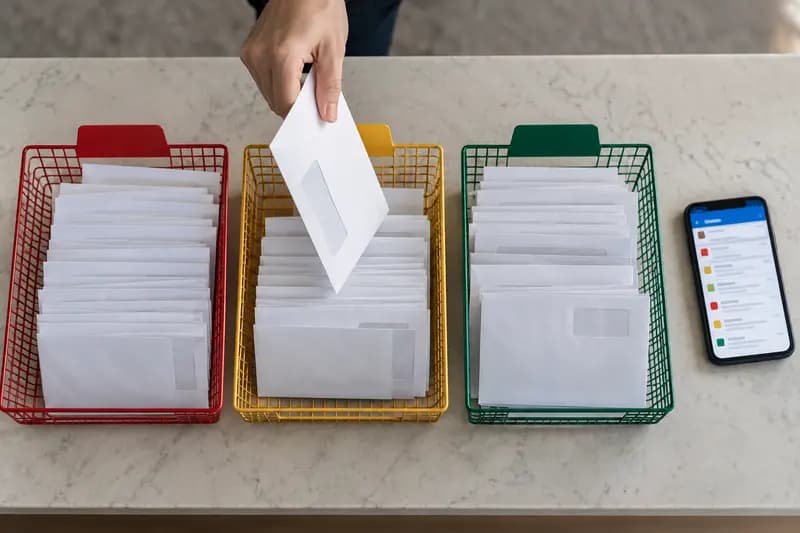 How to Automate Email Classification Without CodingUse Gmail or Outlook, an AI step, and a human review queue to sort email safely without writing code.
 Connect Claude to Google Sheets Without Writing CodeHave Claude read a Google Sheet and write results back to the right rows whenever a new entry lands, set up with Zapier and tested on a copy first.
Tools in this piece
Drafted with AI assistance from our own research and Search Console data, and reviewed by the Automate Basics team before publishing. Tools and prices change; check the linked official source before you act.
Get the next one by email
One email a week: what changed in AI for people who use it at work, and what to do about it.