
Connect Claude to Google Sheets Without Writing Code
By Anu Verma
Connect Claude to Google Sheets without code using Zapier. Set up prompts, row updates, testing, permissions, and fixes for common failures.
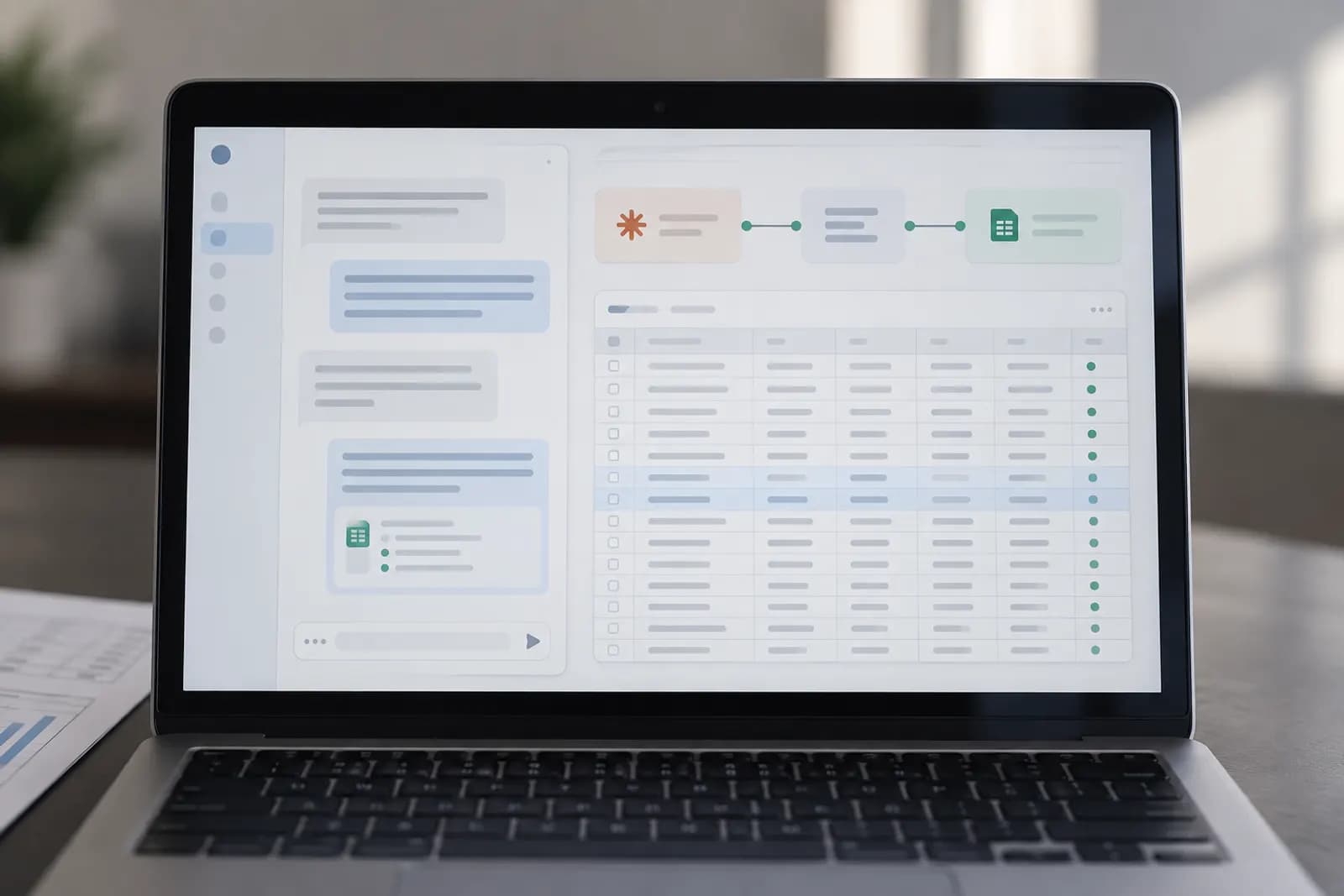
The simplest no-code setup is a Zapier workflow that sends each new record to Claude, returns specific fields, and creates or updates a row in Google Sheets.
Choose the no-code connection
Use Zapier as the default connection between Claude and Google Sheets, especially for a workflow you want running this week. Zapier provides a visual trigger-and-action workflow, so you can connect a source such as a form, Gmail, or a new spreadsheet row to an Anthropic Claude action, then send Claude’s output to Google Sheets.
Choose Make instead when you need branching, more detailed data mapping, or several steps that must run in one scenario. Choose n8n only if you already use it or have someone comfortable maintaining it, and then follow connecting Claude to n8n instead. A more flexible tool is not automatically a better first setup.
Before building anything, check that your Zapier account shows both Google Sheets and Anthropic Claude as available apps. App names, actions, plan limits, and connection requirements can change. Claude access may also depend on the Anthropic account and features available to you. If Claude is not available in your automation account, do not try to fake the connection with copied text. Use an available Claude integration or choose Make after confirming its current Anthropic support.
The default workflow in this guide is simple: a new inquiry arrives, Claude classifies it and drafts a reply, and Zapier writes the result into one Google Sheets row, much like categorising support emails automatically with AI but with a spreadsheet as the destination.
Prepare Google Sheets first
Prepare one clean header row before connecting Claude, with one column for every value you want to store. A useful inquiry sheet might contain Received at, Name, Email, Original message, Category, Urgency, Draft reply, Review status, and Record ID.
Keep headers short, unique, and stable. Do not merge cells, insert explanatory paragraphs above the headers, or use several header rows. Keep the table on one worksheet, and avoid moving columns after the Zap is live because field mappings can become confusing or fail silently.
Add a Record ID column even if the first version only creates rows. A form submission ID, order number, ticket number, or email message ID gives you a reliable way to recognise the same record later. Email addresses are useful but are not always unique, and a person can submit more than one inquiry.
Give the Google account connected to Zapier access to the file. Test with a copy of the real sheet first, not a production tracker containing sensitive information. Keep formulas in separate columns where possible. Claude should supply values such as Category or Draft reply, while Google Sheets should calculate totals, dates, or status flags.
Build the first Claude-to-Sheets workflow
Build the first workflow as one trigger, one Claude step, and one Google Sheets step. In Zapier, create a new Zap and choose the event that represents new work, such as a new form response, a new Gmail message, or a new row. Connect the source account and test the trigger so Zapier has a real sample record.
Add the Anthropic Claude action next. Map the source text into a prompt that tells Claude exactly what to return. Ask for separate values such as category, urgency, summary, and draft reply rather than one long paragraph. Use the sample data from the trigger so you can see the actual output shape.
Add Google Sheets as the final action. Choose the spreadsheet and worksheet, then map each Claude output to its matching column. Use the create-row event for a new record. Test the action and open the sheet to confirm that values landed in the intended cells.
Run the Zap manually with a harmless test inquiry before turning it on. Check the task history in Zapier, the Claude output, and the resulting row. A successful test means more than a green status. It means the complete record is readable and usable by the person who will review it.
Make Claude return fields Sheets can use
Ask Claude for a small, fixed set of fields with allowed values, and map those fields individually into Google Sheets. A practical prompt says: classify the message using only Sales, Support, Billing, or Other; choose urgency as Low, Medium, or High; write a summary under 30 words; and draft a polite reply under 100 words.
Tell Claude not to add headings, commentary, markdown, or extra categories. Include the original message between clear delimiters and state what to do when information is missing. For example, instruct Claude to use Unknown for an absent company name and Medium for urgency when the message does not provide enough evidence.
Avoid asking Claude for a large block of JSON unless your automation tool has a reliable structured-output or parsing step. A single malformed quote or extra explanation can prevent a later step from finding the fields. Separate Claude actions for classification and drafting can be easier to troubleshoot than one complex prompt, although each extra action adds another failure point.
Save the prompt text somewhere outside the Zap. When you change it, test old and unusual examples again. Prompt changes can alter the categories or writing style even when the sheet connection itself has not changed.
Should the workflow create a new row or update an existing row?
Create a new row for each genuinely new record, and update an existing row when the same record returns for another processing step. The decision depends on identity, not on whether the incoming text looks similar.
Use a unique Record ID to make the choice explicit. For a new form submission, create a row with that submission ID. For a later approval, correction, or status change, search Google Sheets for the same ID and update the matching row. In Zapier, this usually means adding a lookup step before an update step, then choosing the row returned by the lookup. Action names and exact lookup behaviour can vary by plan and app version.
Do not use the row number as your permanent identity. Rows can be sorted, deleted, or inserted. Do not rely on the customer’s name either, because names repeat. If your source does not provide an ID, create one from several stable fields or add a separate intake step that generates one.
Duplicate rows are the most common reason a useful automation becomes untrustworthy. If duplicate processing would create a real business problem, start with a create-only workflow and review the results. Add updating only after you can identify records deterministically.
Test the connection before trusting it
Test the complete path with deliberate edge cases before turning on automatic processing. Start with an ordinary record, then try a blank optional field, a very long message, unusual punctuation, two languages, and a request that does not fit any category. Confirm that Claude follows the allowed values and that every result reaches the correct column.
Inspect three places after each test: the trigger sample, the Claude action output, and the final Google Sheets row. If the row is wrong, these checkpoints tell you whether the source data, prompt, mapping, or sheet caused the problem. Zapier’s task history can also show whether a step was skipped or returned an error.
Test permissions with the account that will keep the workflow running. A personal account may see a file that a shared work account cannot access. Confirm that the worksheet name is correct and that the destination range is not protected against edits.
Keep a review column such as Review status and set new records to Needs review. Do not begin by sending Claude’s draft directly to customers or changing financial records. A human review stage gives you a safe way to spot bad classifications, prompt drift, and accidental duplicates before the workflow is trusted.
What usually breaks, and how to fix it
Most Claude-to-Sheets failures come from permissions, changed sheet structure, unexpected Claude output, or limits in the automation account. Reconnect Google Sheets and Claude when a step reports expired authorisation, then retest the exact action rather than only saving the workflow.
If new values appear in the wrong columns, refresh the fields in the Google Sheets action and remap them. This often happens after a header is renamed or a column is inserted. If rows are blank, inspect the Claude output first. The prompt may ask for a field that the source does not contain, or the action may return one combined response instead of separate fields.
If categories drift, narrow the allowed values and include examples of borderline cases. If the workflow creates duplicates, add a Record ID lookup before the create step or temporarily stop the Zap while you clean up the sheet. If long messages fail, shorten the input or add a truncation step, then preserve the original message in the sheet for review.
Treat rate limits, task quotas, and model availability as operational constraints. Rules and plan limits change, so check current documentation from Zapier and Anthropic instead of assuming a failed run means your prompt is wrong.
A useful first workflow for this week
Start with inquiry triage, because a spreadsheet gives you a visible audit trail and a person can review every Claude decision. Create columns for Record ID, received time, original message, category, urgency, summary, draft reply, and Review status.
Connect a form or shared inbox as the trigger. Send the message and its sender details to Claude with a narrow instruction: choose one category from Sales, Support, Billing, or Other; choose Low, Medium, or High urgency; write a short factual summary; and draft a reply without promising refunds, delivery dates, or other commitments. Tell Claude to mark uncertain cases for review.
Map the four outputs into a new Google Sheets row and set Review status to Needs review. A person then checks the original message beside the summary and draft, edits anything necessary, and changes the status. Keep sending the reply as a separate manual action until the classifications have proved dependable on your real messages.
Automate Basics can use this pattern as a starting point for other jobs, such as extracting invoice details or turning meeting notes into follow-up tasks. The design stays the same: define the record, constrain Claude’s output, write one row, and preserve a human decision point where mistakes would matter.
Sources consulted
- Zapier Help (help.zapier.com)
- Anthropic Documentation (docs.anthropic.com)
- Google Support (support.google.com)
Frequently asked questions
Can Claude connect directly to Google Sheets?
A no-code workflow normally connects Claude and Google Sheets through an automation service such as Zapier or Make. Availability of direct connectors, actions, account plans, and permissions can change. Check the current Anthropic and automation-platform documentation before choosing a setup.
Do I need to know how to code?
No. You can connect the apps through visual trigger and action steps, map fields, and write instructions in ordinary language. You still need to decide what counts as a record, which fields Claude should return, and when a person must review the result.
Why does Claude put the wrong information in my columns?
The prompt may return a combined paragraph, the sheet headers may have changed, or the action may be mapped to stale fields. Inspect the Claude output first, then refresh the Google Sheets fields and map each returned value to one stable header.
How do I stop duplicate rows?
Give every source record a unique Record ID and use it as the decision key. Create a row only when the ID is new. For later processing, search for that ID and update the existing row instead of using a row number, name, or email address as the identity.
Is it safe to let Claude send customer replies automatically?
Begin with drafts saved to Google Sheets and a Review status column. A person should approve messages involving refunds, legal issues, account access, sensitive information, or promises. Automate sending only after testing edge cases and confirming that the workflow handles uncertainty safely.
For you
Learn to do this with AI, free
Short courses for people who aren't engineers: ChatGPT, Claude, prompting and automation. Every lesson is free, with no card.
Start a free courseFor companies
Make an AI or automation tool?
List it in the directory for $9.99, refunded in full if it isn't approved, or claim its page if it is already here.
Related guides
 How to Automate Email Classification Without CodingUse Gmail or Outlook, an AI step, and a human review queue to sort email safely without writing code.
 Connect Claude to n8n: 3 Workflows to Try This WeekConnect Claude to n8n with three practical workflows for email triage, form requests, and meeting notes, including setup steps and safety checks.
 Make a Google Sheets Dropdown Grow With Your ListUse a dropdown from an open-ended source range so new items appear when you add them to your list, without editing the rule each time.
Tools in this piece
Drafted with AI assistance from our own research and Search Console data, and reviewed by the Automate Basics team before publishing. Tools and prices change; check the linked official source before you act.
Get the next one by email
One email a week: what changed in AI for people who use it at work, and what to do about it.