
How to Automatically Categorise Support Emails With AI
By Anu Verma
Learn how to use Gmail, Zapier and AI to label support emails, route urgent requests and handle uncertain classifications without code.
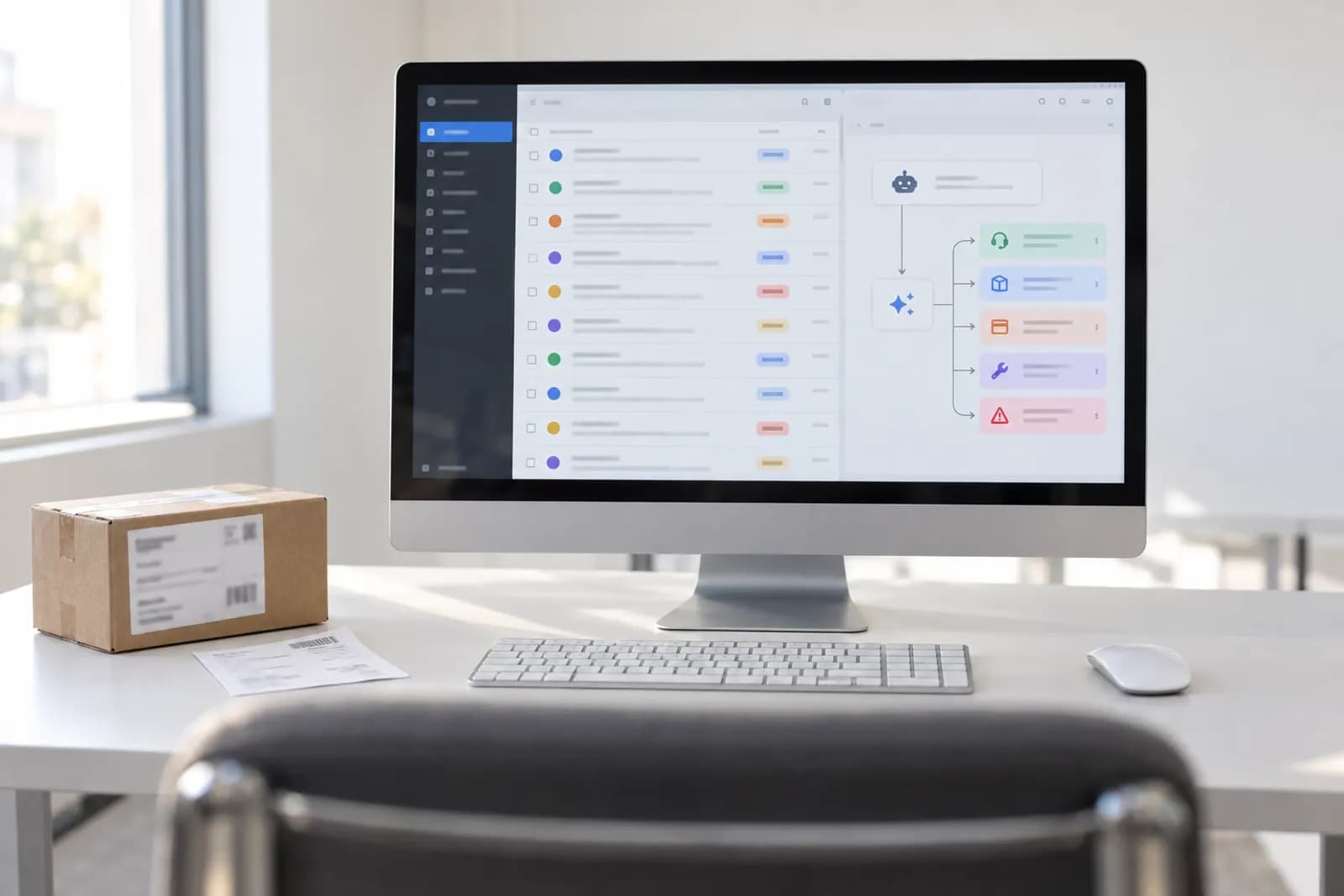
Use AI to classify each new support email into a small set of useful labels, send uncertain messages for review, and route urgent requests without writing code.
The support emails to categorise first
Start with repetitive support emails where the correct next action is easy to recognise. Good first categories include billing question, technical problem, cancellation request, feature request, account access and urgent outage. Avoid starting with vague labels such as general enquiry or unhappy customer, because those categories give the AI too much room to guess.
Choose categories based on what you do next, not only what the customer mentions. A message about a failed payment may need billing review, while a message about a failed payment blocking a business may need urgent handling. If two categories lead to the same action, combine them.
Pick a small set of labels that covers your current inbox without forcing every message into a perfect box. Include an explicit review category for messages that do not fit. The category list should be understandable to another person, because you will need to check mistakes and improve the instructions later.
Your first workflow should classify new messages only. Keep replies, refunds, account changes and deletions manual until the labels have earned your trust. Categorisation is a safe first job because a wrong label is usually recoverable, while an incorrect customer-facing action may not be.
Define categories AI can apply consistently
Write each category as a decision rule with examples and an exclusion, rather than as a single word, the same format automating email classification without coding uses for any inbox. For example, define Billing as a question about charges, invoices or payment status, but exclude requests to cancel a subscription unless the main request is about a charge already made.
Create a short reference table in a Google Doc or spreadsheet with four columns: label, use when, do not use when and example phrases. Add real, anonymised messages from your inbox. Include messages that look similar but belong in different categories, such as a refund request and a cancellation request.
Tell the AI to choose one primary label, preserve the email's original subject, and return a review label when the evidence is weak or multiple labels fit. Do not ask for a long explanation in the automation. A short reason can help during testing, but storing unnecessary customer content creates more material to inspect.
Test the rules against a batch of old messages before connecting new mail. Correct the category definitions when the same mistake appears more than once. The useful question is not whether the AI understands every email. The useful question is whether the labels produce the right next step often enough to save you time.
The best no-code starting point
Use Zapier with Gmail and an AI provider as the default starting point if you want the shortest setup and a visual workflow. Use Microsoft Outlook with Power Automate if your business already runs in Microsoft 365. Use Make when you need more branching, or n8n when you want greater control and are comfortable managing a more involved setup; the n8n tutorial for auto-categorising support emails walks through that build.
A basic Zapier workflow can watch for a new Gmail message, send the subject and body to an AI step, then apply a Gmail label based on the returned category. You can add a filter so only messages sent to your support address are processed. Keep attachments out of the first version unless attachment contents are essential to classification.
Check the current plan limits, app permissions, AI model options and data-handling terms before choosing a tool. Interfaces and available actions change, so follow the current help documentation for the service you use. Do not choose a platform because it has the most integrations. Choose the one you can inspect when a message is labelled incorrectly.
The default workflow should be one trigger, one classification step and one label action. Extra branches can wait until the basic path works reliably.
Build the first categorisation workflow
Build the first workflow as Gmail trigger, AI classification, validation, then label. In Zapier, create a Zap with a Gmail trigger for a new email matching your support address. Add an AI action using the provider available in your account, then map the email subject and body into the prompt. Add your category definitions and examples directly in the instructions.
Require the AI step to return one exact label from your approved list, plus a confidence value or review flag. Add a filter that continues only when the returned label exactly matches an approved label. If the output is misspelled, empty or contains extra prose, send the message to review instead of trying to repair it automatically.
Create Gmail labels with the same names as your approved categories. Add a final action that applies the matching label and, if useful, marks the message as read or forwards a notification to you. Leave the original email in the inbox during testing so you can compare the label with the full message.
Run the workflow on test messages before turning it on for live mail. Check the task history after each test. A successful automation is not just one that runs. It must also show you exactly what the AI received, returned and changed.
What the AI should see, and what it should ignore
Send the AI only the information needed to identify the support category: the sender's message, subject, and selected metadata such as whether the sender is already a customer. Exclude signatures, long quoted threads, unrelated internal notes and full attachment contents from the first version.
Quoted history is a common source of wrong labels. A customer may have started with a login problem and later asked for a refund, while the oldest text still contains the original issue. Instruct the workflow to classify the newest customer request, not the oldest topic in the thread. If removing quoted text is difficult, tell the AI explicitly that the newest request takes priority and test threaded messages separately.
Redact secrets and unnecessary personal information before sending content to an AI service. Never include passwords, payment card numbers, authentication codes or private internal notes. Use the data controls and retention information provided by your email automation and AI vendors.
Keep the prompt short enough to audit. A clear category definition, a few contrasting examples and a strict output format usually beat a long instruction full of general advice. The workflow should make its decision from the current email, not from assumptions about the customer.
Handle uncertain or wrong classifications
Make uncertainty a normal outcome by giving the AI a review label that stops automatic routing. A workflow that always chooses a category hides uncertainty and turns edge cases into silent errors. The review label should send the message to a queue you check, such as a Gmail label, a Slack notification or a task in your existing support process.
Do not trust a confidence number by itself. AI-generated confidence can sound precise without being calibrated to your inbox. Treat confidence as a signal, then inspect whether the message matched a clear rule. A practical gate is to auto-label only when the output is an approved category and the message contains evidence that fits that category. Everything else goes to review.
Keep a small correction log with the original category, the correct category and the reason for the mistake. Common fixes include separating cancellation from refund, separating login trouble from account closure and adding a category for messages that contain several requests.
Review the log regularly rather than changing the prompt after every single mistake. If one category keeps absorbing unrelated emails, split or rewrite it. If two labels repeatedly lead to the same human action, merge them. Better category design usually improves results more than adding a fancier model.
Let urgent emails bypass ordinary labels
Urgent messages need a separate detection rule that runs alongside normal categorisation, not a category buried inside a long list. Look for clear operational signals such as a service being unavailable, many users being affected, a security concern or a time-critical account problem. Treat the result as a routing signal, not proof that an incident exists.
Create an Urgent Review label and notify a human when the AI detects one of those signals. Keep the original message visible and include the reason for the alert. Do not let the workflow close the message, promise a response time or announce an outage automatically. False alarms cost attention, but missed urgent messages can cost much more, so the escalation path should favour human review.
Use separate instructions for urgency and topic. A message can be both Billing and Urgent Review, or Technical Problem and Urgent Review. Storing only one label may lose useful information. Gmail labels support multiple labels, while other tools may need a separate field or notification branch.
Test urgency with indirect language, not only obvious phrases. Customers may describe a serious problem without using words such as outage or emergency. Include those cases in your test set and revisit the rule when your business or support hours change.
When should AI classify only, and when should it take action?
Let AI classify emails before you let it change customer records, send replies or trigger financial actions. Classification is appropriate when a wrong result can be corrected by moving a label or reviewing a queue. Action is appropriate only after the category has a clear, tested consequence and a human can undo the result.
For example, a Feature Request label can safely route a message to a review folder. A Refund Request label should not issue a refund automatically, because the email may lack eligibility details or may be asking about a previous charge. A Cancellation label should not cancel an account unless a separate process confirms identity and approval.
A useful boundary is to automate movement, not judgement. Let the workflow label the email, notify the right person and create a review queue. Keep decisions involving money, access, legal commitments, security or permanent deletion with a person. If you eventually automate a response, use an approved template with a human approval step first.
Measure success through corrections and missed urgent messages, not the number of emails processed. A workflow that handles fewer emails but keeps sensitive decisions visible is better than one that quietly acts on every message. Automate Basics can help you document that boundary before you build more branches.
Sources consulted
- Google (support.google.com)
- Zapier (help.zapier.com)
- OpenAI (help.openai.com)
- Microsoft (support.microsoft.com)
Frequently asked questions
Can AI automatically reply to support emails too?
AI can automatically reply to support emails, but classification should come first. Start by labelling messages and routing them to a person. Later, you can draft replies for simple categories using approved information and human approval. Avoid automatic replies for refunds, cancellations, security concerns, complaints or any request where the customer’s identity or eligibility matters.
Do I need to write code to categorise support emails with AI?
You don’t need to write code for a basic workflow. Zapier, Make and similar tools can connect Gmail or Outlook to an AI step, then apply a label or send a notification. You still need to define categories, write examples, test real messages and decide what happens when the AI is uncertain.
Can AI categorise emails in Gmail and Outlook?
AI can categorise messages in both Gmail and Outlook when your automation tool supports the required trigger and label or folder action. Gmail commonly uses labels, while Outlook commonly uses folders or categories. Check your chosen tool’s current documentation because available actions, permissions and plan requirements can change.
How many categories should I create?
Start with the smallest category set that changes what you do next. For many small support inboxes, that means a few operational topics plus Urgent Review and Needs Review. Add a category only when messages consistently require a different action. Combining labels with identical workflows is usually better than creating finer distinctions.
What happens when AI cannot decide between two categories?
Send the message to Needs Review instead of forcing a choice. The workflow should accept only exact approved labels and route blank, misspelled or conflicting outputs to a human queue. Record the correction and update the category definitions when the same ambiguity appears repeatedly. Uncertainty is safer when it is visible.
For you
Learn to do this with AI, free
Short courses for people who aren't engineers: ChatGPT, Claude, prompting and automation. Every lesson is free, with no card.
Start a free courseFor companies
Make an AI or automation tool?
List it in the directory for $9.99, refunded in full if it isn't approved, or claim its page if it is already here.
Related guides
 How to Automate Emails With Attachments Using AIEmail each person the right file from a spreadsheet row, using Gmail or Outlook with Zapier, Make or n8n, and a check that stops the wrong attachment.
 How to Auto-Categorize Support Emails with AI (n8n Tutorial)Every support email sorted, labelled and prioritised before you open your inbox: an n8n workflow where Claude classifies each one and drafts a reply.
 Automatically Email New Files in a Folder for Your TeamUse a new-file trigger, Gmail action, and a processed-folder rule to email your team without code. Compare attachments, links, and duplicate controls.
Tools in this piece
Drafted with AI assistance from our own research and Search Console data, and reviewed by the Automate Basics team before publishing. Tools and prices change; check the linked official source before you act.
Get the next one by email
One email a week: what changed in AI for people who use it at work, and what to do about it.