
Automatically Email New Files in a Folder for Your Team
By Anu Verma
Use a new-file trigger, Gmail action, and a processed-folder rule to email your team without code. Compare attachments, links, and duplicate controls.
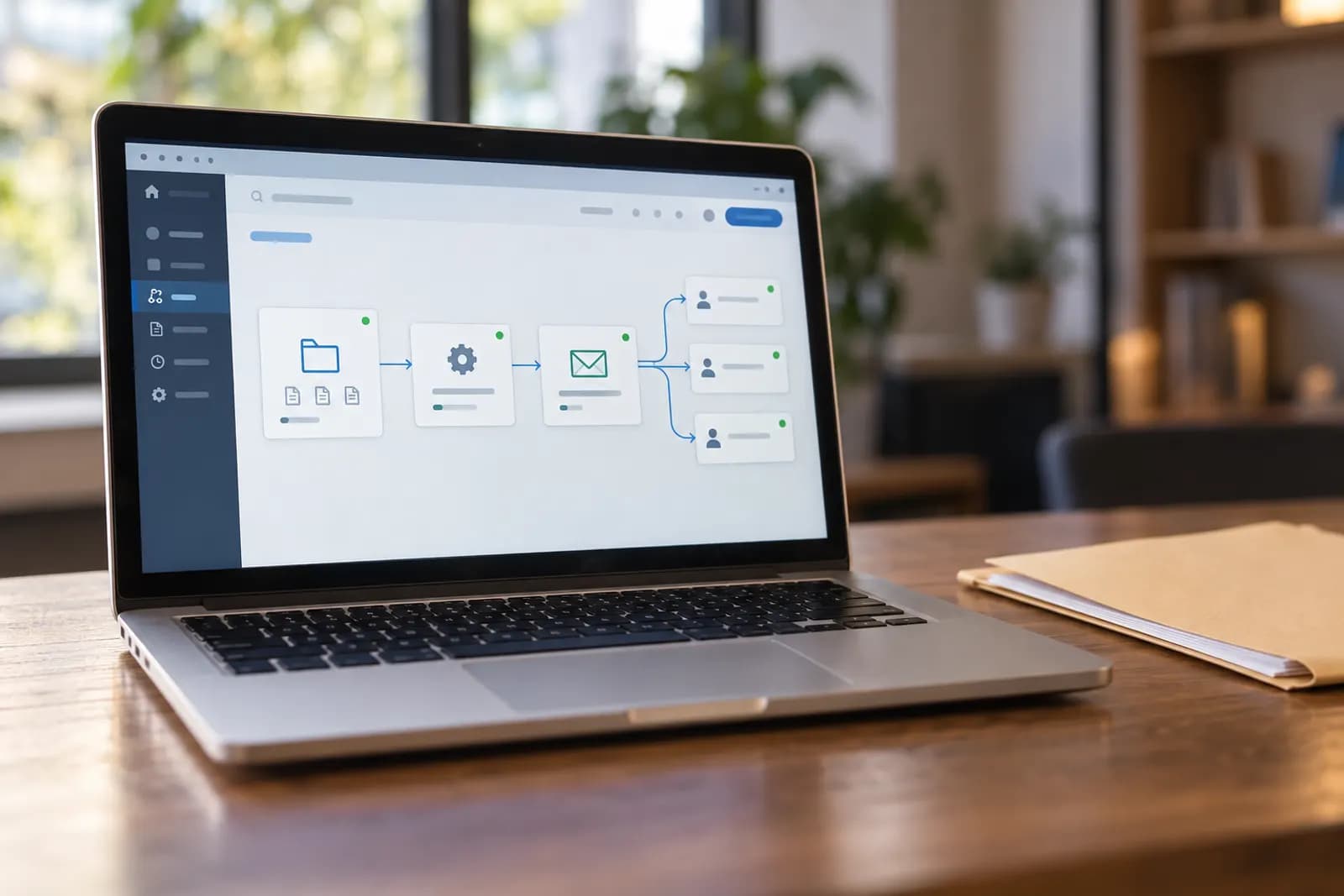
Use a folder trigger and an email action to send each new file to your team, with a processed-folder rule to prevent repeat messages and permission errors.
The simplest way to email new files
The simplest setup is a new-file trigger in Google Drive followed by a Gmail message to your team. Zapier can connect those steps without code, so the workflow is: someone adds a file to a chosen folder, Zapier detects it, and Gmail sends a message containing the file or its link.
Use one dedicated folder such as Team Inbox rather than watching a broad shared drive. A narrow folder makes the automation easier to test and reduces accidental emails caused by unrelated documents. Give the folder a clear purpose, such as files ready for review, invoices ready for accounting, or designs ready for approval. If those files first arrive as email attachments, saving email attachments to a folder automatically can fill this folder for you.
AI is not required for the basic job. A normal trigger-and-action automation is more predictable and easier to troubleshoot. Add AI only when you need a judgment step, such as reading a document and choosing which team should receive it. For a first version, use Google Drive, Zapier, and Gmail. Build the reliable file handoff before adding classification, summaries, or generated email text.
Set up the folder-to-email workflow
A no-code setup needs a Google Drive new-file trigger, a Gmail send-email action, and a test file. In Zapier, create a Zap and choose Google Drive as the trigger app. Select the event for a new file in a folder, connect the Google account that owns or can access the folder, and choose the specific folder.
Next, choose Gmail as the action app and select the event for sending an email. Put your team address in the recipient field, add a subject such as New file ready for review, and map the Google Drive file name and file link into the message. If Zapier offers a file or attachment field, test it with a small sample before relying on attachments.
Run the trigger test with a file that is safe to share. Then send a test email and confirm the recipient, subject, file name, link, and access permissions. Turn the workflow on only after the test passes. Google Drive and Zapier change their available fields and event names, so check their current help documentation if your screen differs.
Should the email contain an attachment or a file link?
A file link is the safer default for team workflows, while an attachment is better when recipients must receive a standalone copy. Links avoid large-message limits, reduce duplicate copies, and keep everyone looking at the current document. Attachments are more convenient for a small file that someone must download or forward outside the shared drive. When each email must carry a different file for a different recipient, driven from a spreadsheet row, automating emails with attachments is the better fit.
A link does not automatically grant access. The recipient still needs permission to open the Google Drive file, and a person outside your organisation may see an access request instead. Test the message using the least-privileged account that a real recipient will use, not only the account that created the automation.
Attachments have their own failure modes. A connector may send a link when you expected a binary attachment, or the email provider may reject a large file. Put the file name and link in the email body even when you attach the file. That fallback makes the message useful if the attachment is stripped, blocked, or unavailable. Decide the delivery method based on access needs, not just convenience.
Stop duplicate emails for the same file
A processed-folder design is the clearest way to prevent duplicate emails: trigger from an Incoming folder, send the message, then move the file to an Emailed folder after the email succeeds. The trigger should watch only Incoming, so a later move does not create another notification.
Avoid using a file-updated trigger for this workflow unless you want an email every time someone edits the document. Many file services update metadata, previews, or permissions after upload, and an update-based rule can create messages that look like duplicates. A new-file event matches the business question more closely.
Test the failure path, not only the successful path. If the email action fails after the file is created, check whether the automation retries the action or leaves the file in Incoming. A retry can be useful, but a partially completed move can make the file look processed when no message arrived. Keep the file in Incoming until the email action reports success, and use the automation history to investigate any repeat send before deleting or moving records manually.
Who gets the notification, and what it says
Send the notification to a team address or distribution group when the whole team needs the same alert. A shared recipient is more durable than naming one employee who may be away, leave the company, or change responsibilities. Use individual recipients only when the folder has a genuinely private owner.
The email should state what arrived, where it came from, and what happens next. A practical subject is New file ready for review: followed by the file name. The body can include the file name, uploader if the connector provides it, creation time if available, the Drive link, and one sentence explaining the required action. Keep generated wording out of the first version.
Do not put confidential information into the subject line if the team uses email previews or mobile notifications. Also decide whether replies should go to a person, a shared mailbox, or nobody. A notification that invites replies to an unattended automation account creates a second workflow problem. Make ownership explicit in the message, especially when a file requires approval rather than simple awareness.
Handle several files arriving together
Choose one email per file when each document needs a separate owner or prompt action, and choose a digest when a batch should be reviewed together. One-file-per-email is easier to build and gives each file a clear audit trail, but a busy folder can overwhelm recipients. A digest reduces noise but needs a waiting period and a list-building step.
Start with one email per file unless your team already knows that batches are common. The basic trigger can send a message as soon as each file arrives. If uploads happen in groups, add a delay or scheduled digest only after confirming the direct workflow is reliable. A digest should include every file name, its link, and the number of files included, rather than attaching an ambiguous bundle.
Partial batches are the main gotcha. A sender may upload five files, but the automation can run while the first file is still being uploaded or before the final file appears. Use a naming convention such as a final marker, or have people upload into a staging folder and move completed files into Incoming. The move then becomes the signal that the file is ready.
What changes with OneDrive or SharePoint
Microsoft teams should usually build the same pattern with OneDrive or SharePoint and Power Automate: a new-file trigger, an email action, and a post-send handling rule. The Power Automate flow that files Outlook attachments into SharePoint and posts a note in Teams uses the same trigger, save and notify shape. The names differ from Google Drive, but the design remains the same. Select the precise library or folder, map the file name and link, and test permissions with a normal recipient account.
SharePoint adds an important choice between a personal OneDrive location and a team document library. Use the team library when the file belongs to the organisation and must remain available if one employee changes role. Use personal OneDrive only when the workflow is intentionally owned by that person. Confirm that the generated link points to the intended location before switching the flow on.
Do not mix storage assumptions in the message. A Google Drive link cannot solve a SharePoint permission problem, and an attachment may hide the fact that the source document is inaccessible. Microsoft changes connector behavior and available triggers over time, so check current Power Automate and SharePoint guidance when a field or trigger is missing. The folder lifecycle and duplicate controls still matter on either platform.
Choose the automation tool
Use Zapier for the quickest no-code version, Make when you need more branching, or n8n when your team is comfortable operating a more configurable workflow. All three can represent the same basic logic, but the best choice depends on how much control you need after the first email works.
Zapier is the default for a solo founder or office worker who wants a short trigger-and-action workflow. Make becomes useful when one new file must be routed differently based on folder, name, or other fields. n8n suits a team that wants deeper control over steps and data handling, but its configuration deserves more attention than a two-step Zap.
Tool choice should come after the workflow decision. Write down the trigger folder, recipient, delivery method, success action, and failure action before opening an account. Automate Basics teaches practical AI to working professionals who are not engineers, including courses on ChatGPT, Claude, Gemini, and Copilot. Its free-to-read lessons can help with the wider automation skills, but a reliable folder workflow still depends on correctly configuring the storage and email connectors.
Test it before your team relies on it
Test with a harmless file and a real recipient account before turning on automatic delivery. Confirm that the trigger notices only files added to the intended folder, that the email contains the expected file name and link, and that the recipient can open the file without requesting unexpected access.
Run four small checks. Add one new file and verify one email. Edit that file and confirm whether an edit should or should not create another email. Add a file to a nearby folder and confirm that no email arrives. Finally, make the email action fail deliberately if your tool allows a safe test, then inspect whether the file remains in Incoming and whether the run history explains the failure.
Record the final folder names, recipient group, link-versus-attachment choice, and duplicate rule in a short internal note. A workflow often breaks when someone renames a folder, changes sharing, or replaces a distribution address. Check the automation history before rebuilding anything. The history usually reveals whether the trigger, file access, email action, or post-send move caused the problem.
Sources consulted
- Google Drive Help (support.google.com)
- Zapier Help (help.zapier.com)
- Microsoft Support (support.microsoft.com)
- n8n Documentation (docs.n8n.io)
Frequently asked questions
Will the email include the new file automatically?
The email can include the new file as an attachment or a link, depending on the fields supported by your automation tool and the file service. A link is usually safer for shared documents. Test both the email and recipient access, because a successful send does not prove that every recipient can open the file.
Can I do this without writing code?
Yes. Zapier, Make, and Power Automate can connect a new-file trigger to an email action through visual setup screens. You still need to choose the correct folder, recipient, access method, and duplicate rule. No-code removes programming, but it does not remove the need to test permissions and failure handling.
Why am I receiving more than one email for a file?
Duplicate emails usually come from an update trigger, repeated retries, or a workflow that moves a file back into its watched folder. Use a new-file trigger, keep an Incoming folder separate from an Emailed folder, and inspect the run history. Check whether the email succeeded before a retry or file move occurred.
Can Automate Basics help me learn this workflow?
Automate Basics teaches practical AI to working professionals who are not engineers. Every course is free to read, with the first lesson available without an account and the rest requiring a free account. Its courses cover ChatGPT, Claude, Gemini, and Copilot, alongside assessed automation and delegation certifications.
Should I use AI to decide who receives each file?
Use ordinary folder rules when the destination is predictable. Add AI only when the file contents or name require interpretation, such as routing a request to a department. AI can misclassify documents, so keep a review path, log the decision, and avoid giving an automated classifier permission to send sensitive files without oversight.
For you
Learn to do this with AI, free
Short courses for people who aren't engineers: ChatGPT, Claude, prompting and automation. Every lesson is free, with no card.
Start a free courseFor companies
Make an AI or automation tool?
List it in the directory for $9.99, refunded in full if it isn't approved, or claim its page if it is already here.
Related guides
 Automatically Save Email Attachments to a FolderUse Zapier, Gmail, Google Drive, or Outlook to save email attachments automatically, avoid duplicates, and handle risky files safely.
 How to Automate Email Classification Without CodingUse Gmail or Outlook, an AI step, and a human review queue to sort email safely without writing code.
 Auto-File Email Attachments to SharePoint and Notify the Team (Power Automate)Build a Power Automate flow that files every Outlook attachment into the right SharePoint folder and posts a note in Teams, with no code.
Tools in this piece
Drafted with AI assistance from our own research and Search Console data, and reviewed by the Automate Basics team before publishing. Tools and prices change; check the linked official source before you act.
Get the next one by email
One email a week: what changed in AI for people who use it at work, and what to do about it.