
Auto-File Email Attachments to SharePoint and Notify the Team (Power Automate)
By Anu Verma
Power Automate can watch your Outlook inbox and, whenever an email with an attachment arrives, save the file straight to a SharePoint folder and ping your team in Teams. You pick a trigger and a couple of actions from a list, no code, and a small task that quietly burns an hour a week runs itself from then on.
The task worth killing
Every attachment that needs filing is a tiny interruption: open the mail, download the file, hunt for the right folder, drag it in, maybe ping a colleague. None of it is hard, which is exactly why it's so easy to skip when you're busy, and then a signed contract sits in someone's inbox instead of the shared library. Automating it kills both the hour a week and the human "I forgot."
Trigger, save, notify
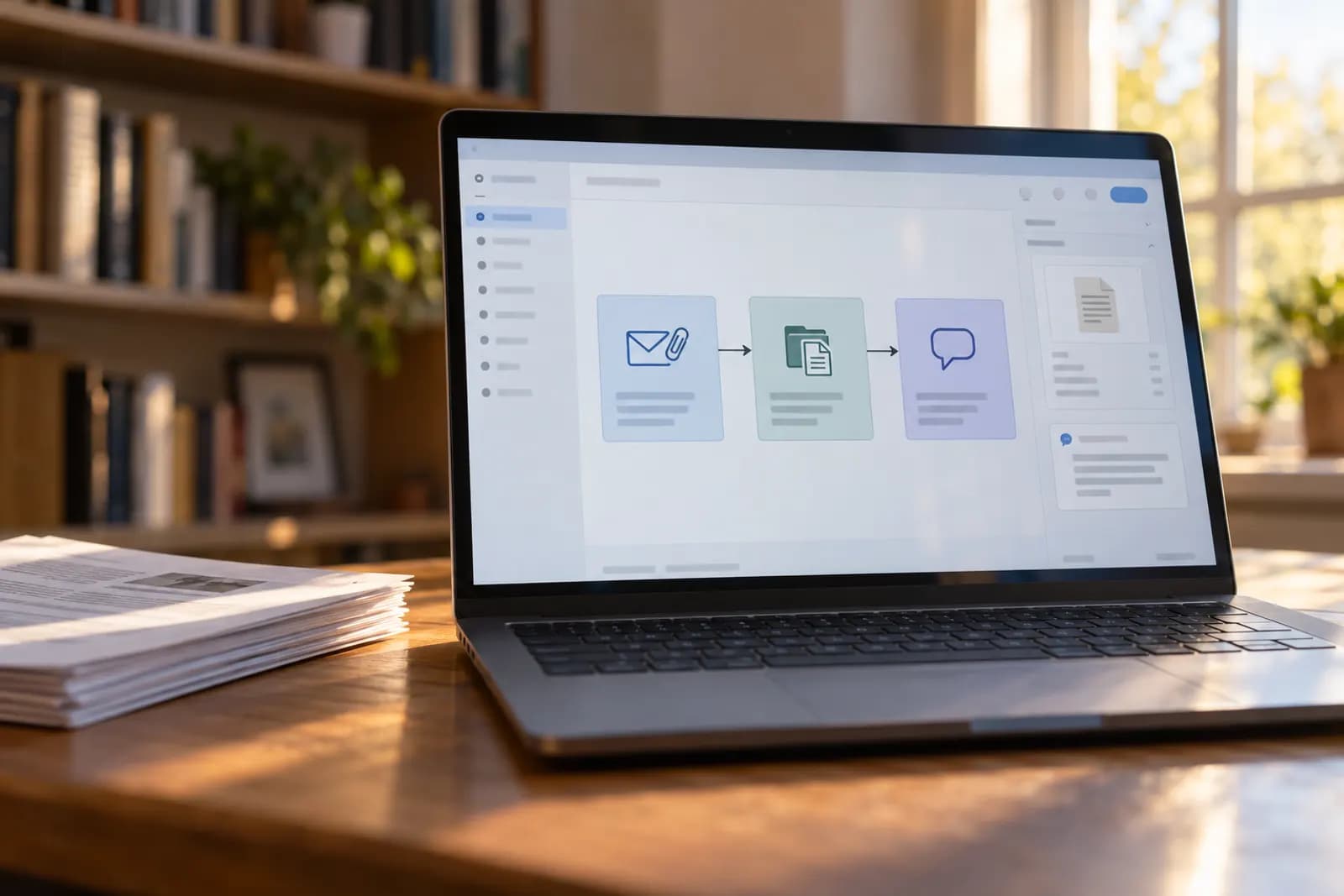
Almost every "file it and tell people" automation is the same three moves, and once you see them you can build a hundred variations. A trigger (a new email arrives), a save (drop the attachment into shared storage), and a notify (post a note to the team). That's the whole skeleton. Learn it once in Power Automate and you own the pattern for invoices, contracts, receipts, anything that lands as a file.
Why Power Automate fits
Power Automate is Microsoft's automation tool, and it shines when your world is already Microsoft. It reads your Outlook inbox, writes to SharePoint, and pings Teams using the same sign-ins your IT team already manages, all inside your company tenant with nothing to install. You build flows by picking a trigger and actions from a list and filling in fields, no scripting. For an Outlook-to-SharePoint job, it's the path of least resistance. If your mail is in Gmail, or the files belong in Google Drive or a personal OneDrive, saving email attachments to a folder automatically covers those routes.
Set the trigger
In Power Automate, create an Automated cloud flow and choose the Outlook trigger "When a new email arrives (V3)." In its options, set Has Attachment: Yes and Include Attachments: Yes, so the flow wakes only for mail that carries a file and actually hands you that file. You can also filter by folder or sender here, so it fires on the right messages and stays quiet on the rest.
Save it to SharePoint
Add the SharePoint action "Create file." Point it at your site and document library, then fill two fields by clicking the dynamic content tokens from the trigger:
- File Name → the
Attachments Nametoken - File Content → the
Attachments Contenttoken
The moment you use an attachment token, Power Automate automatically wraps this step in an "Apply to each" loop, so a five-attachment email files all five with zero extra wiring.
Tell the team
A filed document nobody knows about is only half useful. Add "Post message in a chat or channel" (Teams) and write a line, clicking tokens in for the details:
New file filed: [Attachments Name] from [From]
saved to the Contracts library.
Now the team sees what landed without anyone refreshing a folder. This is the step that turns silent automation into something people actually feel: the file shows up and the channel says so. If your team lives in email rather than Teams, send the notice by email instead: emailing new files in a folder to your team shows that flow, and automating emails with attachments covers sending the file itself.
Test before you trust
Don't flip it on and walk away on faith. Hit Test in Power Automate, then send yourself a real email with an attachment. Watch the file appear in the SharePoint library and the note hit your Teams channel. Once you've seen it fire correctly end to end, leave it on and forget it. That is the exact moment a recurring chore quietly becomes infrastructure.
Own it in n8n instead
If you're not all-Microsoft, or you want to hold the credentials and save files to Google Drive, S3, or a plain folder, build the same flow in n8n: an email trigger, a filter for attachments, a save-file node pointed at your storage, and a Slack or Teams notify node. n8n treats attachments as a list and loops automatically too. Same three-step shape; you just trade in-tenant convenience for control over where it all runs.
Build your first version now
Open Power Automate, create an automated flow on the Outlook arrival trigger, and add one Create file step into a single SharePoint folder, skip the routing and extras for v1. Send yourself a test attachment and confirm it lands. Get that one path working and you have the skeleton for every routing rule, audit log, and approval step you'll want to add later.
Try this now
Create the SharePoint folder structure first and file one attachment into it by hand, so you know exactly what the flow should do. Then build the flow to copy what you just did.
Frequently asked questions
Is this really no-code?
Yes. In Power Automate you pick a trigger and actions from a list and fill in fields, choose the inbox, point at the SharePoint folder, write the message. The only "code" is clicking a token like "Attachments Name" to drop it into a box. No scripting required to get the core flow running.
What if an email has several attachments?
The flow loops. Power Automate wraps the save step in an "Apply to each" over the attachments list automatically, so a three-attachment email files all three. You set the Create file step up once and the loop is handled for you.
Can it file attachments into different folders based on the sender?
Yes. Add a Condition that checks the sender or subject and route the file to the matching SharePoint folder, invoices from finance to one place, contracts from legal to another. Start with a single folder to prove the flow works, then add the routing once you trust it.
When would I use n8n instead?
When you are not all-Microsoft, or you want to own the workflow and credentials and save files anywhere, Drive, S3, a plain folder. Power Automate is the easy in-tenant path if your stack is Microsoft 365; n8n is the path when you want control over where things run and live. Same three-step shape either way.
For you
Learn to do this with AI, free
Short courses for people who aren't engineers: ChatGPT, Claude, prompting and automation. Every lesson is free, with no card.
Start a free courseFor companies
Make an AI or automation tool?
List it in the directory for $9.99, refunded in full if it isn't approved, or claim its page if it is already here.
Related guides
 Build a Power Automate Approval Flow Without CodeRoute a request to the right approver, capture the answer and act on it automatically: a Power Automate approval flow built in about 30 minutes.
 Automatically Email New Files in a Folder for Your TeamUse a new-file trigger, Gmail action, and a processed-folder rule to email your team without code. Compare attachments, links, and duplicate controls.
 6 Best Activepieces Alternatives in 2026Six Activepieces alternatives compared on licence, self-hosting, what they bill for and price, with where each one falls short.
Tools in this piece
Get the next one by email
One email a week: what changed in AI for people who use it at work, and what to do about it.