
Route Form Leads to Your CRM Automatically, No Code
By Anu Verma
Send new form leads to your CRM with Zapier or Make, prevent duplicates, add AI qualification, and test the workflow before launch.
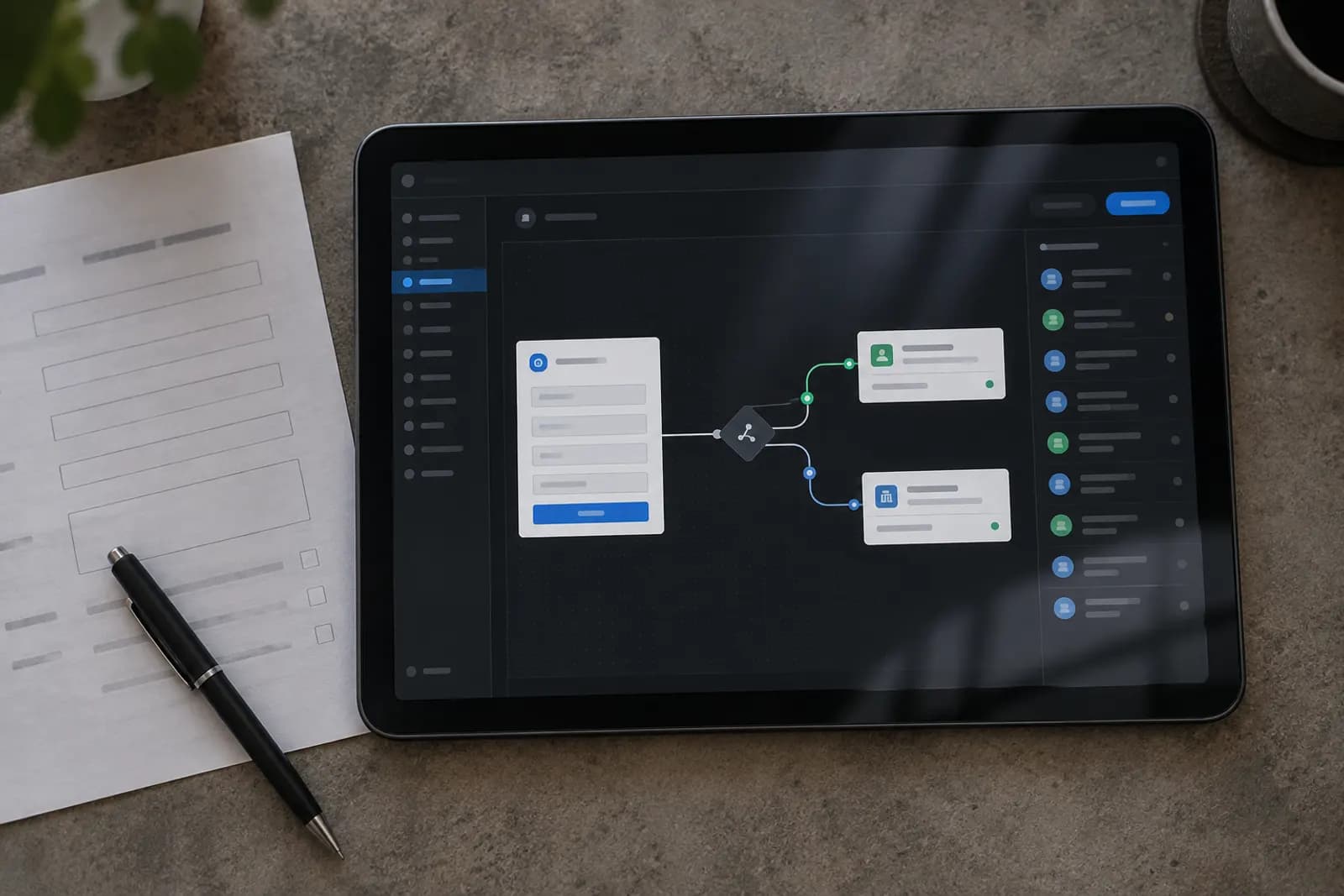
Use Zapier or Make to send each new form submission to your CRM, then add AI only for tasks such as lead qualification, routing, and summaries.
Connect the form and CRM you already use
Start with the form and CRM you already use, then choose Zapier as the default connector unless your tools lack a suitable integration. Replacing working software creates more failure points than it removes.
For a straightforward setup, use a form such as Tally, Typeform, or Google Forms and a CRM such as HubSpot, Pipedrive, or Salesforce. Zapier usually presents the workflow as a trigger followed by one or more actions. Make offers a visual scenario with more control over branching, while n8n suits people who need self-hosting or more technical flexibility.
Check the connector before building anything. Search for your exact form and CRM in the automation platform, then confirm that the trigger is a new submission and the CRM action can create or update a contact, lead, deal, or company. Some connectors expose only part of a product's API. For example, a form may send responses to a spreadsheet first rather than directly to the CRM.
Your default should be one form, one CRM record, and one notification. Add AI after that path works reliably. AI cannot repair a missing field, a disconnected account, or a workflow that creates the wrong record type.
Map form answers to the right CRM fields
Map each form answer to a specific CRM field before adding any automation logic. A lead should arrive with an identifiable name, contact method, source, and useful context, not as one long block of unstructured text.
Create a small field map on paper first. Send the form's email answer to the CRM email field, the company answer to the company field, the phone answer to the phone field, and the free-text request to a notes or inquiry field. Map the form's hidden source or campaign value to the CRM's lead-source field. Keep the original submission timestamp if the connector provides it.
Match field types carefully. A dropdown value such as “Existing customer” may not match a CRM option called “Customer.” A date field can reject ordinary text, and a multi-select answer may arrive as a comma-separated string. Use a formatter step in Zapier or Make when a value needs cleaning.
Do not map every question automatically. Internal notes, consent status, and sales ownership deserve deliberate destinations. A useful rule is that every CRM field should answer a sales question. If nobody will use the field, leave it out.
Should the workflow create a contact, lead, or deal?
Create or update a contact first, and create a deal only when the form shows genuine buying intent. Treating every download, enquiry, or general question as a sales opportunity makes the CRM noisy and weakens your pipeline reports.
Use a contact for the person and a company record when the submission identifies an organisation. Use a lead object when your CRM supports a separate qualification stage. Create a deal when the person asks for a quote, requests a sales call, or submits a project brief with enough detail to begin a commercial conversation.
Build the automation in two passes. The first action finds the contact by email and creates one if no match exists. The next action updates the contact with the latest form answers. A conditional path can then create a deal only if an intent field equals a value such as “Request a quote.” In Zapier, use Find or Create Contact and a Filter. In Make, use a search module followed by a router and filter.
Avoid creating a new deal for every follow-up form. Store the new submission as an activity or note unless the answer represents a new opportunity. The correct CRM object is a business decision, not a technical detail.
Stop duplicate leads entering the CRM
Use the submitter's email address as the first deduplication key, then update the existing contact instead of creating another one. Duplicate prevention is the step most quick-start tutorials leave out, and it is the main reason a simple form workflow becomes untrustworthy.
Configure the workflow to search the CRM before its create action. Normalize the email first by removing accidental spaces and converting it to lowercase if your automation tool supports text transformations. If the form allows a blank email, do not guess an identity from a name alone. Send the submission to a review queue or create a temporary record with an explicit “Needs review” status.
Email matching has limits. A person can use different addresses for different enquiries, and two people at one company can share a generic inbox. Decide whether the CRM should treat a new enquiry as a contact update, a new lead, or a new deal. Record the form submission ID in a custom field or note so you can recognize repeated submissions.
Test the same email three times, then test a changed email and a blank email. Confirm that the first case updates one record, the second follows your chosen exception, and the third does not silently attach to the wrong person.
Where AI should qualify the lead
Place AI after the CRM record exists, and use it to suggest a qualification label or summary rather than to make irreversible sales decisions. The CRM should retain the original answers so a person can check the reasoning.
Send only the relevant form fields to an AI step. A useful prompt can ask for a short summary, an intent label such as “sales enquiry,” “support,” or “partnership,” and a recommended follow-up priority. Require a fixed output format, such as three named fields, so Zapier or Make can route the result consistently. OpenAI models can work inside supported automation actions, but the available model and fields depend on the connector.
Add guardrails to the prompt. Tell the model not to invent budget, timing, company size, or urgency. Ask it to return “Unknown” when the form does not provide evidence. Treat the result as a recommendation, not a verified fact, and save the original text beside the AI output.
Use a filter after the AI step. For example, route an explicit quote request to the sales queue, while sending unclear or unsupported submissions to manual review. Do not let an AI label overwrite a lifecycle stage that a salesperson has already set.
Notify a person without creating noise
Notify one owner only when the submission needs human action, and keep the CRM as the source of truth. If the lead should hear back before anyone on your side reads it, an instant AI reply to new leads can go out at the same moment. Sending every form entry to email, Slack, and a shared channel creates duplicated work and makes urgent leads harder to spot.
Set a clear notification rule. A quote request, booking request, or form marked urgent can create an email or team message containing the contact name, company, request summary, CRM link, and next action. A newsletter signup or general question can remain in the CRM without an alert. Use the CRM's owner field when possible, so routing follows the assigned salesperson rather than a hard-coded personal address.
Include a direct record link and the original request. An AI summary can sit above the raw answer, but it should never replace it. Tell the recipient whether the workflow created a new record or updated an existing one. That detail prevents someone from opening a second record by mistake.
Add a fallback notification for failures, not for normal submissions. Zapier and Make can notify an administrator when a task or scenario errors. Keep that alert separate from lead notifications, because the person fixing automation should not be mistaken for the person responsible for sales follow-up.
What to test before turning the workflow on
Test the complete path with real-looking sample submissions before enabling the workflow for customers. A successful test means the right CRM record, fields, owner, stage, AI output, and notification all appear as intended.
Use at least four test cases. Submit a normal enquiry with every field filled in. Submit a request with a long free-text answer and unusual punctuation. Submit the same email again to test deduplication. Then submit a record with a missing optional value and a qualification answer that should go to a different route.
Check each result inside the CRM rather than trusting the automation platform's green status. Confirm that the email is in the correct field, the source is preserved, the contact was not duplicated, and the deal was created only when your rule allowed it. Check whether the notification link opens the correct record. Read the AI output for invented details and inconsistent labels.
After the tests, submit one real low-risk form yourself. Watch the workflow from trigger to CRM to notification, then inspect the run history. Turn the workflow on only after you know where errors appear and who will fix them. A test that checks only the trigger proves very little.
Handle failures and protect lead data
Give the workflow an error path, a named owner, and a small set of retained logs before relying on it for leads. A failed automation can lose a sales opportunity silently if nobody checks the run history.
Turn on task or scenario error notifications in Zapier or Make. Send failures to a monitored email address, not to an inbox nobody opens. Include the workflow name, failed step, submission identifier, and a link to the run when the platform provides one. Keep the form submission available so an administrator can replay the run or enter the lead manually.
Limit access to the automation and CRM accounts. Use separate accounts for work where practical, remove former users, and avoid placing passwords or sensitive personal details in prompts, notes, or notification channels. Collect only information the sales process needs. Review your form's consent wording and your organisation's retention requirements before sending personal data to an AI service.
Choose a manual fallback. If the CRM is unavailable, assign someone to review form submissions and enter them later. Reconcile the form's submission list with CRM records after an outage. The important operating rule is simple: every submission must have a visible status, such as processed, needs review, or failed. Automatebasics can help you document that handoff, but your business still needs an owner.
Sources consulted
- Zapier Help (help.zapier.com)
- Make Help Center (make.com)
- n8n Documentation (docs.n8n.io)
Frequently asked questions
Can I connect a Google Form to a CRM without coding?
Yes. Use Zapier or Make to watch the Google Form's response spreadsheet, then find or create a contact in your CRM. The spreadsheet step can introduce delay and extra field mapping, so test the trigger carefully. If your CRM supports a direct form integration, prefer that route because it removes one intermediate system.
Should I use Zapier or Make for this workflow?
Choose Zapier for a short workflow with one trigger, a CRM action, and a notification. Choose Make when you need several branches, searches, filters, or data transformations. Both can handle a no-code lead route. Start with the simpler platform unless a required connector or action exists only in the other one.
Can AI decide whether a form submission is a good lead?
AI can suggest a qualification label from the information someone entered, but it cannot verify claims or reliably infer missing facts. Keep the original submission, require an unknown value when evidence is absent, and use a human review path for high-value or ambiguous leads. Never let an AI result silently overwrite a salesperson's decision.
Why are duplicate contacts appearing in my CRM?
The workflow is probably creating a contact before searching for an existing one, or the email value is arriving with different formatting. Search by a normalized email first, then use an update-or-create path. Test repeat submissions, blank emails, shared inboxes, and alternate addresses because each case needs a deliberate rule.
What happens when the CRM connection fails?
The form may still collect the submission while the automation run fails, depending on the tools involved. Configure error alerts, preserve the submission ID, and assign someone to replay or enter failed leads manually. After recovery, compare the form's submissions with CRM records so no lead remains unprocessed.
For you
Learn to do this with AI, free
Short courses for people who aren't engineers: ChatGPT, Claude, prompting and automation. Every lesson is free, with no card.
Start a free courseFor companies
Make an AI or automation tool?
List it in the directory for $9.99, refunded in full if it isn't approved, or claim its page if it is already here.
Related guides
 How to Automate Email Classification Without CodingUse Gmail or Outlook, an AI step, and a human review queue to sort email safely without writing code.
 Turn Gmail Emails into Notion Tasks AutomaticallyBuild a no-code Gmail to Notion workflow that uses AI to extract tasks, set safe due dates, prevent duplicates, and route uncertain emails for review.
 10 Best Metricool Alternatives in 2026Ten Metricool alternatives priced for 1, 3 and 10 brands, with X fees and approvals compared. PostWharf posts to 10 networks per brand from $15/mo.
Tools in this piece

Drafted with AI assistance from our own research and Search Console data, and reviewed by the Automate Basics team before publishing. Tools and prices change; check the linked official source before you act.
Get the next one by email
One email a week: what changed in AI for people who use it at work, and what to do about it.