
How to Post to Social Media From ChatGPT, Step by Step
By Anu Verma
To post to social media from ChatGPT, connect a social media scheduler to it as an MCP server. ChatGPT writes the post and asks the scheduler to save, schedule or publish it, and the scheduler delivers it to Instagram, LinkedIn, X or any other network you have connected there. Where you add that connection depends on your plan: OpenAI's help centre, read on 16 October 2026, gives custom MCP servers with write actions to Business, Enterprise and Edu workspaces on chatgpt.com, and Pro gets read access only.
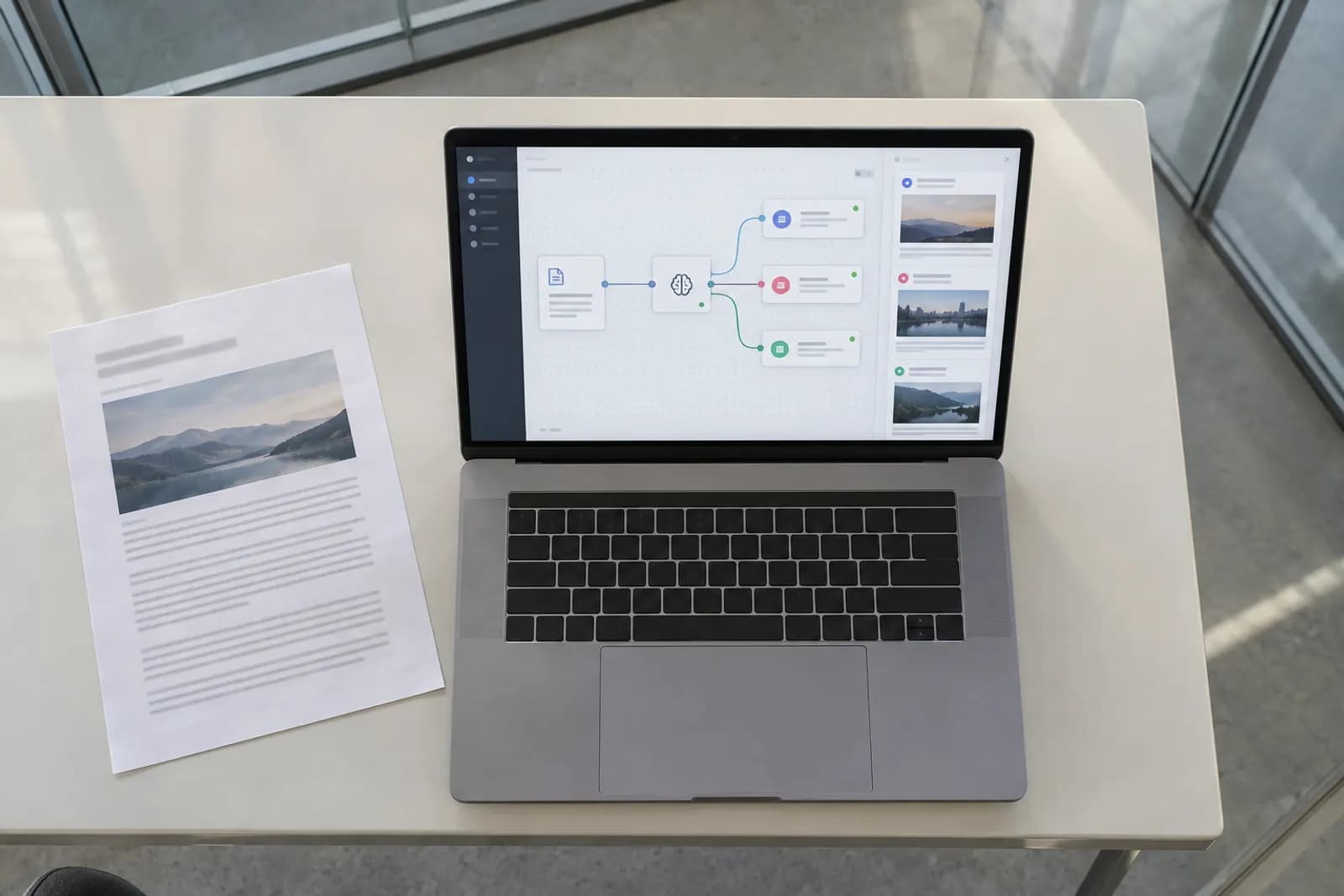
To post to social media from ChatGPT, connect a social media scheduler to it as an MCP server. ChatGPT writes the post and asks the scheduler to save, schedule or publish it, and the scheduler delivers it to Instagram, LinkedIn, X or any other network you have connected there. Where you add that connection depends on your plan: OpenAI's help centre, read on 16 October 2026, gives custom MCP servers with write actions to Business, Enterprise and Edu workspaces on chatgpt.com, and Pro gets read access only. On any plan, Codex can connect to the same server, and developers can call the OpenAI API from their own code. Our worked example uses PostWharf, a scheduler whose MCP server holds every AI-written post as a draft until you approve it, re-checks each post after it publishes and keeps a receipt per network, and comes with every plan from $15 a month per brand.
If ChatGPT itself is still new to you, our free short course ChatGPT, Start to Finish walks through accounts, files, voice, custom instructions, Projects and GPTs before you trust it with your social accounts.
Which route fits your ChatGPT plan
| Route | Where you set it up | Who can use it (16 Oct 2026) | What stops a bad post |
|---|---|---|---|
| Custom MCP server in ChatGPT on the web | Plugins, then Add custom MCP server | Business, Enterprise and Edu; on Business, only admins and owners can add one | ChatGPT's confirmation for write actions, plus PostWharf's drafts |
| Codex, or the ChatGPT desktop app | ~/.codex/config.toml, or Settings, then MCP servers in the desktop app | Codex coding agent included in every plan, though Free and Go have limited Codex access | An approval mode you set for the server, plus PostWharf's drafts |
| OpenAI API plus the scheduler's REST API | Your own script, or n8n, Zapier or Make | Anyone with OpenAI API access, which is separate from a ChatGPT subscription | Your code saves a draft and releases it later |
Pro accounts can connect a custom server, but only with read and fetch permissions, and publishing a post is a write. Business costs $20 per user a month billed annually ($25 monthly) and needs at least two users; our ChatGPT plan breakdown lists the rest.
Before you start
- A scheduler with an MCP server, with your accounts already connected. ChatGPT can only post to channels the scheduler holds. PostWharf publishes to 10 networks: Instagram, TikTok, X, LinkedIn, YouTube, Facebook, Threads, Pinterest, Bluesky and Telegram. Reddit, Discord, Snapchat and WordPress are request-only and cannot be connected yet.
- A professional Instagram account. Meta's Instagram API publishes only for professional accounts, meaning business or creator accounts, and PostWharf's Instagram page adds that the account must be linked to a Facebook Page. A personal profile will not work: Buffer, for example, sends personal Instagram profiles a reminder notification rather than publishing.
- A browser for the setup. OpenAI says custom MCP servers can be connected on the web only, not from the mobile app.
- One connection per brand. Each PostWharf credential opens a single workspace, so ChatGPT sees one brand's accounts and nothing else. An agency running five brands adds five connections.
Step 1: Connect your social accounts to PostWharf
Create a PostWharf workspace for the brand and connect each account you want ChatGPT to reach. A workspace is one brand with unlimited channels and no per-channel fee, so five Instagram accounts under one brand still count as one. Starter is $15 a month, or $10 a month billed yearly, for one brand and 200 scheduled posts a month, and its first seven days are free: the card is charged when the trial ends, and cancelling before then costs nothing. There is no free plan. Start a PostWharf trial to get the MCP server, the REST API and the wharf command-line tool on the same plan.
Then open Agent & MCP in the PostWharf dashboard. It shows a ready-made block for ChatGPT holding a connector link: the server address with a credential of its own built in, because ChatGPT's form has no field for a header. Treat the link like a password, since it can do anything the workspace key can. If it leaks, replace it from the dashboard: that cuts off every chat app it was pasted into, while the CLI and your scripts keep working.
Step 2: Add PostWharf to ChatGPT as a custom MCP server
On a Business, Enterprise or Edu workspace, at chatgpt.com:
- Open Plugins, select the plus button, then Add custom MCP server.
- Name it "PostWharf" and, if you like, add a one-line description.
- Under Connection, paste the connector link from Agent & MCP as the server URL.
- Set the authentication to none. PostWharf's own instruction is that the link is the key.
- Read the risk warning, tick I understand and want to continue, and select Create as a plugin.
- Check the tools ChatGPT discovered. PostWharf's server reported 19 on 16 October 2026, including
list_channels,save_draft,publish_draftandget_status. - Install the plugin. On Business, only admins and owners can create and publish it for the workspace; Enterprise and Edu admins can also allow chosen members to add servers.
OpenAI's current article says this Plugins route needs no Developer mode switch; you accept a risk warning for each server instead. PostWharf's ChatGPT page, like older tutorials, still describes the earlier route: Settings, then Connectors, then Create, with Developer mode turned on. If your account shows those screens, fill in the same three things: a name, the connector link as the URL, and no authentication.
Step 3: Ask for a post and approve it
Start a new conversation, type @ and pick the PostWharf plugin. The choice applies to that one message, so mention it again whenever a later request needs PostWharf. A request that keeps you in control looks like this:
@PostWharf Write two LinkedIn posts announcing our pricing webinar on Thursday, each under 1,200 characters. Save both as drafts and publish nothing until I choose.
Behind that request, ChatGPT looks up the brand's accounts with list_channels, checks LinkedIn's rules with describe_networks, and stores each version with save_draft. PostWharf's server tells agents to prefer drafts whenever they act on their own initiative, and nothing in a draft reaches a network until publish_draft runs. When you answer "Post the second one at 9am on Thursday", ChatGPT calls publish_draft with that time, which PostWharf reads in the workspace's own time zone.
ChatGPT adds a check of its own. For write actions it may ask you to confirm, depending on the app's permission setting and the context, and OpenAI says it can block an especially risky action outright. The permission options are Always ask, Allow read actions, Allow low-risk actions and, for some apps, Allow all actions, which can let supported actions run with no further confirmation. For a tool that publishes under your brand's name, choose Always ask: with PostWharf's drafts, every post then passes two checks before it goes anywhere.
Planning a whole month instead of one post? Our ChatGPT content calendar guide builds the plan, and PostWharf's schedule_many tool queues up to 60 posts in one call and reports on each separately.
Step 4: Check what actually went live
A reply from ChatGPT saying the post is scheduled means the tool call worked, not that LinkedIn shows the post. Ask "Check the status of that post in PostWharf" once its time has passed. The get_status tool returns each channel's state with the live link or the error text, and list_events is the feed of delivered, retrying and failed posts, with a warning before an account's sign-in expires. PostWharf retries a failed delivery automatically and keeps a delivery receipt with one row per network.
It also refuses a post that breaks a network's limits at the moment it is created, rather than at the network minutes later. The text limits it applies include 280 characters on X, 300 on Bluesky, 500 on Threads, 2,200 on Instagram and 3,000 on LinkedIn, and it allows up to 10 pictures and videos in an Instagram post.
Using Codex or the ChatGPT desktop app instead
If your plan is not on OpenAI's list for custom MCP servers, Codex is the OpenAI tool to use. OpenAI's MCP documentation says local Codex clients connect to MCP servers directly, and that the ChatGPT desktop app, the Codex CLI and the IDE extension share one configuration file, ~/.codex/config.toml. PostWharf's Codex setup sends the workspace key, found under API keys in its dashboard, as a bearer token:
[mcp_servers.postwharf]
url = "https://mcp.postwharf.com/mcp"
bearer_token_env_var = "POSTWHARF_KEY"
default_tools_approval_mode = "writes"
Set an environment variable called POSTWHARF_KEY to the key before you start Codex. The bearer_token_env_var line tells Codex which variable to send in the Authorization header, and the writes mode makes Codex ask you before it runs any tool that is not marked read-only. Type /mcp in the Codex terminal to see the servers it connected. In the desktop app, Settings, then MCP servers shows the same list, and its Add server form takes a name, the transport (Streamable HTTP for PostWharf) and the URL.
For developers: the OpenAI API and a scheduler's REST API
To build posting into your own tool, skip the chat window and make two calls: one to the OpenAI API for the text, one to the scheduler's API to queue it. A ChatGPT subscription and API access are separate things, and the API can carry its own billing; our guide to connecting ChatGPT to Slack makes the same point for Zapier.
PostWharf's REST API lives at https://api.postwharf.com/v1 and takes the workspace key as a bearer token. This call saves a caption as a draft for one channel, using a channel id from GET /v1/channels:
curl https://api.postwharf.com/v1/posts \
  -H "Authorization: Bearer $POSTWHARF_KEY" \
  -H "Content-Type: application/json" \
  -d '{"text": "Caption returned by the OpenAI API", "channels": ["CHANNEL_ID"], "draft": true}'
With "draft": true nothing is sent. To release it, send PATCH /v1/posts/:id with "draft": false; add publish_at (an ISO-8601 time) to schedule it, or leave the time out to publish straight away. GET /v1/posts/:id then returns a delivery for each channel with its live URL or its error.
The OpenAI Responses API can also call an MCP server itself, through a tool of type mcp that points at the server's URL. OpenAI asks for your approval before it shares data with a remote MCP server by default, and setting require_approval to "always" keeps that check on every tool call.
Prefer no code? PostWharf documents the same REST API from an n8n HTTP Request node, a Webhooks by Zapier action or a Make HTTP module, and those posts land in the same queue and the same receipts as anything ChatGPT sends.
Other schedulers that connect to ChatGPT
We use PostWharf for this guide because it holds each AI-written post until you approve it, reports delivery per network, and prices by brand rather than by channel. Its gaps: there is no free plan, only the seven-day trial, and Reddit, Discord, Snapchat and WordPress are not connectable yet. These schedulers also offer an MCP server that works with ChatGPT, according to their own pages read on 16 October 2026:
| Scheduler | MCP server | Entry price |
|---|---|---|
| PostWharf | On every plan; AI-written posts wait for your approval | $15/mo per brand ($10/mo billed yearly), unlimited channels |
| Buffer | On every plan, including Free; works with Claude, ChatGPT, Cursor and Perplexity | Free for 3 channels; Essentials $6 per channel a month ($5 billed yearly) |
| SocialPilot | On every plan; works with Claude, ChatGPT and other AI tools | $30/mo ($25.50 billed annually) for 7 social accounts |
| Metricool | On every plan, including Free | Free for one brand, without LinkedIn or X; Starter $25/mo ($20 billed annually) for up to 5 brands |
| Postiz | On every plan, alongside a CLI and REST API | $29/mo ($23 billed yearly) for 5 channels; free to self-host |
Our pick
To post from ChatGPT with every post waiting for your approval and a receipt from each network it reaches, connect PostWharf: one composer and one queue for 10 networks, with the MCP server, REST API and CLI on every plan from $15 a month per brand. Buffer suits a free start, Postiz suits self-hosting, and Metricool suits teams that want reports next to their posting.
Want ChatGPT to write posts worth approving in the first place? Start learning with our free AI courses for work.
Frequently asked questions
Can ChatGPT post directly to my social media accounts?
Yes, once a scheduler is connected to it. ChatGPT drafts the post and calls the scheduler's tools, and the scheduler publishes through each network's own connection. For posting with an approval step and a receipt from every network, connect PostWharf, from $15 a month per brand with unlimited channels.
Can ChatGPT post to Instagram?
Yes, through a scheduler that publishes to Instagram, as long as the account is a professional (business or creator) account. With PostWharf, the account must also be linked to a Facebook Page, and each post can hold up to 2,200 characters and 10 pictures or videos.
For you
Learn to do this with AI, free
Short courses for people who aren't engineers: ChatGPT, Claude, prompting and automation. Every lesson is free, with no card.
Start a free courseFor companies
Make an AI or automation tool?
List it in the directory for $9.99, refunded in full if it isn't approved, or claim its page if it is already here.
Related guides
 How to Post to Social Media From Claude, Step by StepPost from Claude through PostWharf, which holds each post for your approval: setup for Claude on the web, Claude Desktop and Claude Code.
- 10 Best Social Media MCP Servers: Post From Claude or ChatGPTPostWharf, which holds each AI post until you approve it, and nine more social media MCP servers for Claude or ChatGPT, compared on networks and price.
- How to Post to All Social Media at Once (Free and Paid Ways)Post to every network at once: Meta's free cross-posting, the limits that break one caption, and 11 schedulers priced for one brand.
Tools in this piece



Drafted with AI assistance from our own research, and reviewed by the Automate Basics team before publishing. Tools and prices change; check the linked official source before you act.
Get the next one by email
One email, most weeks: what changed in AI for people who use it at work, and what to do about it.