
Turn Scanned Sign-In Sheets Into a Verified Spreadsheet
By Anu Verma
To turn a scanned sign-in sheet into a spreadsheet with AI, capture a clear image, extract one record per handwritten row, and verify every record against the original. Keep uncertain names, blank cells and possible duplicates visible until a person resolves them.
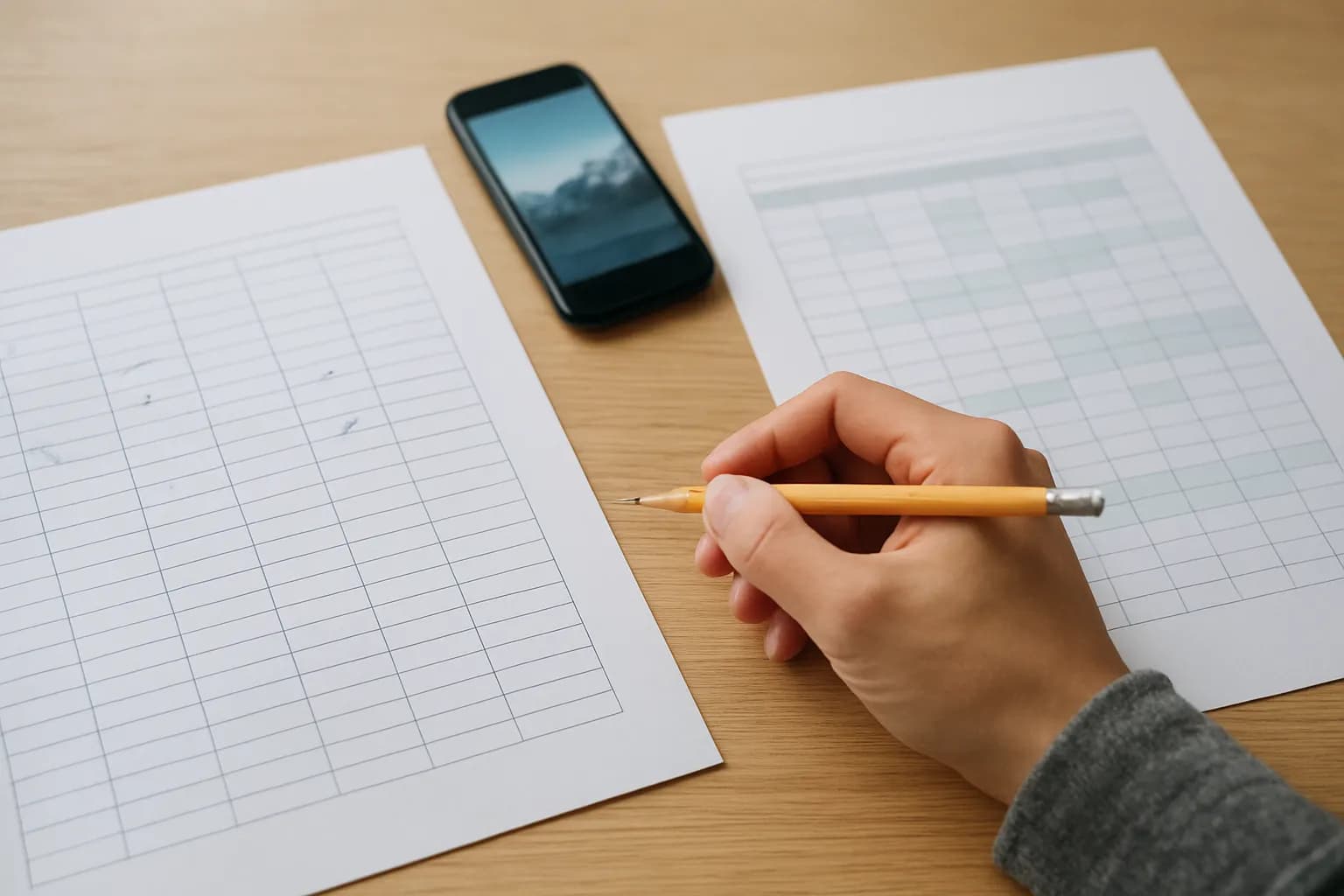
To turn a scanned sign-in sheet into a spreadsheet with AI, capture a clear image, extract one record per handwritten row, and verify every record against the original. Keep uncertain names, blank cells and possible duplicates visible until a person resolves them.
A clear scan is the starting point for accurate rows
A clear, complete image gives an AI transcription tool a better chance of preserving the rows on a handwritten sign-in sheet. Lay the paper flat, photograph it from directly above, and check that the edges, column headings and last handwritten entry are visible. Avoid shadows across names and retake any image that is blurred or cut off. Keep the original sheet until the spreadsheet has been checked.
If there are several pages, give each page a simple identifier in your own working notes before processing it. Keep the images in page order and do not combine cropped sections unless you can still tell which lines belong together. A source reference for each spreadsheet row will make corrections much easier later.
Before uploading, consider what the sheet contains besides attendance. Names may be accompanied by contact details, signatures or other personal information. Use a tool approved for that information at your workplace, and crop out fields you do not need if doing so does not disturb the row layout. The AI acceptable use checklist can help you decide what may be shared with an outside service.
The simple transcription option is often enough
A tool that can read an image and return a table is enough for a small batch of sign-in sheets. Options include an approved AI chat tool that accepts images, a document text-recognition tool, or a scan-to-table feature in spreadsheet software. You do not need to build an automation just to process an occasional sheet. Check your chosen tool's current file and image options before relying on a particular workflow.
To scan a handwritten sign-in sheet to Excel, ask the tool for rows you can paste into a spreadsheet, rather than a summary of who attended. To convert a paper attendance list to Google Sheets, use the same extraction process and paste the checked rows into Sheets. The destination does not change the need to inspect the handwriting.
Give the tool a narrow instruction: preserve the order of the handwritten rows, create a separate record for each row, leave empty fields empty, and mark unreadable writing as uncertain. Tell it not to guess names or remove apparent duplicates. Google describes text extraction from images in its help material, but extracted text may not preserve a paper table's structure. Compare the output with the image before treating it as attendance data.
A handwritten example shows what the AI should leave unresolved
A useful extraction keeps the evidence from each handwritten line separate from the AI's interpretation. Imagine a sign-in sheet with a name column and an attendance mark column. One line has a clear name and mark. The next has a surname whose final letters are hard to read and an empty mark cell. Farther down, the clear name appears again with another mark. The spreadsheet should contain a row for each line, in the same order as the paper.
For the unclear surname, ask the tool to enter only the legible part in the transcription field and flag the row for review. A possible reading can go in a separate note, clearly marked as a suggestion, not as a confirmed name. The empty mark stays empty. It must not become an absence, a check mark or a copy of the mark above it. The repeated name stays in its own row until someone checks whether it is a second sign-in or an accidental repeat.
A practical prompt is: “Transcribe this sheet into separate rows. Keep the paper's row order. Use blank cells for blank fields. Flag unclear handwriting and possible repeats without resolving them. Do not invent missing text.” Inspect the result against the image, especially where the writing crosses a ruled line.
Source references make the spreadsheet auditable
A spreadsheet of extracted names should show where each row came from, not just the AI's best reading. Create columns for the page identifier, position on the page, name as read, attendance mark, review status and reviewer note. If the source has other fields you genuinely need, add matching columns. Keep a possible reading of an unclear name in the note rather than replacing the visible transcription with a guess.
Ask the tool for tab-separated rows with a single header row, or copy its table into a blank sheet and inspect the result. Paste into Excel or Google Sheets and check that each field lands in the intended column. Long notes or unexpected line breaks can split a record, so compare the pasted row order with the tool's output before you begin correcting names. Save an untouched copy of the extracted output if your workplace's record-handling rules allow it.
When you extract names from scanned forms into a spreadsheet, do not let formatting hide missing data. Keep blank cells blank and use a separate review status to signal that they need attention. If a page has a line with writing outside the usual columns, record its source position and flag it instead of silently folding it into a nearby entry.
A row-by-row check catches the errors that matter
Every extracted row needs a comparison with the matching line on the original sheet before the spreadsheet is used as an attendance record. Start at the top of each page and move in paper order. For each line, check that a spreadsheet row exists, that the name matches the visible handwriting, that each mark is in the right column, and that an empty paper cell remains empty. Then check whether the spreadsheet contains a row with no matching paper line.
Treat uncertain names as questions, not spelling problems for AI to solve. Look at the original paper if the scan is unclear; ask an authorized person familiar with the event only when workplace rules permit it. If the name still cannot be confirmed, retain an uncertainty flag. For a repeated name, compare the handwriting, marks and source positions. Keep both rows while you establish whether one person signed twice or different people share a name. Do not merge records merely because text matches.
Mark each row as checked, needs review or corrected, and note what changed. The AI output review checklist is useful for broader quality checks, but the paper-to-row comparison is the essential check for this task.
The finished sheet is ready only after exceptions are resolved
A finished attendance spreadsheet has a traceable source for every row and makes unresolved entries easy to spot. Filter the review status column for names that could not be read, blank fields needing a decision and possible duplicates. Resolve each case against the paper or leave it visibly pending. If your workplace needs a final count or a list for follow-up, build it from checked records and decide how pending records should be handled before using the result.
Keep the scanned pages and spreadsheet according to your workplace's retention and access rules. A sign-in sheet may contain information that should not be shared with everyone who can view the attendance summary. Share only the fields the recipient needs, and do not assume that removing a column from a shared view removes it from the underlying file.
For recurring sheets, write down the capture, extraction and review steps before adding automation. Reusing a prompt may save effort, but it should not replace the row check. The first-workflow implementation checklist is relevant if the task becomes routine. Automate the handoff only when you can reliably identify exceptions and assign someone to resolve them.
Sources consulted
- Google Drive Help (support.google.com)
- Microsoft Support (support.microsoft.com)
- OpenAI Help Center (help.openai.com)
Frequently asked questions
Can AI read a handwritten sign-in sheet accurately?
AI can produce a useful first transcription, but handwriting, faint scans and crowded rows can lead to incorrect or missing names. Treat its output as a draft. Check every spreadsheet row against the corresponding paper line, and keep uncertain readings flagged rather than accepting a plausible-looking name.
Should I fill empty attendance cells before importing the sheet?
No. Preserve an empty paper cell as an empty spreadsheet cell during extraction. A blank could mean the person skipped the field, the mark was missed, or the form uses that space differently. Add a review note if a decision is needed, rather than turning the blank into an attendance judgment.
What if the same name appears more than once?
Keep each appearance as a separate row with its own page and position reference. Compare the handwriting and surrounding fields before deciding whether the entries are duplicates. Matching names alone do not establish that the same person signed twice, and deleting a row too early can erase a genuine attendance record.
Do I need special software to put the results in Google Sheets?
No special automation is needed for a small batch. An approved tool that transcribes the scan into rows can provide text to paste into Google Sheets. Check the pasted columns and row order, then verify every entry against the original. Use a more automated workflow only if the volume justifies maintaining it.
For you
Learn to do this with AI, free
Short courses for people who aren't engineers: ChatGPT, Claude, prompting and automation. Every lesson is free, with no card.
Start a free courseFor companies
Make an AI or automation tool?
List it in the directory for $9.99, refunded in full if it isn't approved, or claim its page if it is already here.
Related guides
 Make an Interactive Chart From Spreadsheet Data in ChatGPTUpload a CSV or Excel file, tell ChatGPT which columns to chart, and check dates, totals and missing values before using the result.
 Compare Two Spreadsheets to Find Missing RecordsMatch spreadsheet rows by a stable ID, flag records missing from either list, and check duplicates and name differences before acting.
 Make a Google Sheets Dropdown Grow With Your ListUse a dropdown from an open-ended source range so new items appear when you add them to your list, without editing the rule each time.
Drafted with AI assistance and checked automatically before publishing. Tools and prices change; check the official source before you act.
Get the next one by email
One email, most weeks: what changed in AI for people who use it at work, and what to do about it.