
Send Google Form Responses to the Right Team Member
By Anu Verma
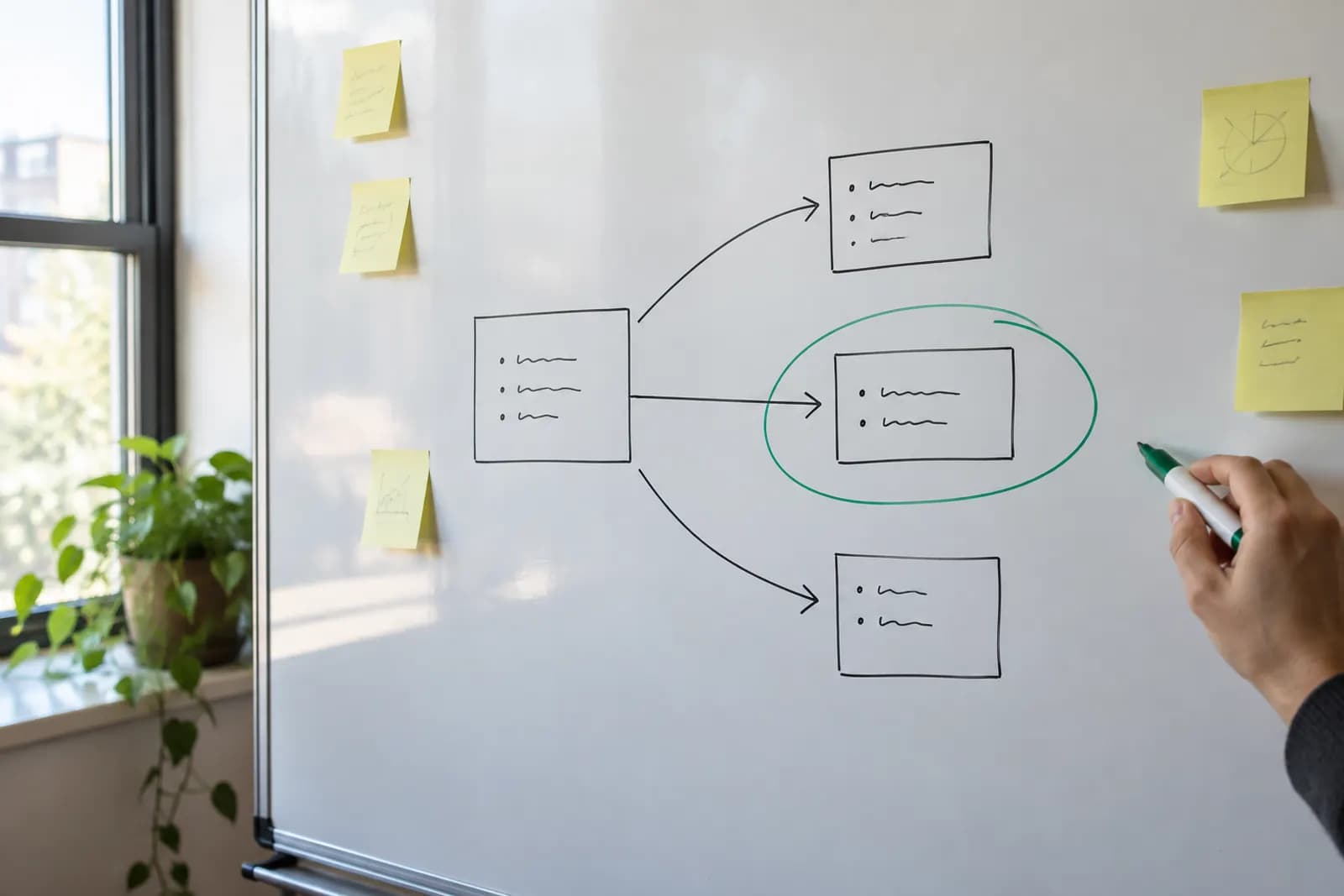
To send Google Form responses to different people based on the answers, connect the form’s response sheet to a no-code automation tool. Give each expected answer a recipient and send anything unmatched to a default owner.
To send Google Form responses to different people based on the answers, connect the form’s response sheet to a no-code automation tool. Give each expected answer a recipient and send anything unmatched to a default owner.
The simple option is enough when everyone can see every response
Google Forms response notifications are enough if the same person or group can review every submission. Answer-based assignment needs a no-code automation tool that checks each response and chooses a recipient. The important distinction is between telling someone that a form was submitted and assigning that submission to the person responsible for it.
A practical setup is to send form responses to a linked Google Sheet, then use an automation tool to watch for new rows. Tools in this category can apply conditions to a row and send an email when a condition matches. Check the tool’s current Google Sheets trigger and email actions before building, since available connections and settings can change.
Changing which questions a respondent sees inside the form solves a different problem. Showing different Google Forms questions based on an answer can make a form easier to complete, but it does not, by itself, assign the finished submission to a teammate. Likewise, a confirmation sent to the respondent is separate from an internal assignment email. Start with ordinary form notifications if a shared reviewer can sort submissions manually. Add routing when the answer should determine who takes the next action.
A routing example needs an owner for answers that do not match
Route Google Forms responses by answer using a question whose choices clearly represent ownership. Imagine an office request form with a required question called Request type. Its choices are Facilities, Equipment and Other. Facilities goes to the person handling building requests, Equipment goes to the person handling devices, and Other goes to an operations coordinator. The operations coordinator is also the default owner if the automation sees an answer it does not recognize.
Keep the answer used for routing separate from the request description. A multiple-choice or dropdown question is easier to match reliably than free text. Someone might write “printer,” “new computer” or “device trouble” in a description, and a simple text filter could classify those answers differently. Ask for the category explicitly, then let people explain the details in another field.
Write the routing map before opening the automation tool. For each expected choice, record the responsible person and what that person should do after receiving the email. Name a default owner who is willing to review unclear submissions. If the form’s choices change later, the default gives new answers somewhere to go while you update the rules. A default is not a substitute for checking whether the automation ran successfully.
Assign form submissions to different team members with exclusive rules
Assign form submissions to different team members by triggering an automation on each new response row, then testing the Request type answer against exclusive rules. In a no-code tool with a router, create a route for Facilities and a route for Equipment. Set each filter to match the whole answer, rather than merely checking whether its text contains a word. Add a fallback route for everything that matches neither rule, including Other, blank values and unfamiliar choices.
Make describes a fallback route for items that do not pass the other route filters. If you use a different tool, check how it handles unmatched conditions. You can also make the default rule explicit: send to the operations coordinator when Request type is not Facilities and is not Equipment. Avoid a broad rule such as “answer is not Facilities” beside an Equipment rule, because an Equipment submission could pass both and send duplicate messages.
Use the new-row trigger on the sheet connected to the form, and select the column containing Request type in each condition. Keep the response sheet available as the record of what arrived. A response edited later may not behave like a new row, so decide whether people should submit a fresh request when their category changes. Save the automation only after checking its filters against example rows.
Email the right person based on a Google Form response
Email the right person based on a Google Form response by putting the assigned teammate’s address in each route’s email action. Use a fixed recipient for Facilities, another fixed recipient for Equipment and the operations coordinator for the fallback. A fixed address is safer than trying to construct an address from whatever a respondent typed into the form.
Make the email useful without copying the entire submission. Include the request type, a short description and a way for the recipient to locate the original response in the shared sheet. Give the recipient access to that sheet only if their role calls for it. If submissions contain private details, consider a restricted review process instead of emailing those details to multiple inboxes. The form owner should decide what information each assignee needs.
An internal routing email tells a teammate to act. A personalized confirmation email after a form submission tells the respondent what happened. If you need both, build them as separate actions with separate recipients and wording. Send the respondent a neutral confirmation rather than implying that a particular teammate has accepted the work. A routing email can be delivered even when the assigned person is unavailable, so agree on who monitors that inbox.
The default owner catches surprises, while monitoring catches failures
A default owner catches responses with unexpected answers; it cannot catch an automation that stops running. Test both situations before relying on the workflow. Submit sample requests for Facilities and Equipment, then submit Other and a response designed to exercise an unfamiliar value if your form permits it. Check the response sheet, the automation’s run history and the intended inbox for each sample. Confirm that each request reached the intended owner without also reaching another route.
If the form requires a choice and cannot produce an unfamiliar value during normal use, test the fallback with Other. You can also use the tool’s test data or a temporary form choice to check how an unmatched answer behaves. Restore the form before sharing it with respondents. Check that the email contains enough context to act and does not expose details the recipient should not see.
Give someone responsibility for reviewing failed runs and comparing recent sheet rows with delivered assignments. Connection problems, changed column names and email-action errors need attention even when the fallback rule is correct. Recheck the routing map whenever owners or form choices change. If a separate urgent-answer alert would help, a Slack alert for Google Form answers that need follow-up can complement assignment, but it should not replace the default owner.
Sources consulted
- Google Forms Help (support.google.com)
- Make (make.com)
Frequently asked questions
Can Google Forms send each response to a different person by itself?
Google Forms can collect responses and notify people about new submissions, but answer-based assignment calls for a separate routing workflow. Connect the form’s response sheet to a no-code automation tool, check the answer in a condition, and send an internal email to the corresponding teammate.
What happens if someone chooses an answer that has no matching route?
Send unmatched answers to a named default owner for review. In a tool with a fallback route, place that owner on the fallback. Otherwise, create an explicit condition that excludes every recognized answer. Also monitor failed automation runs, because a fallback cannot deliver a submission when the workflow itself fails.
Should I use the respondent’s email address to choose the teammate?
Usually not. Route using a form choice that represents the type of work, then put the teammate’s address in the matching email action. The respondent’s address is useful if you need to reply or send a confirmation, but it does not reliably identify who on your team owns the request.
Will a change to an existing response send another assignment email?
Do not assume it will. A workflow watching new rows is designed to act when a row arrives, not necessarily when an existing response changes. Test your tool’s behavior and set a clear process for corrections, such as having the default owner reassign a request or asking for a fresh submission.
Related guides
 Send a Personalized Email After a Google Form SubmissionUse form answers in a custom confirmation email, then track each submission so an edited response does not trigger a duplicate.
 Send a Slack Alert Only for Google Form Answers That Need Follow-UpAdd a filter between a Google Form submission and a Slack message so only answers that need follow-up reach your channel.
 Create Google Calendar Events From Google Form ResponsesConnect Google Forms to Google Calendar with a no-code automation, then check missing times, time zones and repeat submissions before sending invites.
Drafted with AI assistance and checked automatically before publishing. Tools and prices change; check the official source before you act.