
Make Event Name Badges in Bulk From a Spreadsheet in Canva
By Anu Verma
To make event name badges in bulk in Canva, prepare one attendee row per badge, connect the spreadsheet columns to a badge template with Bulk Create, then inspect the generated pages before printing. Check blank fields and long names in both the spreadsheet and the finished design.
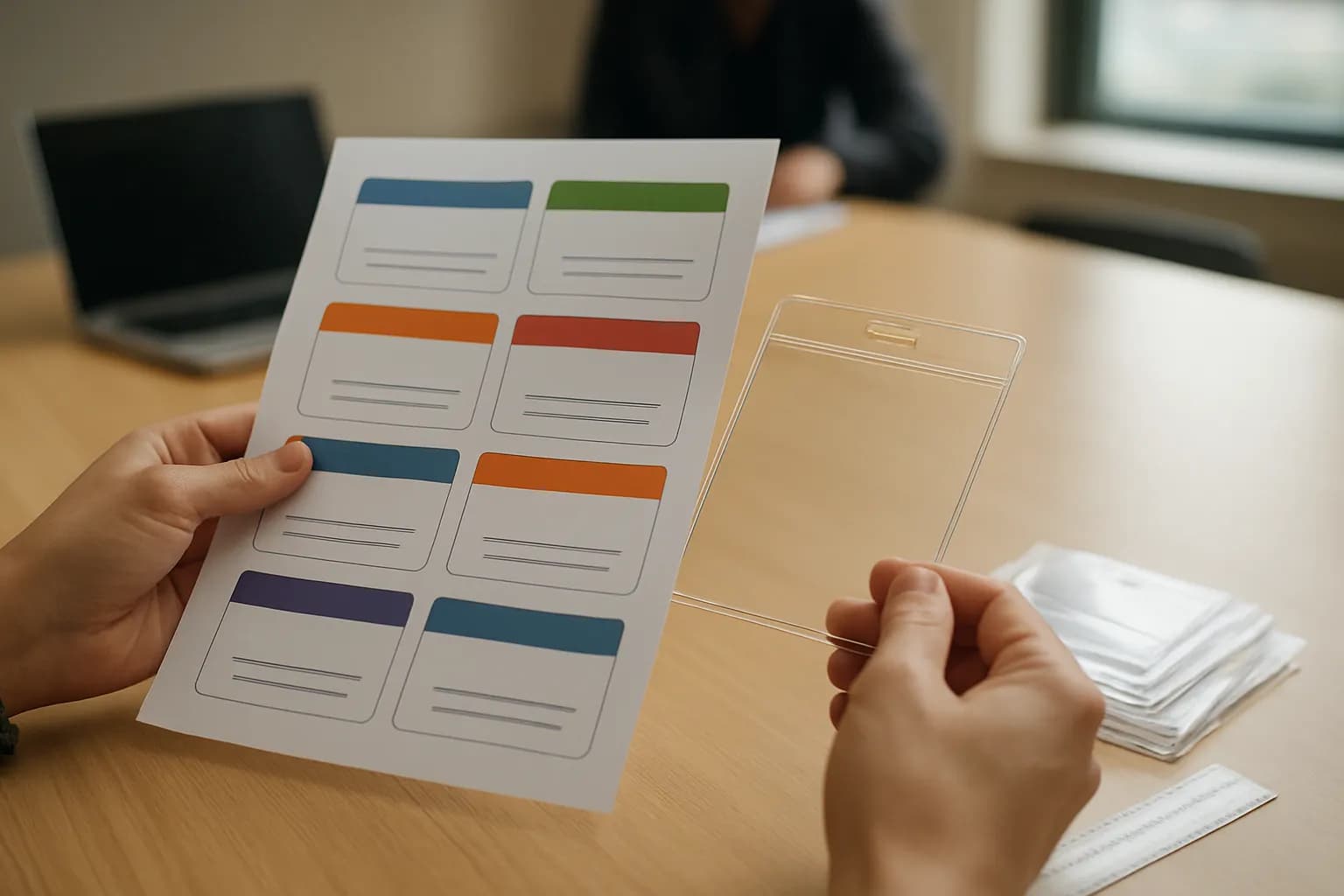
To make event name badges in bulk in Canva, prepare one attendee row per badge, connect the spreadsheet columns to a badge template with Bulk Create, then inspect the generated pages before printing. Check blank fields and long names in both the spreadsheet and the finished design.
The attendee list should match the badge template
A clean attendee list makes bulk name badges easier to create and safer to print. Start with one spreadsheet row for each badge and a separate column for each piece of information you want to show, such as Name, Organization and Role. Put those column names in the first row. Keep the printed name in a single column so you can connect it to one text box in Canva.
Decide what belongs on the badge before preparing the file. If only the name is essential, leave out fields that will often be missing. If an organization is useful but optional, plan a layout that still looks intentional when that line is empty. Keep private details, such as contact information, out of the file you upload unless they are needed for the badges.
Save or download the finished list as a CSV file using your spreadsheet app's export option. That lets the app handle commas and other punctuation inside cells. Keep the original spreadsheet as your editable copy. If you are also organizing arrivals, the QR code check-in form guide covers that separate task; the badge list remains your source for printing.
Empty fields and long names need checking before upload
Check required fields in the spreadsheet before you send attendee data to Canva. Filter the Name column for empty cells, then look for cells that contain only spaces. Decide whether to correct each record, ask for the missing name or leave that attendee out of the print batch. Do not replace an unknown name with a guess.
Next, scan the optional columns. A missing organization may be acceptable, but a badge with an unexplained blank line can look unfinished. You can fill an approved fallback, such as a general attendee role, if it accurately describes the person. Otherwise, remove that line from the template or plan to review badges with blank optional fields separately.
Sort or scan the Name column for unusually long entries. Look for long surnames, double-barrelled names and titles that should not be printed as part of the name. Check capitalization and spaces while you are there. Do not remove duplicate names automatically: different attendees can share a name. If your list uses a dropdown to keep roles or attendee types consistent, the growing Google Sheets dropdown guide can help with future updates. Save a fresh CSV after making corrections.
One badge template should handle the longest likely name
Build one Canva badge design that remains readable when a name is longer than average. Set the design to the physical size required by your badge holders or printing method, then place the attendee name in a prominent text box. Add text boxes for any other spreadsheet fields you decided to print. Leave comfortable space around the edges, especially where a holder might cover part of the badge.
Test the layout with a long name before generating the full set. Give the name box enough width, reduce decorative elements if necessary and choose a readable type size. A second line can be a better choice than making every name tiny, but check that it does not collide with an organization or role below it. Avoid placing a fixed underline or other decoration exactly where a wrapped name might land.
Use the same text styling for data that will come from the same column. If an optional field is frequently empty, a design without a dedicated line for it may be the simpler option. Canva is a design tool with a bulk generation feature, not a substitute for checking the printed result. The template is ready when both a short name and your longest likely name fit without manual repair.
Canva Bulk Create connects spreadsheet columns to text boxes
Use Canva Bulk Create to turn each attendee row into a badge based on your template. Open the badge design, find Bulk Create in Canva's app or design tools, and upload the exported CSV. Canva may also offer other ways to enter data, but the CSV keeps this workflow tied to the spreadsheet you checked.
Connect each imported column to the matching text box in the design. For example, connect Name to the large name box and Organization to the smaller organization box. Check the column choices carefully if their names look alike. A connected box should use the attendee data rather than the sample wording you used while designing.
Select the rows you intend to use and generate the designs. Canva's controls can change, so follow the prompts shown in your account if the menu names differ. Open the generated pages rather than assuming that a successful upload means the badges are correct. If Canva does not offer Bulk Create in your workspace, or you only have a small handful of badges, duplicating the template and replacing the text manually may be quicker than changing tools. You can check current tool access on the Canva tool page or in Canva's own account information.
The generated badges need a visual check before printing
Review the generated badges as a batch and inspect the risky records individually. First, compare the number of generated badge pages with the attendee rows you selected. A mismatch is a reason to revisit the selected rows and the CSV, not to print anyway. Then look through the pages for empty name boxes, leftover sample text, clipped letters and organization lines that sit oddly when data is missing.
Open badges for the longest names you found in the spreadsheet. Check whether their text wraps, shrinks or runs into another element. Also inspect names with punctuation or accented characters to catch any import problems. If the same issue appears across many badges, fix the template and generate again. If it affects only a few, decide whether to shorten an approved display name in the spreadsheet or adjust those pages after generation. Keep the editable list aligned with whatever you ultimately print.
For a late change, update the source spreadsheet, export a new CSV and clearly separate the revised batch from the old one. Otherwise, an earlier badge can slip into the print file. Bulk Create saves repetitive placement work, but the final visual review is what catches layout failures that a spreadsheet filter cannot see.
A printed proof confirms the badge will fit
Print a proof before sending the whole batch to the printer. Export the reviewed design in a print-suitable format, such as a PDF intended for printing, and check Canva's available export settings for your design. Use crop marks or bleed only if your printer or print shop needs them. If you are using badge stock or holders, confirm the finished badge size against the physical item.
Print a page that includes a long name and an optional field that is blank, if you have one. Check that the name can be read at a normal viewing distance, that no text sits under a holder edge and that your printer has not scaled the page unexpectedly. A screen preview cannot show those physical problems reliably.
Keep the final CSV, Canva design and print file together so you know which attendee list produced the badges. If an attendee arrives after printing, you can make an individual badge from the template rather than regenerating everything. For a small event with frequent last-minute changes, that manual approach may be simpler. Bulk generation is most useful when the list is reasonably settled and the badges share one layout.
Frequently asked questions
Can I make multiple event badges in Canva from a CSV?
Yes. Prepare a CSV with one attendee per row and columns for the details you want to print. In a Canva badge design, use Bulk Create to import the file, connect its columns to text boxes and generate the badges. Review the resulting pages before exporting them for print.
How do I make Canva name tags from a spreadsheet with blank organization cells?
Treat the organization as optional before you design the name tag. You can omit that field, use an accurate fallback in the spreadsheet or accept a blank text area if the layout still works. Check generated tags with empty organization cells so the name remains well positioned.
What should I do if a long attendee name does not fit?
First, check that the name is entered correctly. Then give the name box more room, allow a readable line break or simplify nearby elements. If the attendee has an approved shorter display name, change it in the spreadsheet and regenerate the badge. Check the result at print size.
Do I need Bulk Create for a small badge list?
No. If you only need a handful of badges, duplicating one Canva design and editing each name may take less effort than preparing and connecting a CSV. Bulk Create becomes useful when repeated typing is the bigger task and your attendee list is ready to use.
For you
Learn to do this with AI, free
Short courses for people who aren't engineers: ChatGPT, Claude, prompting and automation. Every lesson is free, with no card.
Start a free courseFor companies
Make an AI or automation tool?
List it in the directory for $9.99, refunded in full if it isn't approved, or claim its page if it is already here.
Related guides
 Turn Scanned Sign-In Sheets Into a Verified SpreadsheetUse a clear scan and an AI transcription tool to move sign-in sheets into a spreadsheet, then check uncertain names, blanks and repeats against the paper.
 Make an Interactive Chart From Spreadsheet Data in ChatGPTUpload a CSV or Excel file, tell ChatGPT which columns to chart, and check dates, totals and missing values before using the result.
 10 Best Resume Builders in 2026: ATS Layouts and Download CostsTen resume builders compared on layout, export and download cost. Our top pick, RecruitMyself, pairs single-column templates with a 0-100 CV score.
Tools in this piece

Drafted with AI assistance and checked automatically before publishing. Tools and prices change; check the official source before you act.
Get the next one by email
One email a week: what changed in AI for people who use it at work, and what to do about it.