
Make a Scanned PDF Searchable Without Retyping
By Anu Verma
To make a scanned PDF searchable, use optical character recognition (OCR) to turn the page images into text you can find or select. Choose between extracting text into a new document and adding a searchable text layer to the existing PDF, then check the result against the scan.
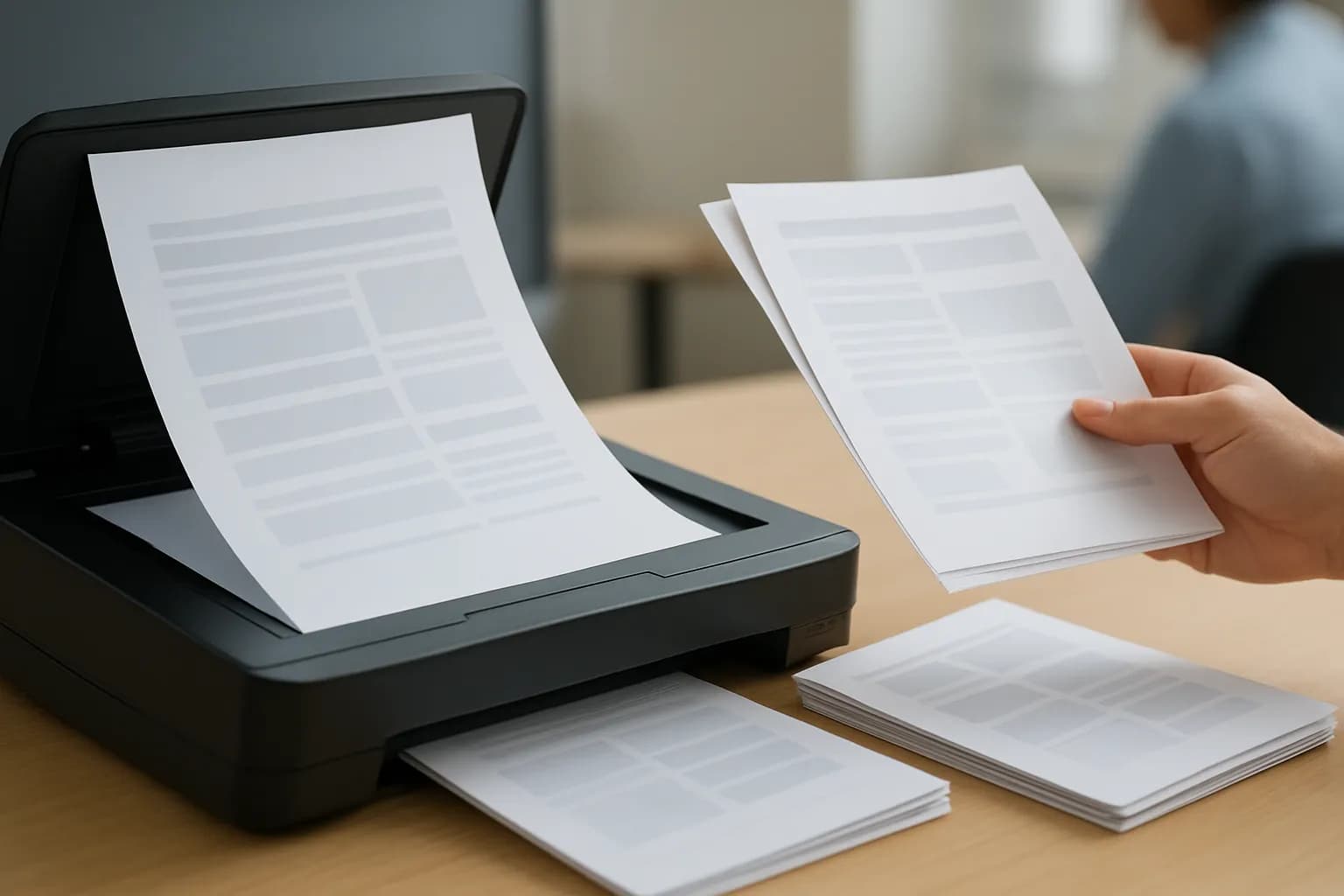
To make a scanned PDF searchable, use optical character recognition (OCR) to turn the page images into text you can find or select. Choose between extracting text into a new document and adding a searchable text layer to the existing PDF, then check the result against the scan.
A scanned PDF needs OCR when its pages are only images
A scanned PDF becomes searchable when OCR recognizes the writing in its page images and saves the resulting text. First, open the file and try to select a word with your cursor. Then search for a distinctive word you can see on the page. If you cannot select or find it, the PDF may contain images rather than usable text.
A failed search alone is not conclusive. The file might already contain text with a spelling error, or the word might be split across lines. Try another clear word before deciding. Conversely, being able to find a word does not mean the whole document was recognized correctly.
Decide what the finished file needs to be. If you only need wording to edit or paste elsewhere, extracting text into a document may be enough. If colleagues must see the original scanned pages and search within them, choose a PDF tool that adds a text layer while keeping the page images. Keep an untouched copy of the scan either way. OCR can misread characters, but the original lets you check what the page actually says.
OCR without Adobe Acrobat depends on the file you need back
You can OCR a PDF without Adobe Acrobat using a document editor, a PDF app with OCR, or an approved scanning app. The best route depends on whether you need extracted words or a searchable copy of the original pages. Check the tool's output option before uploading a work document.
A document editor such as Google Docs is a simple choice when you mainly need to recover text. Google describes a way to open an image or PDF from Drive in Docs to convert its contents to text. Treat the result as a new document: its spacing, tables and page breaks may differ from the scan. Saving that document as a PDF does not guarantee a visual match to the source.
For a searchable PDF that still looks like the scan, look for an OCR option in an approved PDF or scanning app. Check that it saves a PDF with searchable or selectable text, not just a text file or a newly photographed page. If the document is confidential, use a tool and storage location your workplace permits. A free upload site is not automatically an appropriate place for private records.
Converting an image PDF to text is the simplest route for editing
To convert an image PDF to searchable text for editing, open it with an approved editor that offers OCR and inspect the new document before saving it. In Google Drive, the relevant route is to open the PDF with Google Docs. Google says this conversion can extract text, although the layout may not carry over accurately. Your workplace may restrict which files you can put in Drive.
Start with a legible copy. If you control the scan, straighten tilted pages, include the full edges and avoid shadows over the writing. Upload the file, use the editor's PDF conversion option, and wait for the text document to open. Compare a paragraph near the beginning, middle and end with the original scan. Check tables separately because rows and columns can lose their relationships.
Use the converted document when the words matter more than the page appearance, such as preparing a draft from old notes. Save the edited text as a new file and keep the scan for reference. If coworkers need to search an unchanged signed form or a page whose placement matters, use an OCR tool that retains the scanned pages instead.
A searchable PDF must retain both the page image and usable text
A PDF tool is the better choice when the shared file must preserve the scanned page while allowing people to search it. In an approved PDF or scanning app, look for an action called OCR, recognize text, or make searchable. Open the scan, choose the document language if the tool asks, run recognition, and save the result as a new PDF rather than replacing your source.
Do not assume that an option called export to PDF performs OCR. Some apps simply wrap page images in a PDF, leaving the words unsearchable. After saving, close the app and open the new file in an ordinary PDF viewer. Try selecting a phrase and searching for a word printed clearly on a later page. Copy a short phrase into a plain text field to see whether its letters are sensible.
If the text is missing or badly garbled, improve the source scan or try another approved OCR route. A document with faint print, handwriting or overlapping stamps may still need manual correction. Searchable text also does not, by itself, make a PDF fully accessible to someone using a screen reader.
Names, dates and page order need a separate check
OCR is ready to share only after someone checks the details that a search test can miss. Compare the searchable file with the original scan, especially where a wrong character could change whose record it is or when something happened. Search for a name you expect, then look at the page image and copy the recognized text. A successful search for part of a name does not prove the full name is right.
Check dates against the scanned characters rather than guessing from context. Pay attention to similar-looking digits, punctuation and handwritten corrections. If a name or date is business-critical, correct the recognized text in a tool that supports that change, or attach a verified transcription separately. Do not silently alter the image of an original record.
Review page order visually, not just through search results. Compare the first and last pages, then move through the page thumbnails looking for gaps, repeats, rotations and pages from another document. If the source was a batch scan, separate records before sending them to different recipients. The guide to splitting a batch PDF into customer files covers that distinct task.
The saved copy is the file to test before sharing
Test the exact PDF you plan to send, because a preview or an intermediate document may behave differently from the saved copy. Reopen the file from its final location in a normal PDF viewer. Search for a clear word on more than one page, select and copy a short passage, and confirm that the pages still display as intended. If a search fails, inspect the page before concluding the word is absent.
Check who can access the file and whether it contains information the recipient should not see. OCR can make private details easier to find, but hiding a detail with a drawn box is not a safe way to remove it. For preparing material to share with an AI service, the guide to removing sensitive details before sharing with ChatGPT helps you decide what to leave out. Follow your workplace's rules for the actual recipient and storage service.
Give the new PDF a name that distinguishes it from the untouched scan, and retain the source according to your records policy. If you corrected recognized text, note that the searchable copy was checked against the scan. That leaves a clear route back to the original if someone later questions a search result.
Sources consulted
- Google Drive Help (support.google.com)
Frequently asked questions
Can I make a scanned PDF searchable without Adobe Acrobat?
Yes. Use an approved PDF or scanning app with OCR if you need a searchable copy of the scanned pages. If you only need the words, a document editor that converts PDFs to text may be enough. Check the saved output: some tools extract text but do not preserve the original page layout.
Why can I see a word in my PDF but not find it with search?
The page may be an image with no text layer, or OCR may have recognized the word incorrectly. Try selecting and copying the word. If you cannot, run OCR. If you can, paste it into a plain text field and compare the recognized letters with the visible page.
Will OCR change the appearance of my scanned document?
That depends on the route. A PDF tool that adds a text layer can keep the scanned page visible, while conversion to an editable document may change spacing, tables and page breaks. Save a separate output file, then compare its pages with the original before you share it.
Is a searchable PDF accurate enough to share without checking?
No. OCR can make text findable while still misreading a name, date or individual character. Check important details against the scan, review page order, and test search in the saved file. Keep the original so recipients can refer back to the visible record if a transcription is unclear.
For you
Learn to do this with AI, free
Short courses for people who aren't engineers: ChatGPT, Claude, prompting and automation. Every lesson is free, with no card.
Start a free courseFor companies
Make an AI or automation tool?
List it in the directory for $9.99, refunded in full if it isn't approved, or claim its page if it is already here.
Related guides
 Split a Batch PDF Into One File per Customer Without CodeSplit a batch PDF by verified customer boundaries, then check page assignments and filenames before sharing the separate files.
 Make a PDF Automatically From Each Google Form ResponseConnect Google Forms to a document template, fill blank answers safely, and save a PDF for each new response without code.
 Automatically Rename Scanned Receipts in Google DriveUse a no-code flow to read scanned receipts, rename clear matches in Google Drive, and send uncertain dates or merchant names for review.
Drafted with AI assistance and checked automatically before publishing. Tools and prices change; check the official source before you act.
Get the next one by email
One email a week: what changed in AI for people who use it at work, and what to do about it.