
How to Write Product Image Alt Text in Batches With AI
By Anu Verma
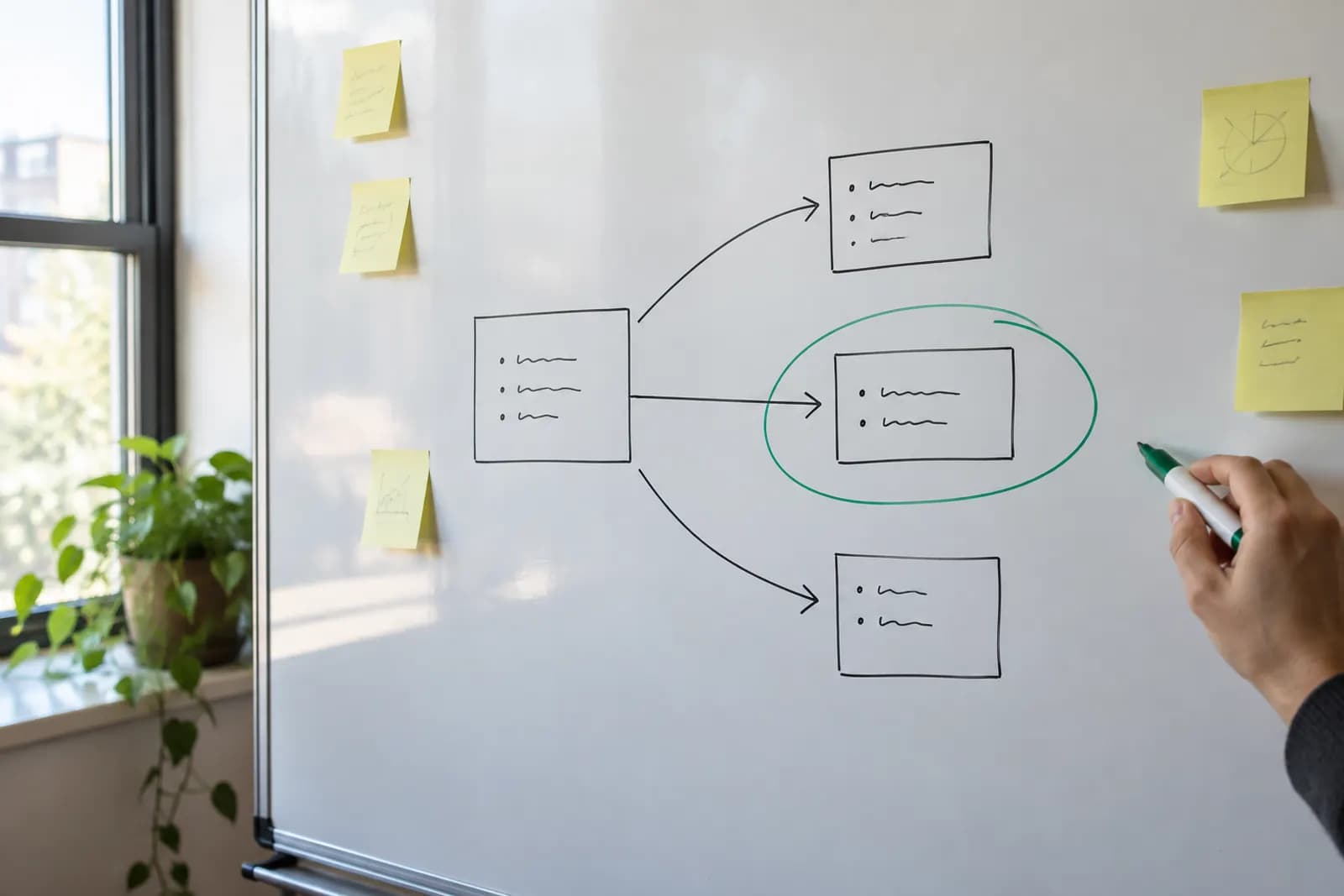
To write product image alt text in batches with AI, pair each image with a stable identifier, ask an image-capable tool for a short description, and review every draft against the image before publishing. The review must catch both invented details and descriptions that fail to distinguish the image.
To write product image alt text in batches with AI, pair each image with a stable identifier, ask an image-capable tool for a short description, and review every draft against the image before publishing. The review must catch both invented details and descriptions that fail to distinguish the image.
The images that need their own descriptions
Product image alt text should describe what a particular image contributes, not repeat the same product name across an entire gallery. A main image might show the whole item, while another shows its back, a fastening, or the item in use. Someone who cannot see those images needs the difference between them, not a copy of the sales description.
Start by separating useful product images from decoration. A photograph that helps a shopper understand appearance, shape, or use needs an appropriate description. A purely decorative image may need empty alt text, depending on how it appears on the page. Do not ask AI to fill every empty field without making that distinction first.
Alt text is also different from the copy you might create with a bulk product description workflow. Product copy can explain benefits and specifications. Alt text should convey relevant visual information in the context of the page. If the adjacent product title already identifies the item, a gallery image's alt text can focus on what that view adds. Avoid keyword lists and repeated phrases across near-identical images.
A spreadsheet that keeps each draft attached to its image
A batch works best when every image has its own row and a stable way to find it again. Record the product identifier, image identifier or filename, gallery position, image location, image role, approved product facts, AI draft, review status, and final alt text. An identifier matters more than row order, which can change when someone sorts a sheet.
Keep approved facts separate from what the image visibly shows. A product record may confirm a material or model name that a photograph cannot establish. That fact might be useful elsewhere on the product page, but it should not slip into alt text merely because AI received it. Give the tool only the context needed to identify the item and distinguish the view.
Before drafting, check that each image opens and matches its row. Remove duplicate files that serve no different purpose, and flag images whose product association is uncertain. If the team already uses a spreadsheet for product copy, reuse its identifiers rather than rebuilding the catalogue. For a small gallery, a person can fill and review the sheet manually. Automation becomes useful when repeated exports and uploads make matching images to rows the difficult part.
A batch prompt that describes the visible evidence
An image-capable AI tool can generate product image alt text when it receives the images and a clear instruction to avoid guessing. Choose a tool that accepts images, then provide a manageable batch with each image's identifier and its role in the gallery. Check the tool's current upload limits and workplace data rules before sending product images, especially unreleased items.
Ask for one row per image, preserving the identifier. A usable instruction is: Describe the visible product and what makes this view different from the other views. Write a short, plain alt text draft. Do not infer material, size, capacity, brand, or features that the image and approved facts do not establish. If the image is unclear or its purpose is uncertain, mark it for human review instead of guessing.
For example, a main photograph of a blue mug with a curved handle might produce “Blue mug shown from the side with its curved handle.” A close-up of that same handle needs different wording, such as “Close view of the curved handle attached to the blue mug.” Those drafts describe the view without claiming what the mug is made of. Copy results into draft cells, not directly into the store.
The review rule for invented and unhelpful alt text
Review every AI draft against its actual image using two checks: Is each stated detail supported, and does the description help distinguish this image? A draft fails the first check if it names a material, feature, colour, use, or product variant that the image and verified context do not establish. Remove the claim or check the underlying product record before deciding whether it belongs.
A draft fails the second check if it says only “product image,” repeats the product title without describing the view, or uses the same wording for visibly different gallery images. Replace it with the relevant visible difference. If several images truly communicate the same thing, consider whether the gallery needs them all rather than inventing differences to fill alt text fields.
Keep the image and draft side by side during review. Mark each row approved, corrected, or unresolved, and record the final text separately so later AI runs cannot overwrite a human correction. An AI output review checklist can help a team make those decisions consistently. For unclear photographs, fix the image or product association first. Better prompting cannot establish a detail that nobody can verify.
The safe route for Shopify products in bulk
To write alt text for Shopify products in bulk, generate and approve descriptions outside the store first, then confirm which supported method can update the alt text for each product image. Keep the product and image identifiers alongside the approved wording. A product-level title is not enough to match a description to a particular gallery image.
Check Shopify's current admin and import instructions before changing live records. Do not assume that a general product CSV export contains an editable image alt text field, or that importing a revised CSV will update existing image alt text. If the available import route does not support the change you need, use the store's image editor or a suitable bulk-editing app. Check how that method identifies images and what it will overwrite.
Try the chosen method on a small group of products. Open their live pages afterward and inspect the image alt text, gallery order, and any fields the update might have touched. Then continue in batches you can check and reverse. If manual entry takes less time than setting up an import, use manual entry. The goal is accurate descriptions attached to the right images, not automation for its own sake.
A repeatable workflow for the next product upload
The repeatable workflow is to collect images, assign identifiers, draft alt text, review it beside each image, publish approved text, and check the result on the product page. Save the reviewed sheet with the image batch so a later upload does not silently replace a description or attach it to a different variant.
Give new or changed photographs a fresh review even when the product name stays the same. A new crop can hide a detail that an older description mentions. A variant swap can make a colour wrong. When an image is removed, check whether its alt text remains in a separate import file waiting to be reused by mistake.
For a small team, a shared sheet with an owner and a clear review-status column is enough. If copying approved rows into the store becomes a frequent task, map the workflow before adding an automation tool: identify the trigger, the image-matching key, the review stop, and a way to spot failed updates. An implementation checklist for a first workflow is useful at that stage. Keep human approval between AI drafting and publication.
Sources consulted
- Microsoft Learn accessibility guidance (learn.microsoft.com)
- OpenAI Help Center (help.openai.com)
- Google Sheets Help (support.google.com)
Frequently asked questions
Can AI write alt text for ecommerce images without seeing the images?
AI can draft from product records alone, but it cannot reliably describe a particular photograph it has not received. Use an image-capable tool and provide each image with its identifier. If images cannot be shared, have a person record the visible details first, then use AI to help turn those notes into concise drafts.
Should every product image have different alt text?
Images that show different useful details should have descriptions that reflect those differences. Do not force unique wording onto duplicate views, and do not repeat the same generic product name throughout a gallery. Decide what each image contributes to someone who cannot see it; treat purely decorative images according to how they function on the page.
Can I upload AI-generated alt text to Shopify with a CSV?
Check Shopify's current import instructions before relying on a CSV. An export or import that handles product data may not update alt text for existing gallery images in the way you expect. Keep approved descriptions matched to image identifiers, test the available method on a small group, and inspect the resulting product pages.
What is the fastest way to catch AI-invented product details?
View each draft beside its image and ask whether every specific claim is visible or supported by verified product information. Pay particular attention to material, size, colour, brand, and features. Then ask whether the text distinguishes that image from other gallery views. Correct unsupported claims and descriptions that say nothing useful.
Related guides
 Automated Product Certification: A Practical WorkflowAutomated product certification means checking product evidence against rules, recording decisions, and routing exceptions for human review.
 How to Automate Email Classification Without CodingUse Gmail or Outlook, an AI step, and a human review queue to sort email safely without writing code.
 Connect Claude to Google Sheets Without Writing CodeHave Claude read a Google Sheet and write results back to the right rows whenever a new entry lands, set up with Zapier and tested on a copy first.
Drafted with AI assistance and checked automatically before publishing. Tools and prices change; check the official source before you act.