
Turn a Webinar Recording Into a Timestamped FAQ
By Anu Verma
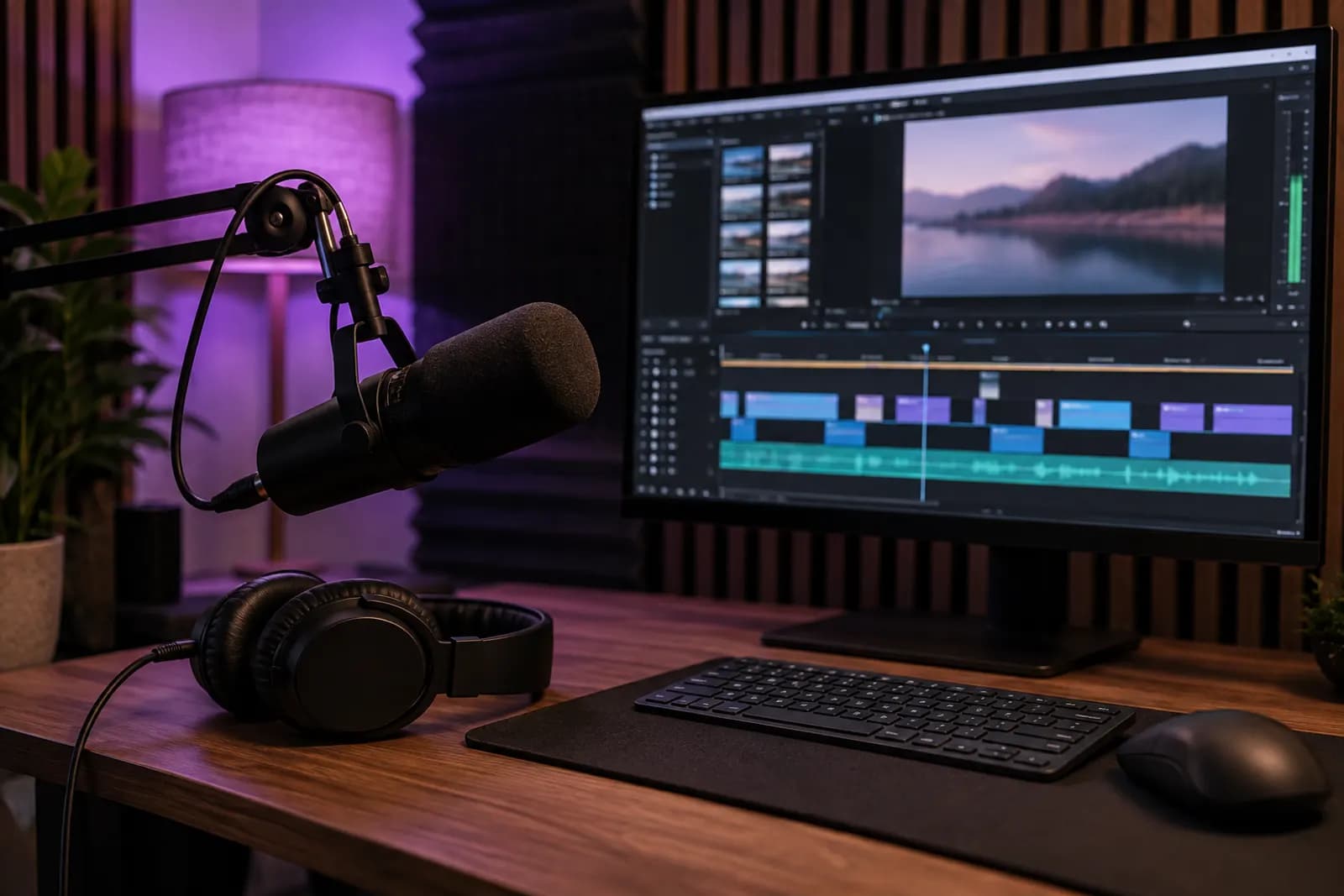
A timestamped webinar FAQ pairs each answer with a link to the moment in the recording that supports it. Use a timecoded transcript to draft questions, then check the video before publishing.
A timestamped webinar FAQ pairs each answer with a link to the moment in the recording that supports it. Use a timecoded transcript to draft questions, then check the video before publishing.
A timecoded transcript is the starting point
A timecoded transcript lets you turn a webinar recording into questions and answers without losing the evidence for each answer. Start with the recording you have permission to use. Check whether its video host offers captions or a transcript, and whether you can copy or download the text with time markers. If not, use a transcription tool that accepts a recording and exports timecoded text. Keep the recording available: the transcript is a working document, not proof that every word was heard correctly.
Before sending a recording or transcript to an AI tool, check whether it contains customer details, private chat messages, or material you are not allowed to share with that service. Remove what you do not need, or use an approved workplace tool. Include audience questions if you have permission to use them; they often reveal the wording readers will search for.
Choose the version of the video that people will actually watch. A timestamp copied from an unedited recording may point to the wrong moment in a trimmed upload. Keep the transcript, the published video, and any edits together while you work.
AI can draft questions, but it cannot supply missing evidence
To create an FAQ from a webinar recording with AI, ask a general-purpose AI assistant to extract only questions the transcript can answer. Paste in manageable portions of the timecoded transcript, or provide the file if your approved tool accepts it. Say who will read the FAQ and what they need to do after reading it. Ask for a plain-language question, a short answer, and the transcript time marker for the passage used as evidence.
A useful instruction is: “Draft questions a reader would ask about this webinar. Answer only from the supplied transcript. For each answer, include the time marker and a short excerpt that supports it. If the transcript does not answer a question clearly, mark it for review instead of guessing.” Treat the excerpt as a checking aid, not text to publish without review.
Merge repeated questions and leave out remarks that are interesting but not useful as answers. A time marker beside an AI-generated answer is only a candidate location. The assistant may combine statements from distant parts of the webinar, mistake a question for an answer, or make an uncertain remark sound like a firm policy.
A booking webinar shows how to attach evidence to an answer
A hypothetical webinar about booking client appointments makes the workflow concrete. Suppose the speaker opens a booking calendar and explains that clients can move an appointment by using the booking page, subject to availability. A useful draft question is “Can a client reschedule an appointment?” The proposed answer is “Yes. Clients can use the booking page to choose another available time.” Its evidence field should point to the moment where the speaker explains that action, not merely to the start of the webinar.
Open the recording at the transcript's suggested time. Listen to the full exchange. If the speaker was describing a future feature rather than the current process, revise or remove the answer. If the transcript missed “subject to availability,” put that condition back. Then copy the video host's link that starts playback at the supporting moment and attach it to the proposed answer. Test the link outside your editing view.
This is an illustrative example, not a claim about a particular recording. The practical test is whether someone who doubts the answer can follow its link and hear enough context to check it.
A video timestamp must survive a reader's click
An AI FAQ with video timestamps is useful only when each timestamp opens the right video near the supporting explanation. Check what your video host offers for sharing from the current playback position. Some hosts provide a start-at-this-moment option; others may require a time setting when you create the link. If the host cannot open at a chosen moment, a written time marker is still helpful, but do not call it a clickable timestamp.
Review every proposed answer with the recording playing. Check the speaker's exact meaning, any exceptions, and whether a later clarification changes the answer. Link to the start of the relevant explanation rather than the middle of a sentence. For an answer supported by separate moments, include links to both or narrow the answer to what one moment supports. Do not use a link to an audience question as evidence for the speaker's response.
Finally, open each link as a reader would, preferably without editor access. Confirm that the video is available to the intended audience and that playback reaches the right passage. A correct time marker attached to a private or replaced video is not a working citation.
Publish the FAQ as a checked reference, not an automatic transcript
Publish only the questions whose answers you can verify, with a link to the supporting video moment beside each answer. Keep the wording brief enough to scan and specific enough that readers know whether it applies to them. If a speaker gives an opinion, describe it as the speaker's view rather than turning it into a general rule. If the webinar leaves a question open, say so instead of asking AI to fill the gap.
A simple document or help page is enough for a single webinar. Use a more elaborate workflow only when recordings arrive regularly and someone will maintain the results. You can reuse approved material later, but reuse serves a different purpose: turning one blog post into social posts is about distribution, while this FAQ is about making claims traceable. If you need to teach the process shown in a webinar, turning a written SOP into a training video with Google Vids addresses that separate task.
Keep a review copy with the transcript passage, checked answer, and working video link. When the webinar is edited or the advice changes, revisit the affected answers and their links before continuing to share the FAQ.
Sources consulted
- Google Help (support.google.com)
Frequently asked questions
Can I make a webinar FAQ if I only have the video?
Yes. First obtain a transcript with time markers from the video host or a transcription tool. Then use an AI assistant to propose questions and answers from that transcript. Keep the video open for review, because transcription errors and missing context can change an answer. Check sharing permissions before uploading the recording elsewhere.
How do I turn a webinar transcript into questions and answers?
Ask an AI assistant for questions a reader would realistically ask, with short answers drawn only from the transcript. Require a time marker and supporting passage for every draft answer. Merge duplicates, reject unsupported claims, and listen to each suggested passage in the recording before you publish.
What if my video host does not support timestamp links?
Include a written time marker and tell readers which recording to open, but do not present the marker as a working jump link. If clickable evidence is essential, choose a host that supports links to a playback position and confirm that your intended readers can access the video.
Should I automate the FAQ whenever a new webinar is uploaded?
Automate transcript collection and draft creation only if webinars arrive often enough to justify the setup. Keep a person responsible for checking answers and video links before publication. A single recording is usually simpler to handle in a document and an approved AI assistant, without an automation workflow.
Related guides
 Turn a Written SOP Into a Training Video With Google VidsTurn a written SOP into a Google Vids training video by recording real software steps and using simple scenes for context and reminders.
 How to Transcribe and Summarise Voice Notes AutomaticallyTurn phone voice notes into searchable transcripts and useful summaries with no code, using a dependable workflow and checks for common errors.
Drafted with AI assistance and checked automatically before publishing. Tools and prices change; check the official source before you act.