
Turn a Written SOP Into a Training Video With Google Vids
By Anu Verma
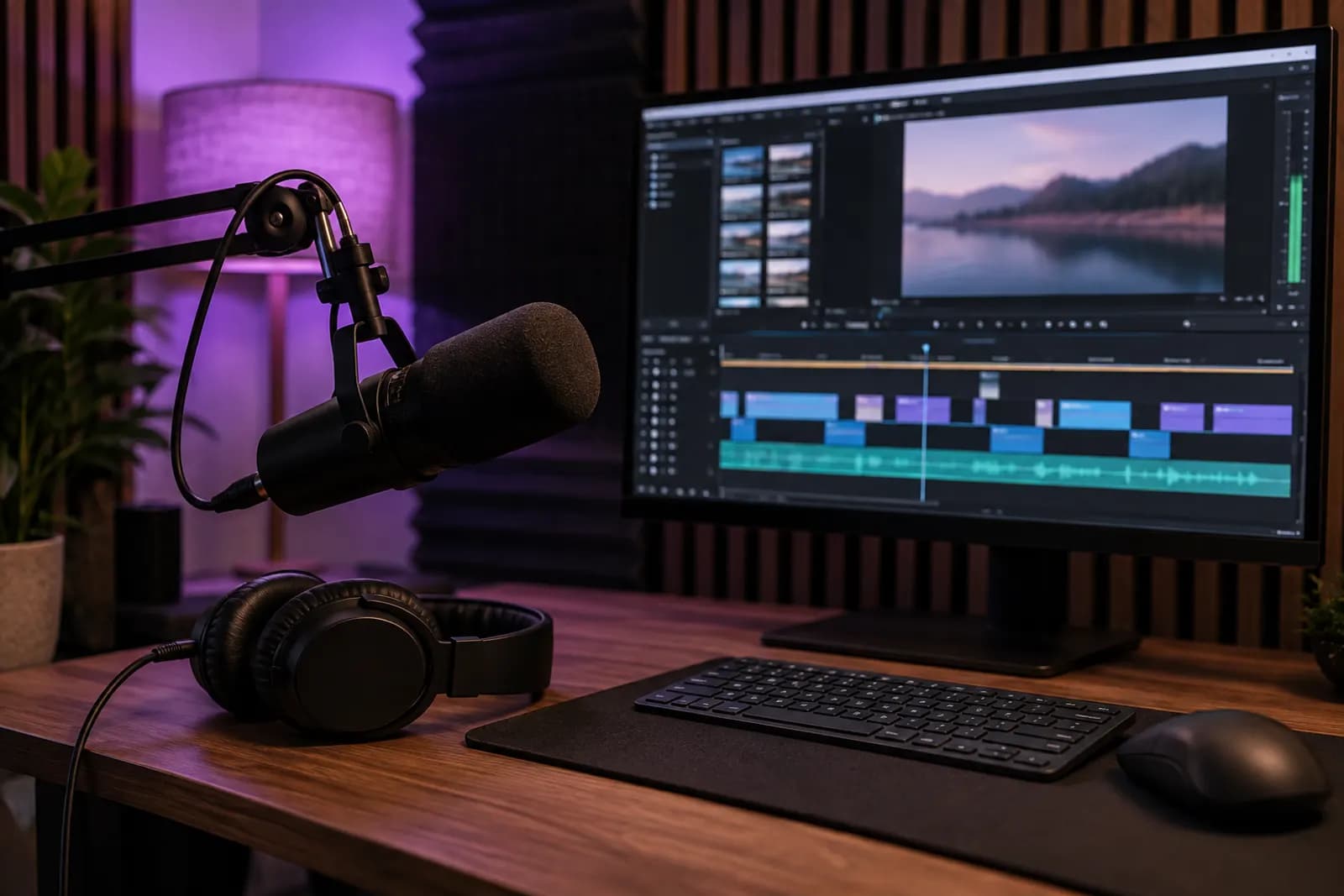
To turn a written SOP into a training video with Google Vids, make each action a short scene. Record the actual software steps, and use simple text or AI-generated visuals only where viewers do not need to see a real interface.
To turn a written SOP into a training video with Google Vids, make each action a short scene. Record the actual software steps, and use simple text or AI-generated visuals only where viewers do not need to see a real interface.
The SOP step that makes a useful first video
A short, repeatable office procedure is the best first SOP to turn into a Google Vids training video. Use a procedure with a clear starting point, a small set of actions and an outcome a colleague can check. For example, consider an SOP for handling a new service request: read the message, add the request to a shared tracker, assign an owner and confirm that the entry was saved.
Read the SOP as if you were doing the work for the first time. Mark every place where you must choose a value, open a particular menu or decide whether to stop and ask for help. Those are the moments the video must show clearly. If the SOP is still a collection of informal notes, make it reliable before filming. The guide to turning messy notes into an SOP can help with that earlier task.
Set one learning goal: after watching, a colleague should be able to enter a practice request correctly. Do not try to cover every exception in the same video. Keep unusual cases in the written SOP and tell viewers where to find them.
The scenes that need a real screen recording
Record the real interface whenever the learner must recognise a control, enter information or verify a result. In the service request example, show a safe sample message, the shared tracker opening, the fields being filled in, the owner being selected and the saved entry. Pause briefly after each action so a viewer can see what changed. Narrate the reason for a choice rather than reading every visible field aloud.
An AI-generated scene is a poor substitute for these actions. A convincing imitation of an inbox or tracker may contain buttons, field names or layouts that do not exist in your workplace. Even a recording can become outdated when software changes, so keep the spoken instructions focused on the purpose of each action and review the clip when the process changes.
Use a screen recording of a practice account or prepared sample, not a live customer request. Remove personal details, private messages and unrelated browser tabs before recording. If you cannot show a safe example, use a simple diagram for the sensitive step and direct employees to the current written SOP for the exact action. The AI data privacy training guide offers a useful companion for deciding what material should stay out of training assets.
Where simple scenes beat AI-generated video
Use text and plain visuals for context, decision rules and the final check; reserve screen recordings for actions inside software. The service request video can open with a short scene explaining when a message qualifies as a request. A later scene can show a simple flow from message to tracker to owner. The closing scene can remind viewers to confirm that the saved entry has the right owner. None of those scenes needs a simulated software interface.
Google Vids is a video creation tool built around editable scenes. Depending on what your work account offers, you may be able to start from a document with an AI-assisted creation option. Treat any draft it produces as a storyboard, not as a verified demonstration. Compare every proposed scene and line of narration with the approved SOP. If that option is unavailable, create a blank video and transfer the SOP into scenes yourself. A plain title card, a short explanation and a real recording are enough for this job.
AI-generated visuals can help illustrate a general situation, such as a stack of incoming work, but they should not imply a specific workplace rule. Skip them if a plain scene communicates the point. This is how to turn an SOP into a video without editing skills: keep the structure simple and spend your effort making the actions accurate.
The Google Vids workflow from document to draft
Build the Google Vids draft from the approved SOP, then replace any generic action scenes with real recordings. Open Vids in your work account and look at the creation options available there. If an option to start from a file is offered, choose the approved procedure document and inspect the suggested scenes. Otherwise, start a blank video, put each main action on its own scene and use the SOP to write brief narration. Your organisation’s account settings may affect which creation and recording features appear.
Arrange the service request scenes in working order: when to use the procedure, what to check in the incoming message, how to create the tracker entry, how to assign an owner and how to confirm the save. Capture the software actions with a screen recording option available to your account, or use an approved screen recorder and add the clip to the relevant scene. Keep the pointer movement deliberate and trim away waiting or mistaken clicks.
Add narration in your own voice if that is easiest. If an AI voice option is available, listen for mispronounced terms and awkward pauses before using it. Keep on-screen text brief enough to support the action rather than compete with it. For a Google Vids tutorial for employee training, the finished draft should match the procedure employees will actually follow.
The review that makes the video safe to share
Have someone who performs the procedure check the video against the current SOP before sharing it with trainees. Ask that person to follow the recording with a practice request and note every moment where they cannot tell what to click, what value to choose or how to confirm success. Fix those gaps in the recording or narration rather than covering them with a decorative scene.
Check the final video for exposed customer details, notifications, unrelated tabs and audio that reveals private information. Then check whether any AI-generated visual could be mistaken for a real screen or an official example. Replace misleading visuals with plain text or a simple diagram. Keep the approved SOP beside the video when you share it, because the document is easier to update when an exception or policy detail changes.
Give viewers a small practice task after watching: enter a sample service request, assign the intended owner and confirm the saved entry. Their result tells you more than whether they watched to the end. If this video is part of wider onboarding, place it beside the relevant practice work in an office team AI training curriculum. Review the recording whenever the interface or procedure changes.
Sources consulted
- Google Vids Help (support.google.com)
Frequently asked questions
Can Google Vids make a training video from a document?
Google Vids may offer an AI-assisted option to start from a file, depending on your work account. If it appears, use the approved SOP to create a draft, then check every scene against the procedure. If it does not appear, you can still build scenes manually from the document and add recordings of the real steps.
Which SOP steps should be screen recordings rather than AI-generated scenes?
Record steps where employees must identify a real button or field, make a choice, enter data or check that work was saved. Use plain scenes for context, rules and reminders. Do not use an AI-generated imitation of your software as a demonstration, because it may show controls or layouts that are not real.
Do I need editing skills to turn an SOP into a video?
No advanced editing is needed for a straightforward training video. Put the procedure in working order, give each main action a scene, add short recordings and remove mistakes or long pauses. A clear view of the real task matters more than transitions or effects. Ask a colleague to try the procedure from the draft.
What if the procedure includes private customer information?
Record with a prepared sample or an approved practice environment instead of a live customer record. Check messages, browser tabs, notifications and audio before sharing. If you cannot demonstrate a step without exposing private information, explain its purpose with a plain diagram and refer employees to the approved written procedure for the details.
Related guides
 AI Data Privacy Training: Eight Steps That WorkBuild AI privacy training employees can use this week, with a route comparison, tool checks, safe practice tasks and failure tests.
 Best AI Training Courses for Professionals Who Need ResultsCompare practical AI training courses for professionals by job, tool, and time, then choose no-code learning you can apply this week.
 Auto-Post Google Docs to LinkedIn Without Writing CodeTurn an approved Google Doc into a LinkedIn post without copy-paste: Zapier triggers it, AI drafts the hook, and a duplicate guard stops double posts.
Drafted with AI assistance and checked automatically before publishing. Tools and prices change; check the official source before you act.