
Speed Up One Clip in Google Vids Without Rushing Narration
By Anu Verma
To speed up just one clip in Google Vids, select the video clip rather than the whole scene and change its playback speed. Keep narration separate, then check the scene duration and the handoff to the next scene.
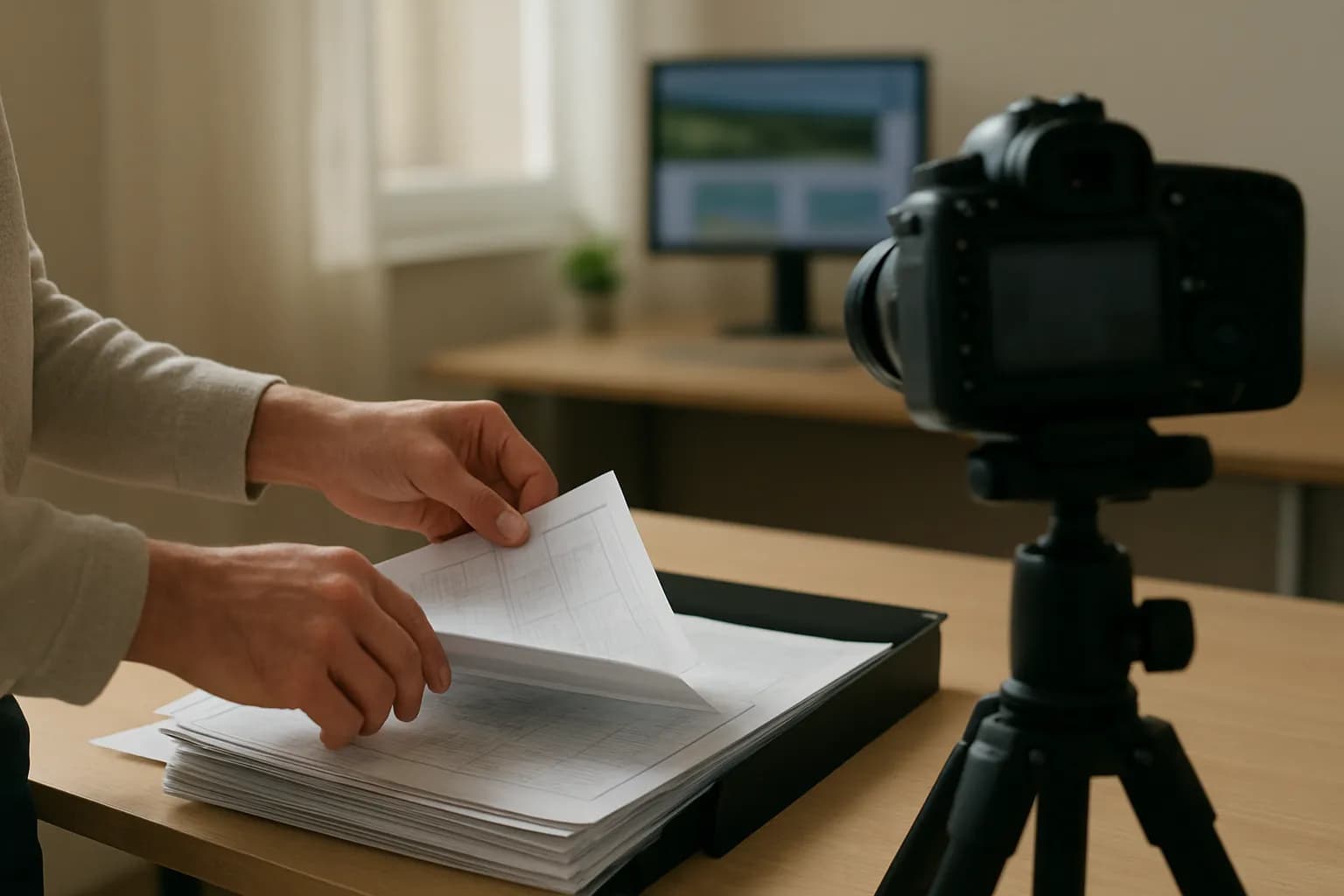
To speed up just one clip in Google Vids, select the video clip rather than the whole scene and change its playback speed. Keep narration separate, then check the scene duration and the handoff to the next scene.
The video clip is the part to change
Changing playback speed for one clip in Google Vids means editing the video footage you want viewers to see faster, not the entire presentation. Select the footage in its scene and look for a playback speed control among its editing options. Leave other video clips at their normal speed.
Before changing anything, identify what the slow section contains. A demonstration might show someone opening a folder, sorting several pages and placing the finished set in a tray. Viewers may need to see the first action clearly, but not every moment of sorting. If all of those actions are in one clip, speeding up the clip will affect all of them. Trim the footage or arrange the parts as separate clips or scenes so the change applies only where you intend.
Google Vids is a video editor built around scenes. A scene can also contain narration, text and other elements, so selecting the scene is not the same as selecting its video footage. If you cannot see a speed setting, check that the footage itself is selected. Save an unchanged copy before making extensive timing edits if you may need to return to the original arrangement.
The slow portion needs its own boundary
To speed up part of a Google Vids video, first give that part a clear start and end. Speed controls apply to a selected piece of footage, so an action buried in the middle of a longer recording needs to be isolated before you change its speed.
Watch the recording and choose the moments immediately before and after the action that feels slow. Keep enough footage at each end for the viewer to understand what happened. In a demonstration of filing a document, you might keep the folder opening at normal speed, accelerate the repetitive sorting and return to normal speed when the finished pages are placed in the folder.
Use the trimming and clip arrangement options available in your Vids editor to place those portions separately. If the footage crosses several scenes, check where each scene begins and ends. If you duplicate a scene to make separate portions, review its other elements before continuing: a copied scene may also contain text, narration or music you did not mean to repeat. Play across both boundaries before applying speed. A clean cut makes the faster section easier to follow and makes timing problems easier to spot.
A faster demonstration can leave the voice alone
A short workplace demonstration can play faster while its narration remains at normal speed when the narration is separate from the footage being changed. Consider a training video that shows someone checking a paper form, sorting a stack of completed forms and placing them in a tray. The spoken instruction explains what to check; the middle sorting action simply takes longer on camera than it needs to.
Keep the form check and the final tray shot at normal speed. Select the isolated sorting footage, choose a faster playback setting if one is available, and preview the result. The aim is not to make the action as fast as possible. Viewers should still be able to tell that the forms were sorted and see the finished stack.
Check how the voice was recorded before editing. If it is part of the original video clip, changing that clip's speed may change the speech along with the picture. Use separately recorded narration for this approach, or first follow the steps in separating audio from a video clip in Google Vids. Then check that the narration remains in the right place after the visual portion becomes shorter.
Scene timing still needs a separate check
Making one Google Vids clip play faster does not, by itself, guarantee that the finished scene ends at the right moment. Shorter footage may leave a gap, expose another element for longer than intended or bring the next scene in before the narration finishes. Preview the whole scene after changing speed, not just the edited clip.
In the form-sorting example, the narrator might still be explaining the check while the faster footage has already reached the finished stack. You can let the final shot remain on screen if it supports the instruction. Otherwise, adjust the surrounding footage or the scene's timing so the picture and speech make sense together. Avoid speeding up the voice merely to fill a timing mismatch.
Then play from the scene before the edit through the scene after it. Listen for a sentence cut off at a boundary and watch for a repeated frame, a sudden blank area or text that disappears too soon. If the video is based on a written procedure, turning a written SOP into a training video with Google Vids can help you decide which actions need enough screen time for someone to follow.
The simple option is enough for a repetitive action
A single speed change is enough when the slow clip shows a repetitive action and the viewer does not need to inspect every moment. Keep the edit modest, preview it at ordinary playback and ask whether someone unfamiliar with the task could still describe what happened. If not, restore a slower setting or shorten the footage by trimming uneventful moments instead.
Speed is a poor fix when the recording contains important small details, such as a choice between similar forms or a hand pointing to a specific field. In those cases, a cut that removes waiting time may be clearer than faster playback. You can also keep a short close view of the decision and accelerate only the repeated work around it.
For a quick review, watch once without sound to check the visual sequence, then listen without concentrating on the picture to check the spoken explanation. Finally, watch them together. The edit succeeds when the faster portion saves attention without making the instruction harder to use. You do not need an elaborate set of effects for a short demonstration that already has a clear beginning and end.
A missing speed control calls for a clip-level workaround
If your Google Vids editor does not offer a playback speed control for the selected footage, make a faster copy of that footage in a video editor that supports clip speed changes, then bring the result back into Vids. Check the available controls after selecting the video itself, rather than assuming that a scene-level timing option will produce the same result.
Export or save only the demonstration portion you want to accelerate. Change that portion's speed in the other editor, review the result, and import it as a replacement for the original portion. Keep the unedited source until the full video has been checked. If the original footage contains spoken instructions, use a version without that embedded speech or handle the audio separately before replacing it.
This workaround is useful only when the speed option you need is unavailable. It adds another file and another timing check, so use Vids' own clip control when it meets the need. Whichever route you take, preview the edited scene and its neighbours before sharing the video. The important distinction is between changing the duration of a scene and changing how fast a particular piece of footage plays.
Sources consulted
- Google Vids Help (support.google.com)
Frequently asked questions
How do I change playback speed for one clip in Google Vids?
Select the video footage inside the scene and look for its playback speed option. Choose a faster setting, then preview the clip and the surrounding scenes. If no speed control appears, confirm that you selected the footage rather than the scene. You can also speed up that portion in another video editor and import it back into Vids.
Can I speed up part of a Google Vids video without speeding up everything?
Yes, if the part you want to change is isolated as its own piece of footage. Trim or arrange the recording so the slow action has clear boundaries, then apply the speed change only to that piece. Preview the cuts on either side to make sure the action remains understandable.
Will speeding up a clip also speed up my narration?
Narration recorded into the same video clip may change with that clip's playback speed. Separately recorded narration can stay at its normal pace, but its timing may need adjustment after the picture becomes shorter. Check how the audio is attached before editing, then listen through the full scene afterward.
Why does the scene still feel too long after I speed up the clip?
The scene may contain narration, text or other footage that continues after the faster clip ends. Preview the full scene and adjust its remaining elements or duration as needed. A faster clip changes that footage's playback, but you still need to check when the scene ends and how it joins the next one.
For you
Learn to do this with AI, free
Short courses for people who aren't engineers: ChatGPT, Claude, prompting and automation. Every lesson is free, with no card.
Start a free courseFor companies
Make an AI or automation tool?
List it in the directory for $9.99, refunded in full if it isn't approved, or claim its page if it is already here.
Related guides
 Separate Audio From a Video Clip in Google VidsDetach a Google Vids clip's audio when sound needs its own edits, then reposition or replace it while checking for overlap and sync.
 Turn a Written SOP Into a Training Video With Google VidsTurn a written SOP into a Google Vids training video by recording real software steps and using simple scenes for context and reminders.
 Review AI Captions Before Sharing a Training VideoGenerate captions for a training video, then check names, product terms and timing against the audio before exporting a caption file.
Drafted with AI assistance and checked automatically before publishing. Tools and prices change; check the official source before you act.
Get the next one by email
One email a week: what changed in AI for people who use it at work, and what to do about it.