
Separate Audio From a Video Clip in Google Vids
By Anu Verma
To separate audio from a video clip in Google Vids, detach the clip’s sound so you can edit it independently. Mute instead when you only need silence. If you move or replace detached audio, use a visible moment in the video to check that the sound still lines up.
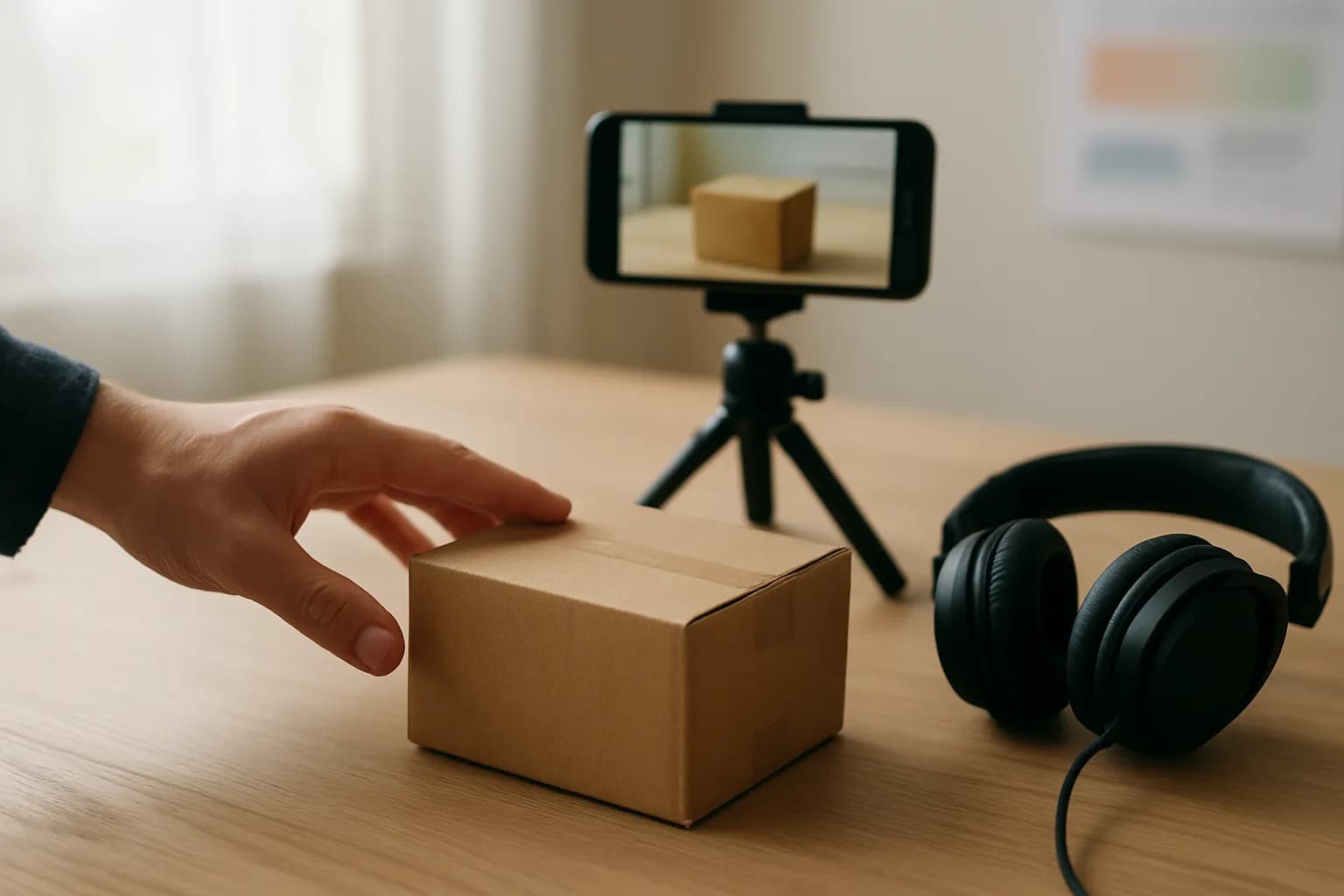
To separate audio from a video clip in Google Vids, detach the clip’s sound so you can edit it independently. Mute instead when you only need silence. If you move or replace detached audio, use a visible moment in the video to check that the sound still lines up.
Detach audio when sound needs its own edit
Detach audio from a Google Vids video clip when you need to keep the picture but change when its sound starts, where it ends, or which recording plays with it. Detaching gives the sound its own item to edit. Muting is simpler when the original sound is unwanted and you do not need any part of it.
For example, a screen recording might have a useful spoken explanation that begins before the action it describes. Separating the audio lets you adjust the recording without shifting the video. If the recording contains only room noise and a new voiceover will replace it, muting the original clip may be all you need.
Before editing, play the clip and decide what you want to preserve. Note a visible event, such as a hand pressing a button, and the sound that belongs with it. That pair will be your sync check later. Also listen for sound already added to the scene. A music track or another voice recording can make it seem as though the original clip is still playing after you mute it.
If the video is part of a staff instruction, plan the narration alongside the visuals. The guide to turning a written SOP into a training video with Google Vids can help you decide what the picture must show before you adjust its sound.
The Google Vids detach audio workflow
To edit video audio separately in Google Vids, select the video clip that contains the sound, then use its editing controls to detach the audio. The result to look for is an audio item you can select independently of the video. Google may change where a control appears, so use Google Vids Help if the menu in your editor differs.
Work on a copy of an important project, or keep an untouched copy of the source clip available. Play the selected video before detaching so you know it has embedded sound. Then open the clip’s menu and look for the detach audio action. Select the new audio item and make a small, reversible adjustment to confirm that you are editing sound rather than moving the picture.
If no detach action appears, check what you selected. A separate voiceover, music item, still image, or empty part of a scene is not a video clip with audio to detach. Also check whether the sound you hear comes from another item in the project. Selecting the right source matters more than repeatedly changing volume controls.
After detaching, play the same passage again. Listen for doubled speech, silence, or a change in timing. Do not assume the sound has been removed merely because a separate audio item is visible. The playback check tells you what the scene will actually contain.
A visual cue keeps repositioned audio in sync
Reposition detached audio against a clear visual cue, not just the beginning of the scene. Choose a moment where an action and a sound belong together, such as a parcel touching a counter and the sound of the contact. Keep the video in place while you move the audio item, then replay that moment.
Make small changes and listen on both sides of the cue. An audio start that sounds right at the cue can still cut off the first word. Likewise, trimming the end might remove a final instruction or leave a sound playing over the next scene. Check the start, the cue, and the ending rather than relying on a single playback point.
Narration does not always need to match a physical action exactly. A sentence may begin before the viewer sees the relevant screen or object. In that case, use the first word and the first relevant image as your reference pair. The aim is for the viewer to understand what the words describe, not for every syllable to meet a cut.
If the audio drifts out of sync as the clip continues, moving its start will not fix the whole passage. Check whether the video or audio has been trimmed, shortened, or split differently. Restore matching material or edit the passage in smaller parts, then play it through.
Replacing clip audio without doubling the sound
Replace audio on a Google Vids clip by making the original sound inaudible, adding the replacement recording, and checking both together with the picture. Detaching is useful if you want to keep part of the original recording or adjust it separately. If none of the original sound is needed, muting the video may be the simpler route.
First decide whether the replacement is a new voiceover, music, or a cleaner recording of the same event. Keep any useful original sound, such as a button click that tells the viewer an action happened. Mute or remove the unwanted original audio before judging the replacement. Otherwise, two similar recordings can play at once and make speech difficult to understand.
Add the replacement audio using the sound or recording controls available in your Google Vids editor. Place its beginning near the visual cue you identified, then trim or move it until the relevant words and actions line up. Play through any pauses as well as the spoken parts. A quiet gap can reveal background sound that you missed while listening to the narration.
For training material aimed at different roles, decide whether one narration can serve everyone before recording alternatives. You can show different Google Forms questions based on an answer to gather what each group needs, then make an appropriate video. Replacing a soundtrack does not, by itself, give viewers different instructions.
Scene boundaries need a separate sound check
Check the sound at every scene boundary affected by an audio edit, because a clip can sound right in isolation but wrong when the next scene begins. Play from shortly before the edited clip through the transition and into the following scene. Listen for cut-off words, repeated speech, lingering background noise, and gaps.
Scene-based video editors make it easy to focus on the picture in one scene while overlooking audio that continues nearby. If you move a detached item, confirm which scene contains it and where playback stops. If you shorten the video, do not assume the audio shortened with it after separation. Review both items before making another trim.
A useful final check is to watch without touching the controls. The first pass can focus on whether the spoken instructions make sense. On the next pass, watch the visual cue and listen for the matching sound. If the clip contains a hand action, a cursor action, or a change of object, ask whether the narration describes what is visible at that point.
Finally, review the finished video as viewers will receive it, if your normal sharing workflow allows that. An editor preview is useful for adjustments, but the delivered version is where an overlooked transition becomes apparent. Keep the source recording until that review is complete.
The simple option is enough when the sound has no value
Mute the clip instead of detaching its audio when you want silent footage or plan to cover the entire clip with a new recording. There is no benefit to managing a separate original audio item if you will not use any of it. Play the muted clip once to confirm that the sound you meant to remove came from that clip.
Detach when the sound has a job of its own. You might need to retain a short natural sound under a new voiceover, move an explanation earlier, or trim a noisy ending without changing the video. In each case, separating the sound gives you something specific to edit and a specific result to check.
Use a new recording rather than extensive repositioning when the words no longer match the visuals. Moving a sentence can fix timing, but it cannot make an outdated instruction accurate. If the picture itself is wrong, replace or recut the picture before polishing the audio. That saves time spent syncing sound to a scene you will discard.
For a quick decision, ask whether you need to hear any of the clip’s original sound in the finished video. If not, mute it. If yes, detach it, protect the useful part, and check sync against an action the viewer can see.
Sources consulted
- Google Vids Help (support.google.com)
Frequently asked questions
How do I detach audio from video in Google Vids?
Select a video clip that contains sound and look for the detach audio action in its editing controls. After using it, confirm that you can select the audio independently, then play the scene. If the action is missing, check that you selected the video itself rather than a separate audio item or image, and consult Google Vids Help for the current controls.
Can I edit video audio separately in Google Vids without moving the picture?
Yes. Detach the clip’s audio, leave the video where it is, and select the audio item for timing or trimming changes. Use a visible action and its matching sound as a reference. Replay the beginning and end of the clip too, since a well-matched moment in the middle can hide a cut-off word elsewhere.
Should I detach audio or mute a Google Vids clip?
Mute the clip if none of its original sound belongs in the finished video. Detach the audio if you need to preserve, move, or trim some of that sound independently. After either change, play the scene to make sure the sound you heard was coming from the clip you edited, not another audio item.
How do I replace audio on a Google Vids clip without hearing both recordings?
Mute or remove the unwanted original sound, add the replacement recording, and play them with the video. If you want to retain a useful sound from the original, detach it and keep only the needed part. Check quiet gaps as well as speech, because overlapping recordings are sometimes easiest to hear between sentences.
For you
Learn to do this with AI, free
Short courses for people who aren't engineers: ChatGPT, Claude, prompting and automation. Every lesson is free, with no card.
Start a free courseFor companies
Make an AI or automation tool?
List it in the directory for $9.99, refunded in full if it isn't approved, or claim its page if it is already here.
Related guides
 Turn a Written SOP Into a Training Video With Google VidsTurn a written SOP into a Google Vids training video by recording real software steps and using simple scenes for context and reminders.
 Review AI Captions Before Sharing a Training VideoGenerate captions for a training video, then check names, product terms and timing against the audio before exporting a caption file.
 Add Accurate AI Captions to a Recorded Training VideoUse AI to draft captions for a recorded training video, check names and timing, then choose editable captions or text burned into the video.
Drafted with AI assistance and checked automatically before publishing. Tools and prices change; check the official source before you act.
Get the next one by email
One email a week: what changed in AI for people who use it at work, and what to do about it.