
Share an Outlook Inbox Without Duplicate Replies
By Anu Verma
To avoid duplicate replies from an Outlook shared mailbox, give both people access, keep sent replies visible in the shared mailbox, and move each message to an owner folder before drafting. A final check before sending catches work that crossed over.
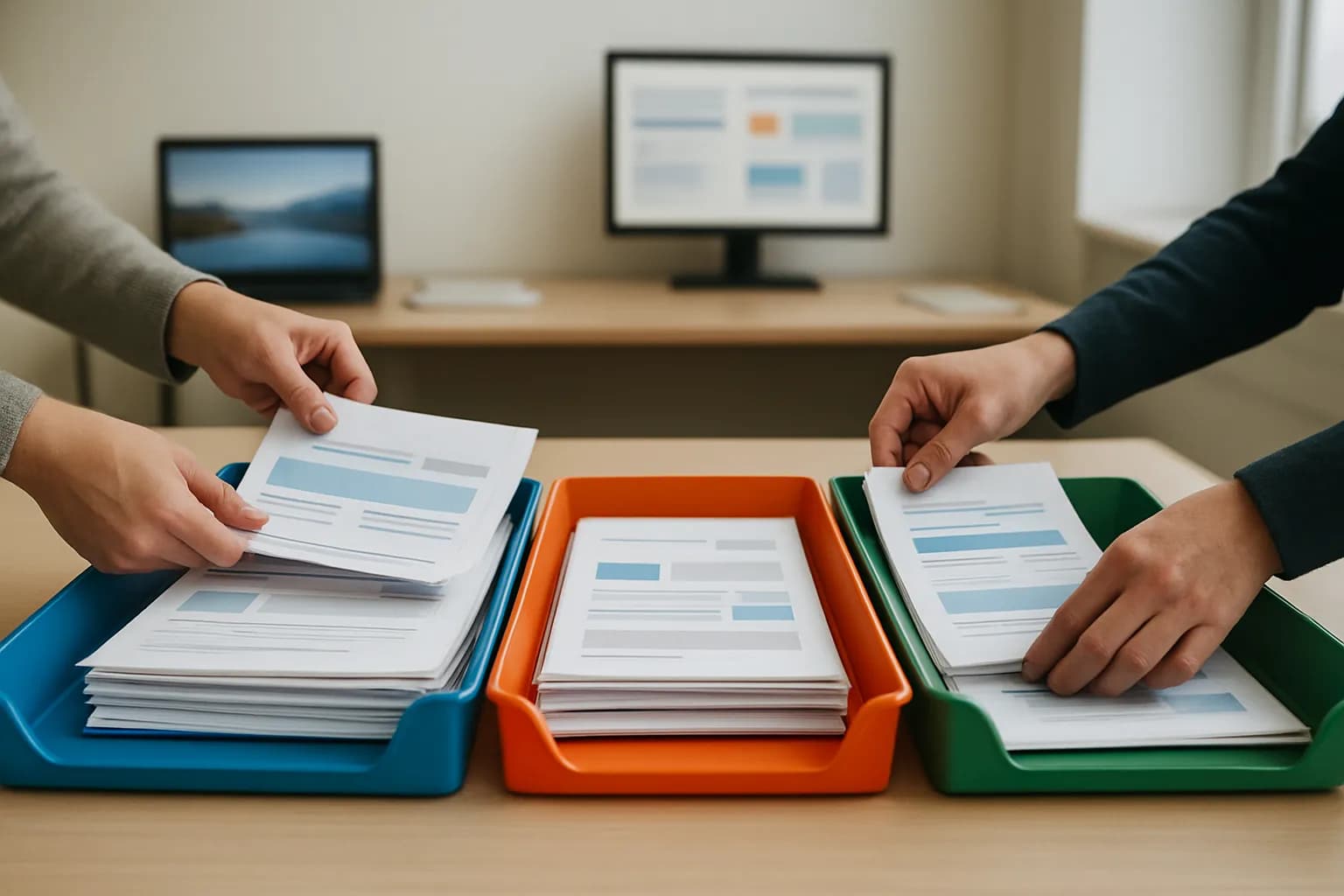
To avoid duplicate replies from an Outlook shared mailbox, give both people access, keep sent replies visible in the shared mailbox, and move each message to an owner folder before drafting. A final check before sending catches work that crossed over.
A shared mailbox is the right place for a shared customer inbox
A Microsoft 365 shared mailbox gives two people one place to receive and answer customer email without sharing a password. Ask the person who manages your organisation's Microsoft 365 accounts to set up the mailbox and grant both people access. A personal inbox with a shared password is not a substitute: it makes access harder to manage and leaves the team without a clear shared place to check its work.
Microsoft distinguishes permission to open a shared mailbox from permission to send from it. Ask for the access needed to read and organise messages, plus the appropriate sending permission. Send As makes a reply appear to come from the shared mailbox. Send on Behalf shows that someone sent it for the mailbox. Your organisation can choose which presentation fits its customer communications.
Once access is granted, each person should open the mailbox in Outlook and confirm they can see its Inbox and folders. Send a harmless internal test message, then have each person try the part of the routine they will actually perform. If someone can read but cannot reply from the shared address, have the administrator check sending permission rather than sharing credentials. The Gmail delegation guide covers a different mail system; use Outlook shared-mailbox permissions for this setup.
Visible sent replies are essential to avoiding a second answer
Both people need to see replies sent from the shared mailbox in its Sent Items folder. Microsoft provides mailbox settings that can save copies of messages sent as the mailbox or on its behalf in the shared mailbox's Sent Items. Ask your Microsoft 365 administrator to check the setting that matches your sending permission. Otherwise, a reply may be saved in the sender's personal Sent Items, where the other person will not see it.
Test visibility rather than assuming the setting worked. Have one person answer the internal test message from the shared address. The other person should open the shared mailbox's Sent Items and find that reply. Repeat with the other sender. If your team uses both Send As and Send on Behalf, test each method you intend to use. Check for unwanted extra copies as well as missing ones.
A sent copy tells the team that a reply went out; it does not always tell them which human pressed Send. In particular, a Send As message presents the shared address as the sender. Keep a separate ownership record if that distinction matters. When managing a shared customer email inbox in Outlook, check the original message's conversation and shared Sent Items before sending another answer, especially after a handover or a busy period.
Owner folders make responsibility visible before anyone drafts
Use shared mailbox folders to show who is handling each message. Create one owner folder for each person and, if useful, a waiting folder for conversations that need a customer response. Agree that the person who takes a new message moves it from the shared Inbox to their owner folder before starting a draft. The move is the claim: the other person leaves messages in that folder alone unless ownership is handed over.
Keep the folder names clear to both people, and check that each person can see the folders in their own Outlook view. Do not use unread status as an assignment signal. Either person can open a message, and reading it does not mean they have agreed to answer it. A private note or a draft in one person's mailbox is equally easy for the other person to miss.
Folders are a simple option when two people can agree who takes each message. They are not a lock. If both people open the Inbox at nearly the same time, they could begin work before either sees the other's move. Refresh the folder view and check the conversation immediately before sending. For a sudden rush, make a quick verbal handover of messages already being handled. If your larger team needs firm assignments and a record of changes, a dedicated shared-inbox or help-desk tool may fit better.
The send check prevents duplicate replies when work overlaps
Before sending a reply from a shared Outlook mailbox, check the owner folder, the conversation and shared Sent Items. This pause matters even when the message was yours when you began drafting: the other person may have taken over during a call, or a reply may have gone out while your draft sat open.
A practical routine starts when one person moves a new message into their owner folder. They read the full conversation, prepare the answer and leave the message there while working. Just before pressing Send, they look for a newer customer message, a sent reply or a change in ownership. If anything has changed, they stop and agree on the next response rather than sending the draft unchanged. After sending, they confirm the reply appears in shared Sent Items and move the message to the waiting folder if the team expects more correspondence.
When the customer writes back, treat the new arrival as work to claim again; do not assume an earlier folder move assigns every future message in that conversation. Outlook's conversation view can show messages from different folders together, so check where the new message actually sits. AI can help prepare wording, but it cannot decide whether a teammate has already answered. The Outlook triage guide is useful for drafting; keep the ownership and send checks with the people handling the mailbox.
Seeing a reply is different from proving who sent it
To see whether someone replied from an Outlook shared mailbox, first look in the shared mailbox's Sent Items and open the relevant conversation. If the reply is missing, ask an administrator to check how sent copies are saved before concluding that nobody answered. Also check the personal Sent Items of the person who may have replied, if they can do so. A missing shared copy is a visibility problem, not proof that no message went out.
To see who replied, distinguish the address a customer sees from the person who performed the action. A Send As reply may show only the shared mailbox as its sender. A Send on Behalf reply can identify the person on whose behalf it was sent, but your team should verify how its messages appear in its own setup. Neither an owner folder nor a sent copy should be treated as a formal record of the individual sender.
For everyday coordination, agree that the person who sends the reply moves the message to waiting and tells their teammate when handing over unusual cases. If your workplace needs an accountable record of who sent each message, ask the Microsoft 365 administrator what authorised audit information is available under your organisation's settings and retention rules. Do not promise customers or colleagues that the shared Sent Items view proves individual authorship.
A short handover keeps the routine working across shifts
A shared customer inbox stays manageable when each person can tell what is unclaimed, what they own and what is waiting. At handover, the person leaving checks their owner folder for unfinished messages and tells the other person which ones need action. Move a message to the new owner's folder when responsibility changes. Do not leave it in the old folder and rely on a spoken reminder alone.
Agree what belongs in the waiting folder. A sent answer awaiting a customer reply may belong there; an unsent draft awaiting an internal decision still needs a named owner. If a customer sends a new message while the earlier exchange is waiting, review the new arrival in the Inbox and assign it before drafting. Keep a separate task only when the work extends beyond answering the email. The email-to-task guide can help with that separate follow-up, but it does not replace visible ownership in the mailbox.
If the two of you repeatedly have to ask whether a message is claimed, simplify the folders and repeat the test with a message both can see. If messages are being routed to the wrong owner, agree on a basic sorting rule before considering automation. The email classification guide can help sort incoming mail, but sorting is not the same as confirming that only one person will reply.
Sources consulted
- Microsoft Learn (learn.microsoft.com)
- Microsoft Support (support.microsoft.com)
Frequently asked questions
Can both people reply from the same Outlook shared address?
Yes, if the Microsoft 365 administrator grants each person the appropriate shared-mailbox access and sending permission. Microsoft treats opening the mailbox and sending from it as separate permissions. Have both people send an internal test reply and confirm that each can select the shared address and that the reply is visible where the team expects it.
Why can't my teammate see a reply I sent from the shared mailbox?
The reply may have been saved in your personal Sent Items rather than the shared mailbox's Sent Items. Check both locations, then ask your administrator to review the shared mailbox's sent-copy setting for the way your team sends. Test again with an internal message before relying on Sent Items to prevent duplicate customer replies.
Does Outlook show which person replied from a shared mailbox?
Shared Sent Items can show that a reply was sent, but a Send As message may identify only the shared mailbox as the sender. Send on Behalf can display the individual sender differently. If you need a reliable record of who pressed Send, ask your Microsoft 365 administrator about available audit information rather than inferring it from the sent copy.
Are categories enough to assign shared inbox messages?
Categories can help if both people see and use them consistently, but do not assume their names or colours appear identically in every Outlook view. For a small team, shared owner folders provide a straightforward claim that both people can check. Whichever signal you choose, check for a sent reply immediately before sending your own.
For you
Learn to do this with AI, free
Short courses for people who aren't engineers: ChatGPT, Claude, prompting and automation. Every lesson is free, with no card.
Start a free courseFor companies
Make an AI or automation tool?
List it in the directory for $9.99, refunded in full if it isn't approved, or claim its page if it is already here.
Related guides
 Draft Customer Email Replies in Their Language With AIUse AI to draft a reply in the customer's language, keep product names and promises accurate, and have a person check it before sending.
 Give a Teammate Gmail Access Without Sharing Your PasswordUse Gmail delegation for one person's inbox or a Google Group for a team address. Choose the right setup and keep passwords private.
 Send Google Form Responses to the Right Team MemberRoute Google Form responses by answer, email the right teammate, and send unexpected answers to a default owner for review.
Drafted with AI assistance and checked automatically before publishing. Tools and prices change; check the official source before you act.
Get the next one by email
One email, most weeks: what changed in AI for people who use it at work, and what to do about it.