
Create a New-Hire Onboarding Checklist Automatically
By Anu Verma
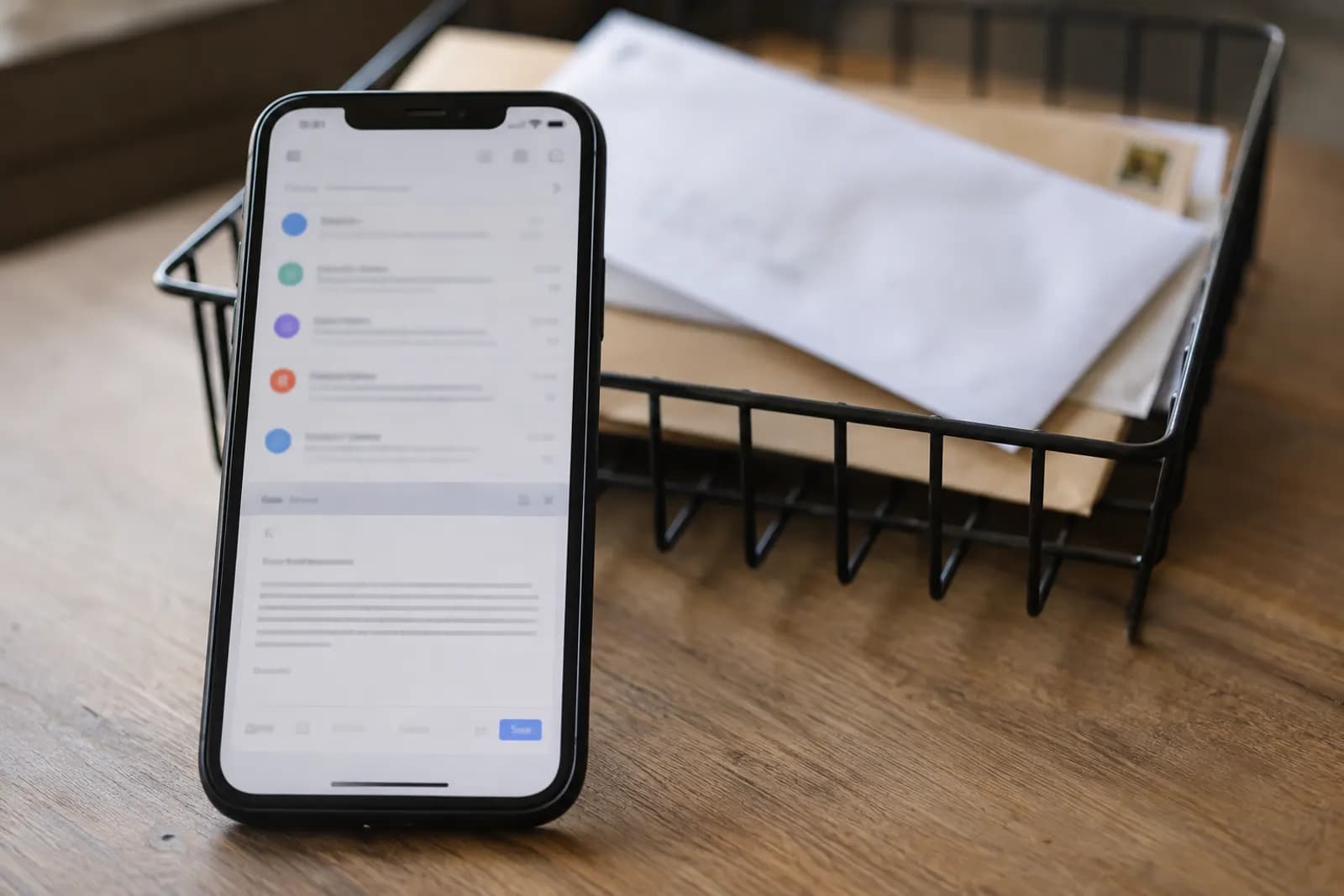
A new-hire onboarding checklist can be created automatically when an intake form is submitted. Use a reusable task template, set owners and dates from the hire record, and check a stable hire ID before creating anything.
A new-hire onboarding checklist can be created automatically when an intake form is submitted. Use a reusable task template, set owners and dates from the hire record, and check a stable hire ID before creating anything.
The reusable task template comes before the form
A reusable onboarding template should describe the work that happens for every hire, without containing anyone’s personal details. Put the recurring tasks in a task manager or project board first. For each task, record its title, the team responsible, when it is due relative to the start date, and any instructions the owner needs.
Keep the template separate from the live checklist. Otherwise, a change made for one hire can accidentally become the default for the next. Decide which tasks are always needed and which depend on an answer in the intake form, such as whether equipment must be shipped or an office visit is planned. A conditional task should have a clear rule, not a vague instruction for someone to interpret later.
In Trello, a template card with a checklist can be a simple starting point if one person will manage the whole hire. If different people need their own due dates and assignments, create separate cards from the task template instead. A checklist item is not always a substitute for a task that an owner must track. The simple option is enough when a coordinator can review the checklist and assign the few exceptions by hand.
The intake form supplies a hire ID and the details tasks need
A form response can start the onboarding checklist when it contains the details needed to create and route tasks. Ask for the hire’s start date, team, manager, work location, and any choices that change the standard work. Collect only information the workflow needs, and keep sensitive documents out of task titles and broadly visible cards.
Give each onboarding event a stable hire ID before the form is submitted, then include that ID in the response. A response ID identifies a submission, not the hire: submitting the form again usually produces a different response ID. A name or email address can change, and the same person may be rehired. A separate ID for each onboarding event gives the workflow a reliable way to tell a correction from a new hire.
A no-code form tool and an automation tool can pass these fields into a task manager. The pattern is similar to routing form leads to a CRM, but onboarding needs a check for existing work before it creates tasks. If assigning an ID before submission is impractical, let a coordinator create the hire record first and send a form tied to that record.
Owners and due dates belong in the task template
Task owners and due dates should come from rules in the template, not from whoever happens to submit the form. Map each task to a role, such as hiring manager, people team, or equipment coordinator. Then map those roles to actual people for the hire’s team or location. If a role has no match, send the task to a named coordinator for review rather than leaving it unassigned without warning.
Store each deadline as a rule relative to the start date, such as before the hire begins or on the start date. The automation calculates the actual date from the form response. Decide whether the rule uses calendar days or working days, and what should happen when the date falls on a non-working day. A task tool may not calculate working days the way your team expects, so check its date options before relying on them.
Copy useful instructions into each task, but link to controlled files rather than copying sensitive material into every card. If the process includes sharing approved files, automatically emailing new files in a folder addresses that separate handoff. Keep the checklist focused on who must do what and when.
The no-code automation checks the hire before creating tasks
A no-code new-hire task automation should check a hire record before it creates a checklist. Connect the form to an automation tool, read the stable hire ID, and look for that ID in a small tracking table or database. If the record says the checklist is complete, stop and notify the coordinator that the response may be a correction. If the ID is new, reserve it, create the tasks from the template, save the resulting board or task references, and mark the record complete.
The tracking record should also show whether creation is in progress or needs attention. A flow can fail after making some tasks but before marking the hire complete. On a retry, inspect the saved task references and the live task list before creating anything missing. Do not simply run the entire template again.
Automate employee onboarding tasks in Trello by using the form submission as a trigger, checking the hire record, then creating a card for each task that needs its own owner or due date. If a single coordinator owns the work, the automation can instead create a card with the standard checklist. The same sequence applies to other task managers.
Duplicate protection must cover retries and simultaneous submissions
Checking for an existing checklist is not enough if two submissions can run at the same time. Both runs might check before either has saved a hire record, then both create the tasks. Use a tracking store that can reject a second record with the same hire ID, or configure the automation to process submissions one at a time and check the ID before creation. Confirm the tool’s available settings rather than assuming a form trigger prevents duplicates.
A second submission for the same hire should follow an update path. Show the coordinator what changed, particularly the start date, manager, or location, and let them approve changes to existing tasks. Moving every due date automatically could overwrite a date an owner has deliberately adjusted. A rehire needs a new onboarding event ID, even if the person’s details match an older record.
Give each created task a reference to its hire ID and template task. Those references make a partial run easier to repair: the automation or coordinator can identify which tasks exist and which are missing. If the chosen tools cannot reserve an ID reliably, use a manual approval step before task creation. Slower, visible control is better than silently creating duplicate work.
A small test reveals missing owners and unsafe retries
Test the onboarding automation with a sample hire before using it for a real start date. Submit the form, check that the expected tasks appear, and confirm each owner, date, and conditional task. Look at the checklist as an assigned colleague would: instructions should be understandable without opening the original form response.
Submit the same hire ID again and confirm that no second checklist appears. Change the start date in that submission to see whether the coordinator receives a clear request to review the existing tasks. Then test a different onboarding event ID for the same person, so a future rehire will not be blocked. If the automation tool offers a way to pause or simulate a run, check what happens when it stops partway through task creation.
Keep a coordinator responsible for reviewing exceptions and updating the template when the real process changes. Check access to the form responses, tracking record, and task board, since each may expose different hire details. Automation creates the work and makes it visible; it does not confirm that accounts were provisioned, equipment arrived, or a colleague completed a task.
Sources consulted
- Microsoft Power Automate documentation (learn.microsoft.com)
- Google Forms Help (support.google.com)
- Zapier Help Center (zapier.com)
Frequently asked questions
How do I create an onboarding checklist from a form response?
Create a reusable set of tasks, then connect the intake form to a no-code automation tool. Have the workflow read the hire ID, check whether a checklist already exists, and create tasks only for a new onboarding event. Use the form’s start date and team fields to calculate dates and assign owners.
Can I automate employee onboarding tasks in Trello?
Yes. A form-triggered automation can create Trello cards from a standard task template after checking whether the hire already has a board or cards. A single card with a checklist may suit a coordinator-led process. Use separate cards when tasks need distinct owners or due dates.
What if someone submits the new-hire form twice?
Both responses should carry the same onboarding event ID. The automation checks a tracking record for that ID before creating tasks and sends later submissions for review or an update. Protect the check against simultaneous runs too, using a unique record rule or processing submissions one at a time.
Should the automation change due dates when a hire’s start date changes?
Treat a changed start date as a request to review existing tasks. The automation can identify dates calculated from the old start date, but a coordinator should check whether owners have already adjusted them or completed the work. Create no replacement checklist just because the date changed.
Related guides
 Send Calendly Appointment Reminders AutomaticallyUse Calendly’s built-in reminders for ordinary bookings, and add an automation only when reminders depend on information outside Calendly.
 AI Automation Implementation Checklist for Your First WorkflowAn AI automation implementation checklist covers task selection, triggers, permissions, approval, testing, error detection, monitoring, and rollback.
 Send Microsoft Forms Responses to a SharePoint List AutomaticallySend every Microsoft Forms response into a SharePoint list with Power Automate, tell the right person, and handle question types that don't map.
Drafted with AI assistance and checked automatically before publishing. Tools and prices change; check the official source before you act.