
Turn Open Browser Tabs Into a Sourced ChatGPT Brief
By Anu Verma
To turn several open browser tabs into a sourced research brief with ChatGPT, give the assistant the relevant page content and links, ask for a claim-by-claim summary, then open every citation to check it. A Chrome sidebar may make this easier, but it does not necessarily read every tab.
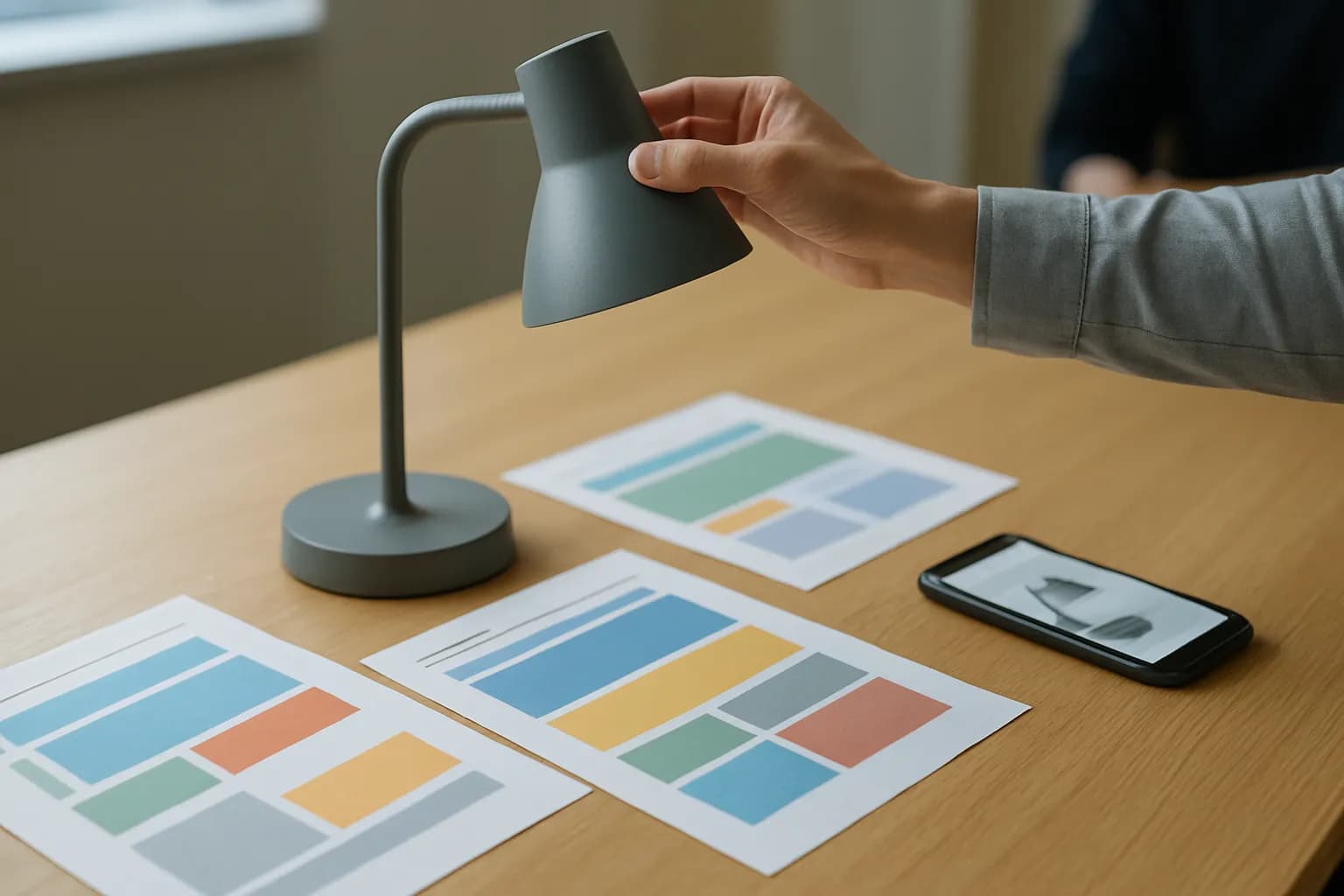
To turn several open browser tabs into a sourced research brief with ChatGPT, give the assistant the relevant page content and links, ask for a claim-by-claim summary, then open every citation to check it. A Chrome sidebar may make this easier, but it does not necessarily read every tab.
The brief starts with a question and a source list
A useful research brief answers a specific work question, rather than summarizing everything in the browser. Decide what someone needs to do with the answer before opening ChatGPT. For example, an office buyer might ask whether a desk lamp meets the team’s requirements and what to check before ordering it.
Choose tabs that serve different parts of that question: a product page for specifications, a supplier’s delivery page for shipping terms, and its returns page for what happens if the lamp is unsuitable. Close or set aside duplicate listings, search results, and pages that do not address the decision. A search result snippet is a lead to investigate, not a source for the final brief.
Keep a small source list with a plain-language name and the link for each selected page. Note the exact section that matters if a page is long. If a page is behind a login or contains workplace information, check whether you are allowed to share its contents with an AI tool. For a short, one-off brief, selecting pages and copying relevant passages is often enough; automation adds little until the task repeats.
A Chrome sidebar needs explicit access to the tabs
A ChatGPT sidebar in Chrome should not be assumed to see several open tabs. The panel might be a browser extension, a browser feature, or simply a ChatGPT window arranged beside Chrome. What it can read depends on that setup and its permissions, not on where it appears on the screen.
Before asking ChatGPT to summarize multiple open tabs, check how the sidebar receives page content. Some setups require you to send each page separately. Others may offer access to the current page but not background tabs. If the panel does not clearly show which pages it received, copy the relevant passages and page links into the conversation yourself. Ask it to list the sources it can actually use before requesting the brief.
Review an extension’s publisher and requested permissions before granting access, especially if work tabs contain private data. You can also use ChatGPT in a regular browser window and paste approved material there. The important distinction is between a page being open in Chrome and its contents being available to the assistant.
The worked example ties each answer to its own tab
An office purchase brief can be built from a product tab, a delivery-policy tab, and a returns-policy tab. Suppose the question is, “Can we order this desk lamp, and what must we confirm first?” This is an example of a research process, not a claim about any particular seller or product.
Give ChatGPT the page link and relevant passage from each tab, identifying them as Product, Delivery, and Returns. Then ask: “Write a short decision brief using only these supplied pages. Cover the product details relevant to the purchase, the delivery terms, and the return conditions. Put a clickable source link immediately after each factual claim. If the pages do not answer a question, write ‘Not established by these sources’ and say what we need to check. Do not infer a policy from a product description.”
A sound draft might have fields for the product specification, delivery timing, return conditions, and open questions. The product specification should point to the product tab. Any delivery statement should point to the delivery tab, and any return condition to the returns tab. Leave a field empty rather than filling it with a plausible guess.
The citation check tests the claim, not just the link
Every factual claim in the brief needs a link to a page that actually supports that claim. Open each citation and look for the relevant wording on the page. A link that reaches the supplier’s site but not the claimed policy is not sufficient.
Check the brief sentence by sentence. Mark a claim as supported when the linked page says what the brief says, with the same limits and conditions. Mark it as unsupported if the page is silent, and as overstated if the brief drops an exception or turns an estimate into a promise. Ask ChatGPT to revise those sentences, but verify the revision yourself. The fact-checking guide covers the wider problem of checking AI answers; here, the immediate test is whether each tab supports its assigned claim.
Watch for citations attached to the end of a paragraph containing several different claims. Move each link beside the sentence it supports, or split the paragraph. If two pages disagree, report the difference and identify both pages. Do not ask ChatGPT to blend conflicting terms into a single answer.
The final brief separates findings from open questions
A decision-ready research brief makes clear what the tabs establish and what still needs confirmation. Keep the final version short enough for a colleague to check without rereading the entire browsing session. State the question, give the supported findings with their source links, and end with the unresolved points and a practical next action.
For the desk lamp example, an unresolved point might be whether a return condition applies to the exact item being considered. If the returns page describes a general policy but the product page suggests an exception, link both pages and flag the issue for confirmation with the supplier. Do not turn uncertainty into a recommendation to purchase.
Keep the source list alongside the brief, even when links also appear beside claims. Pages can change, and a colleague may need to revisit the original context. If you produce these briefs regularly and need to move their findings into a content workflow, connecting Airtable to ChatGPT for content production may be relevant. For a single research question, a checked document shared with the decision-maker is the simpler option.
Sources consulted
- OpenAI Help Center (help.openai.com)
Frequently asked questions
Can ChatGPT summarize all my open Chrome tabs at once?
Do not assume it can. A Chrome sidebar’s access depends on the extension or browser setup and the permissions you grant it. Check which pages the panel says it can read. If that is unclear, send the relevant content and page link from each tab yourself, then ask ChatGPT to name the sources it received.
How do I use a ChatGPT Chrome sidebar to research a topic?
Start with a narrow question, select relevant pages, and check how the sidebar receives their contents. Send each page’s link and the passage that matters, then request a brief based only on those sources. Ask for links beside factual claims and a separate list of questions the pages cannot answer.
How do I make a research summary from browser tabs with sources?
Give each selected tab a clear source name, its page link, and the relevant content. Ask ChatGPT to place a clickable link beside every factual claim, rather than collecting links only at the end. Open each link afterward and check that the page supports the precise statement and any conditions attached to it.
What should I do if a cited page does not support the claim?
Remove or qualify the claim, then check whether another selected page supports it. If none does, put the point under open questions instead of asking ChatGPT to supply a more convincing citation. A working link proves that a page exists; it does not prove that the page says what the brief claims.
For you
Learn to do this with AI, free
Short courses for people who aren't engineers: ChatGPT, Claude, prompting and automation. Every lesson is free, with no card.
Start a free courseFor companies
Make an AI or automation tool?
List it in the directory for $9.99, refunded in full if it isn't approved, or claim its page if it is already here.
Related guides
 AI Output Review Checklist for WorkReview AI work by checking facts, sources, privacy, instructions, calculations, tone and approval before you send or publish it.
 AI Data Privacy Training: Eight Steps That WorkBuild AI privacy training employees can use this week, with a route comparison, tool checks, safe practice tasks and failure tests.
- AI Training Curriculum for Office TeamsFor office teams, start with a short, tool-specific AI curriculum; optional certificates cost $49, $99, $129, or $149, or $349 for all four.
Tools in this piece
Drafted with AI assistance and checked automatically before publishing. Tools and prices change; check the official source before you act.
Get the next one by email
One email, most weeks: what changed in AI for people who use it at work, and what to do about it.