
Turn a Slack Message Into a Trello Card With an Emoji
By Anu Verma
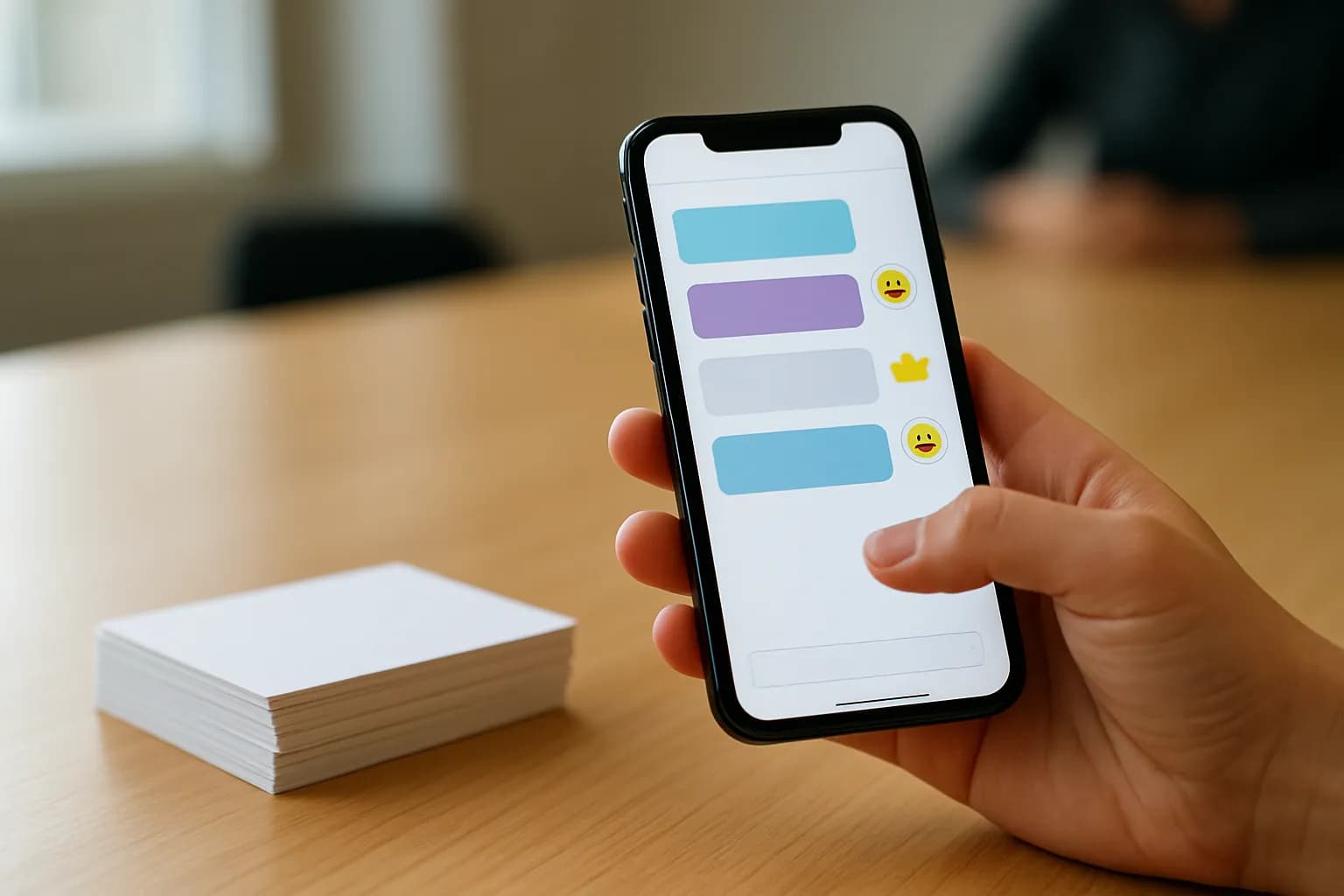
A Slack emoji to Trello automation watches for a chosen reaction, copies the reacted-to message into a card, and records which messages have already produced cards. The duplicate check matters when several people react to the same message.
A Slack emoji to Trello automation watches for a chosen reaction, copies the reacted-to message into a card, and records which messages have already produced cards. The duplicate check matters when several people react to the same message.
The reaction should mean one clear action
Use a dedicated Slack emoji to mean “make a Trello card from this message.” A reaction is an easy signal for a small team, but it works only if people agree on what the card is for and where it belongs. Choose the Trello board and list before building the workflow, and decide whether the message author or the person reacting owns any follow-up.
A no-code automation tool can watch for a new Slack reaction, check which emoji was used, and create a Trello card. Zapier, Make and n8n are examples of this tool category. Before choosing one, check whether its Slack connection can receive reaction events and retrieve the original message in the channels you need. An automation that watches for new messages instead will create cards without waiting for the emoji.
For occasional requests, manually copying a message into Trello may be enough. If people need to choose individual messages regularly, the reaction is a useful trigger. If the destination is Asana rather than Trello, the guide to turning a chosen Slack message into an Asana task covers that different workflow.
A filtered reaction event starts the card workflow
To create a Trello card from a Slack reaction, start with a trigger for a reaction added to a message, then filter for the exact emoji your team chose. In a no-code builder, connect the Slack workspace and select the reaction trigger. Use a test reaction on a message you are allowed to access so you can see which fields the trigger supplies.
Filter before the Trello step. The filter should compare the event’s emoji value with the value shown in the test data, rather than a name guessed from how the emoji looks. If the team uses a custom emoji, check the value it sends as well. Decide whether reactions in every accessible channel should count or whether the workflow should accept only selected channels.
Check the event’s workspace, channel and original message timestamp. The time when someone reacted is not the identifier for the message they reacted to. Some builders provide the message text or a link in the trigger; others need a separate Slack action to retrieve them. Give the connection access only where the workflow needs to work. A private-channel message may be unavailable if the connected account or app cannot access that channel.
The Trello card should preserve the source message
Build the Trello card from the original Slack message, not from the reaction notification. Set a short card title that a teammate can recognize in a list. Put the message text and a link back to the message in the description when the Slack connection provides them. You can also include the channel and the reacting person for context, while keeping the card title focused on the work.
Choose one destination board and list for the first version. A single destination makes it easier to spot mistakes and agree on who will sort the cards. If different channels need different lists, add that routing only after the basic path works. Do not assume the person who reacted is the card’s assignee: a reaction may be a request for someone else to take action.
Check what happens to long messages, formatting, attachments and thread replies in your test data. A link to Slack can preserve context that the card description cannot, but only people with access to that Slack conversation can open it. If a message contains sensitive details, choose an appropriate Trello board before copying its text. The first-workflow implementation checklist can help you review access and ownership.
Duplicate prevention belongs before card creation
Prevent duplicate cards by treating the Slack message, not the reaction, as the item to track. Build a key from the workspace, channel and original message timestamp. Keep the emoji in the key only if different chosen emojis are meant to produce different cards. Do not use the reacting person or the reaction time: those change when another coworker reacts to the same message.
Before creating a card, have the workflow reserve that key in a persistent store that rejects a second reservation for the same key. If the reservation succeeds, create the Trello card and save its card identifier with the key. If it fails because the key already exists, stop without creating a card. Check whether your chosen automation tool and storage step actually support a conditional reservation; a simple “look up, then create” sequence does not guarantee this when reactions arrive close together.
A simpler setup can process reactions one at a time and check a persistent record before each card, if the tool lets you control execution that way. Searching Trello for an existing card can help with cleanup, but relying on a card-title search alone is fragile: titles can change, and separate runs may both search before either creates a card. If you cannot enforce either approach, tell the team that duplicate prevention is best-effort.
Failed runs need a recovery rule
A saved message key needs a recovery rule if Trello card creation fails. Otherwise, a reservation made before the Trello step could block every later attempt, leaving no card. Record whether each key is pending, completed or needs attention, and make failed runs visible to whoever maintains the workflow.
A particularly awkward failure happens when Trello creates the card but the automation times out before saving the card identifier. Blindly retrying the creation step may make a duplicate. Put the Slack message key in a consistent place in the card description so a person can check Trello when the outcome is uncertain. After confirming whether a card exists, update the record or retry as appropriate. Treat a timed-out run as uncertain, not automatically unsuccessful.
Decide what removing the emoji means before inviting the team to use it. The simplest rule is that removal does not delete a card; people can close or archive mistaken cards in Trello. Deletion on reaction removal can surprise coworkers who have already started work. Keep the first workflow narrow, with an owner who can inspect failed runs and correct the occasional card by hand.
A small test shows whether the workflow is safe to use
Test the Slack emoji to Trello automation with more than one person reacting to the same message. First, react once and confirm that the card lands in the intended list with readable source text and a usable Slack link. Then ask someone else to add the same emoji to that message. The expected result is still one card, with the later run stopped by the saved message key.
Try an unrelated emoji, a message in a channel outside the chosen scope, and a message in a thread if your team uses threads. Confirm that the filter ignores the wrong emoji and channel, and that a thread reply produces the card you intended rather than a card for its parent message. Also inspect a private-channel test using an account that should be able to see the source.
Finally, check the automation tool’s run history for failed and skipped runs. A skipped duplicate should be understandable, while a failed Trello action should be visible for follow-up. Tell coworkers which emoji to use, where cards will appear, and who handles mistakes. As the team changes boards or channel access, repeat the relevant tests before assuming the workflow still works.
Sources consulted
Frequently asked questions
Can I save Slack messages to Trello automatically without an emoji?
Yes. An automation can use another deliberate signal, such as a supported saved-message action, or watch messages in a chosen channel. Check which triggers your tool and Slack connection offer. An emoji is useful when coworkers need to select individual messages without turning every message in a busy channel into a card.
Why did several reactions create several Trello cards?
Each person’s reaction can start a separate workflow run. A filter for the right emoji does not stop those runs from creating cards. Use the original Slack message as a shared key and reserve it before card creation, or process runs in a controlled sequence with a persistent duplicate check.
Can a Slack reaction in a private channel create a Trello card?
It may, if the connected Slack account or app can receive the reaction event and read the message in that channel. Test with the actual channel and connection. Also check the Trello board’s access: copying private Slack text into a card can expose it to people who could not read the original conversation.
What if someone removes the emoji after the card is made?
The simplest workflow leaves the Trello card in place. Removing a reaction does not necessarily mean the work should be canceled, especially if someone has already acted on the card. Agree on a separate way to mark mistaken or canceled work, such as archiving the card after a person checks it.
Related guides
 AI Automation Implementation Checklist for Your First WorkflowAn AI automation implementation checklist covers task selection, triggers, permissions, approval, testing, error detection, monitoring, and rollback.
 What Does “Automate All the Things” Mean in AI?Automate all the things means letting AI handle repeatable work while people approve decisions, exceptions, and irreversible actions.
 AI Essentials and Certification for Non-EngineersAI essentials training and certification for non-engineers: check the skills, tools, assessment tasks, and certificate evidence before you pay.
Drafted with AI assistance and checked automatically before publishing. Tools and prices change; check the official source before you act.