Save Gmail Attachments to OneDrive Without Coding
By Rahul A
Loading guide…
By Rahul A

Use Zapier, Make, or Power Automate to move Gmail attachments into OneDrive, then compare permissions, duplicates, folders, and failure checks.
Use a no-code Gmail trigger and a OneDrive upload action to move new attachments automatically, with a test email, duplicate rule, and folder decision before you switch it on.
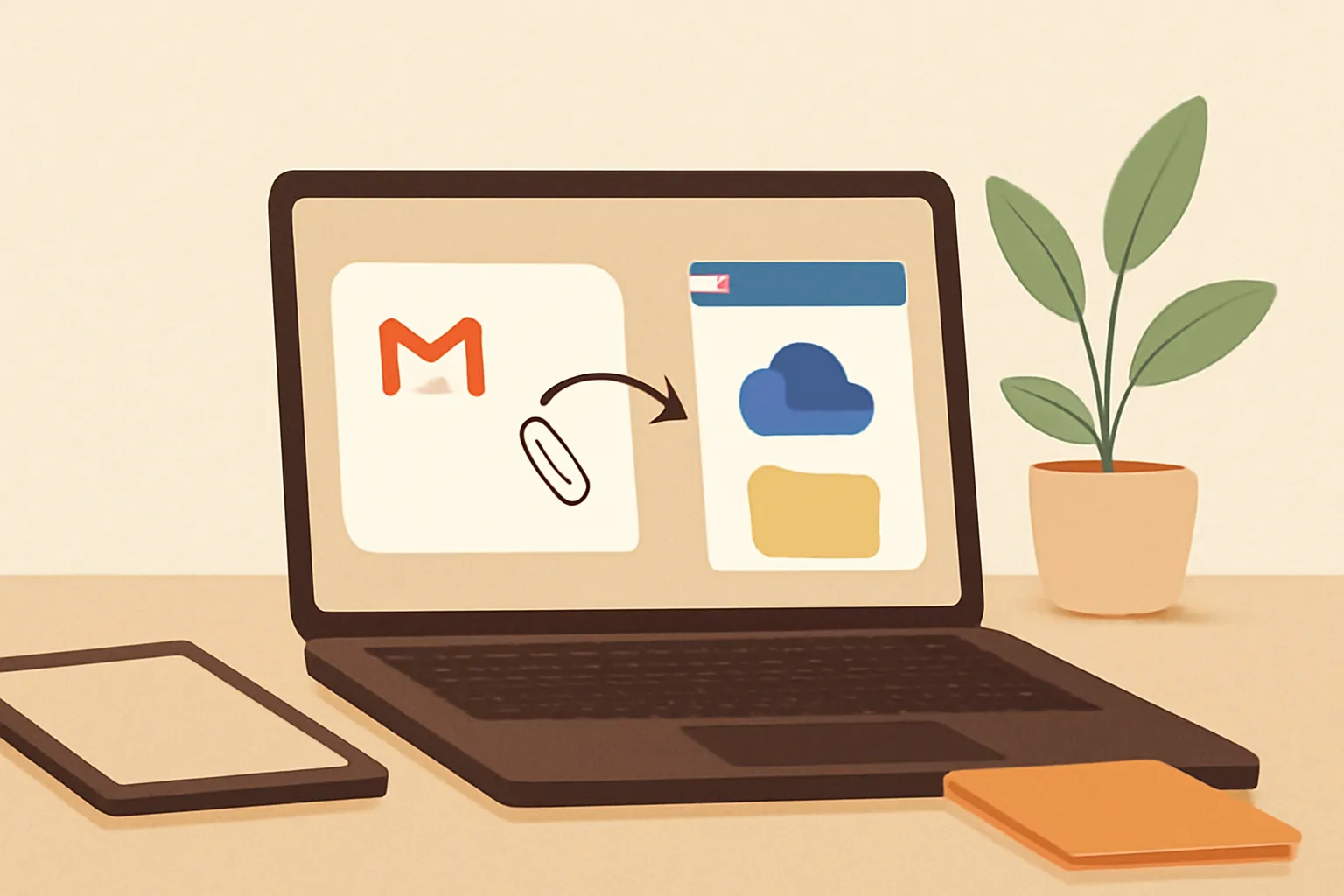
The simplest default is a Zapier workflow with Gmail as the trigger and OneDrive as the upload destination. The workflow watches for a new Gmail attachment, retrieves the file, and creates it in a chosen OneDrive folder without requiring code.
Create or sign in to Zapier, choose Gmail as the trigger app, and select the event that detects a new attachment. Connect the Google account containing the messages, then test the trigger with a real email that has a small, non-sensitive file. Choose OneDrive as the action app and select its file-upload action. Connect the Microsoft account, choose the destination folder, and map the Gmail attachment itself to the file field.
Do not map the email body into the file field. The attachment must supply both the file contents and, usually, the original filename. Send another test email and confirm that the file opens from OneDrive, rather than only checking that the automation reports success. Keep the workflow limited to new messages unless you deliberately need a backfill. Old Gmail attachments normally require a separate search-and-transfer process.
For more context, read Automatically Save Email Attachments to a Folder.
Use Zapier for the quickest first setup, Make when you need branching or more control, and Power Automate when your organisation already manages Microsoft 365 centrally. All three can connect services, but the best choice depends on where your accounts and permissions already live.
Zapier is the practical default for a solo founder, freelancer, or small office because its trigger-and-action structure is easy to inspect. Make is a better fit when one email needs different destinations based on sender, filename, or attachment type. Its visual scenario builder can expose more decisions, but it also gives you more places to misconfigure a route.
Power Automate is worth considering when the destination is OneDrive for Business and an administrator already controls Microsoft connections. Microsoft connector availability, authentication requirements, and licensing rules can change, so check current Microsoft documentation before committing to that route. Avoid choosing an AI tool merely because the task contains an attachment. Moving a file is deterministic. Add AI only when you need a judgment, such as deciding whether an invoice belongs in Finance or Operations. A fixed sender or filename rule is easier to test and less likely to misfile a document.
For more context, read How to Automate Email Classification Without Coding.
Build one Gmail trigger followed by one OneDrive upload action, and map the attachment rather than the message text. A small workflow is easier to test and gives you a clear failure point.
Start by creating a Zap and selecting Gmail as the trigger. Choose the new-attachment event available in your account, connect Gmail, and set any supported search or label conditions. If you can filter by sender, label, or subject, use that filter instead of forwarding every attachment. Test the trigger and inspect the returned fields until you can identify the attachment name, file data, and message identifier.
Add OneDrive as the action app and select the upload-file event. Choose the exact folder, then map the Gmail attachment into the file field and its name into the filename field. Do not assume that a successful test means the right content arrived. Open the uploaded file, check its extension, and compare its size with the source attachment. Turn the Zap on only after a second test email works. If the action asks for a folder path, select an existing folder first. Creating a new folder dynamically adds complexity that the basic transfer does not need.
Prevent duplicates by deciding whether the workflow should keep every received file or preserve one canonical copy. For most business documents, use a stable naming rule and a narrow Gmail filter before adding any AI.
The same attachment can arrive more than once because someone forwards an email, resends a document, or replies with the file attached again. A filename alone is not a reliable identity. Two different invoices can both be called invoice.pdf, while the same document can arrive with a changed filename. A useful first rule is to include the received date, sender, and original filename in the OneDrive name, but that deliberately keeps multiple versions.
If you need one copy, search OneDrive for an existing file before uploading, where your chosen automation platform supports that step. Compare a meaningful key, such as the message identifier or a combination of sender, subject, date, and filename. Be careful with message identifiers because a forwarded copy has a different identifier even when its attachment is identical. For a first version, choose a duplicate policy explicitly: keep every copy in a dated folder, overwrite a known destination, or stop and review. Silent overwriting is the riskiest default for financial or legal files.
AI can choose a OneDrive folder, but fixed rules should handle obvious cases and AI should handle only the uncertain remainder. Routing every attachment through AI makes a simple file transfer harder to audit.
Start with deterministic conditions. Route messages from a known accountant to Finance, messages from a known recruiter to Hiring, and files with a clear extension to a type-based folder. Add an AI step only when the sender and filename do not provide enough information. Give the model a short list of permitted folder names and instruct it to return exactly one folder or REVIEW. Never let it invent a new folder path.
The workflow should branch on the result. A recognised folder continues to the OneDrive upload action. REVIEW sends the email to a human review label or a holding folder instead of guessing. Include the original sender, subject, filename, and a link to the Gmail message in the review record. Do not send sensitive file contents to an AI service unless your organisation has approved that data flow and understands its retention terms. The safest design keeps AI away from the file bytes when metadata is sufficient. Treat AI routing as a classification decision, not as the mechanism that moves the file.
An old Gmail attachment usually did not transfer because the automation trigger watches for a new qualifying event, not because it searches your entire mailbox. Turning on a workflow does not normally replay every historical message.
To move older files, create a separate backfill process. In Gmail, search for a narrow set of messages using a sender, date range, label, or attachment condition. Apply a temporary label such as To-OneDrive to the messages you actually want to process. Then use a workflow designed to find labelled messages, or download and upload the selected files manually if the batch is small. Test with a few files before widening the search.
Backfills need extra safeguards because one message may contain several attachments and a broad search can include irrelevant mail. Keep a record of the Gmail message identifier and the destination path so you can identify what already moved. Do not run the live new-attachment workflow and the backfill against the same unfiltered messages, or duplicates are likely. Gmail search syntax, connector events, and available actions can change, so confirm the current behaviour in Google, Zapier, Make, or Microsoft documentation. The gotcha is simple: a trigger is not an archive migration tool.
Protect sensitive attachments by limiting the Gmail search, using the correct OneDrive account, and granting the workflow only the access it needs. A successful upload can still be a data-protection failure if the file lands in a broadly shared folder.
Use a dedicated Gmail label or sender filter instead of giving the automation every attachment. Choose the destination deliberately: personal OneDrive and OneDrive for Business have different ownership, sharing, and administration contexts. Confirm the signed-in Microsoft account before the first live run. Review the destination folder's sharing settings and avoid a general shared folder for payroll, identity documents, contracts, or health information.
Check what permissions each connected app receives during authorisation. If your employer manages Google or Microsoft accounts, ask whether an administrator must approve the connection and whether external automation services are permitted. Store only the information needed for the transfer, and avoid adding attachment contents to logs or AI prompts. Create a failure route that alerts you without exposing the file itself. Rules for account access, retention, and third-party connections can change, so use current Google and Microsoft guidance alongside your organisation's policy. Convenience does not override the source mailbox's confidentiality.
Test the Gmail to OneDrive automation with a harmless file, a wrong sender, a duplicate, and a failure case before relying on it for business records. One successful upload proves only one path works.
Send a small test attachment from the exact account and address that the workflow should accept. Confirm the file name, extension, size, contents, destination folder, and sharing permissions. Send a second email with the same attachment to test your duplicate policy. Send an email from an unapproved address to confirm that the filter blocks it. If the workflow includes AI routing, use an ambiguous filename and confirm that the result goes to REVIEW rather than an invented folder.
Keep a simple record of the workflow owner, connected accounts, destination folder, filter rule, and duplicate policy. Recheck it whenever a Google, Microsoft, Zapier, Make, or Power Automate account changes. Watch for expired connections, renamed folders, changed passwords, and files that exceed connector limits. Review the task history after the first live week, then periodically. If an upload fails, preserve the source email and retry only after identifying the cause. A useful automation is not one that never needs attention. It is one whose missing files and uncertain decisions are visible.
That’s the whole lesson. Try it on a real task while it is fresh, then come back for the next one.
The same corner of the library, one job further on.
Drafted with AI assistance from our own research and Search Console data, and reviewed by Rahul A before publishing. Tools and prices change; check the linked official source before you act.