
Permanently Redact Personal Information From a PDF
By Anu Verma
To permanently redact personal information from a PDF, use a tool that removes the content, not one that draws over it. Apply the redactions, save a separate copy, and test that the removed details cannot be searched or copied before sending it.
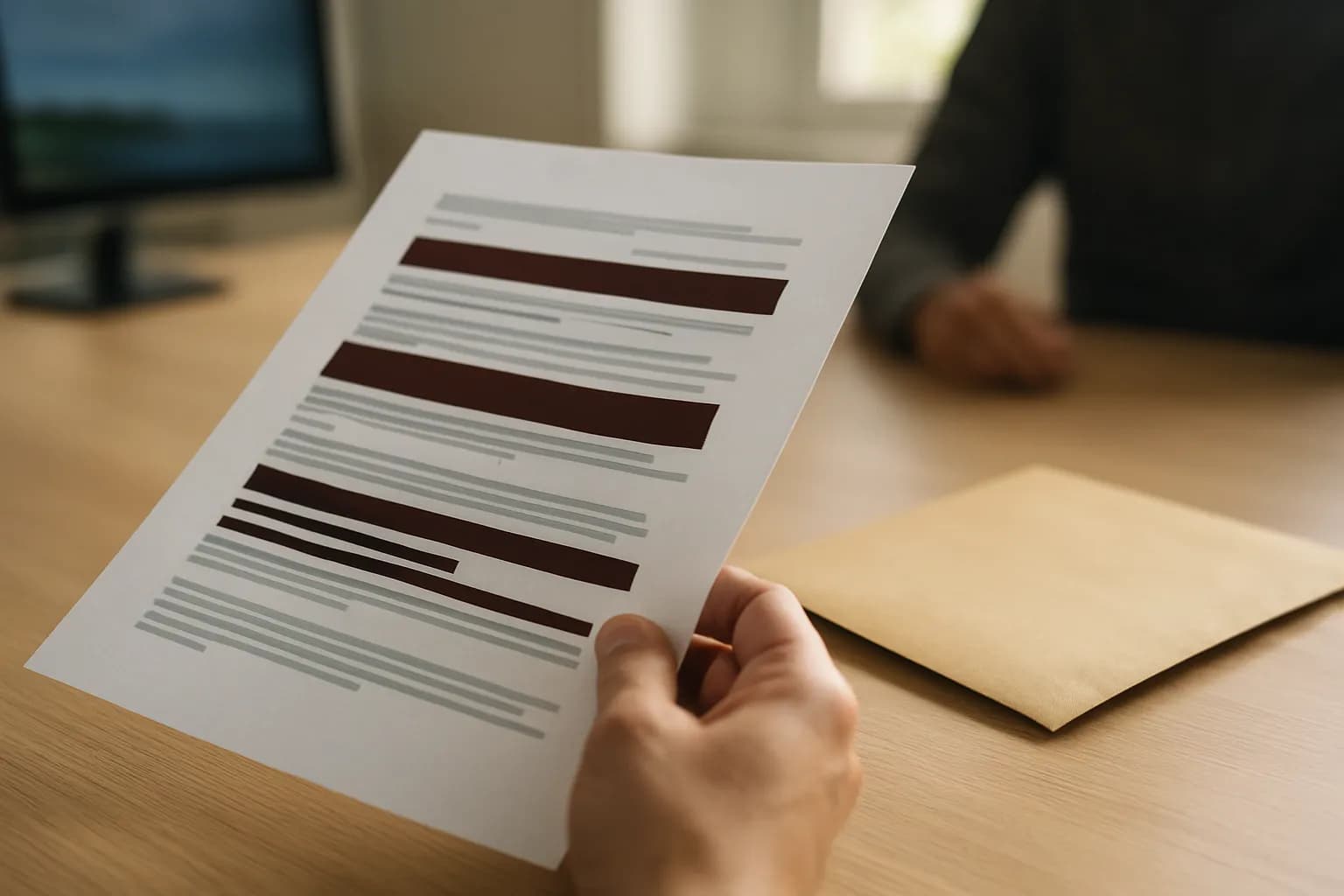
To permanently redact personal information from a PDF, use a tool that removes the content, not one that draws over it. Apply the redactions, save a separate copy, and test that the removed details cannot be searched or copied before sending it.
The difference between redaction and a black box
Permanent PDF redaction removes sensitive content from the file; a black box placed over text may only hide it from view. If the original text remains underneath a shape or highlight, someone receiving the PDF may still be able to search for it, select it, copy it, or uncover it with another PDF tool.
Use a PDF editor with a dedicated redaction feature. Its controls should let you mark content for removal and then apply the redactions. Drawing tools, dark highlights, and ordinary text boxes are not substitutes. Nor is changing the text colour to match the background. Those actions change what a reader sees without reliably removing what the file contains.
A scanned PDF needs the same care. A name may appear in the page image, in a searchable text layer created by optical character recognition, or both. Covering only the visible image may leave searchable text behind. Conversely, deleting searchable text does not necessarily erase the name from the image. Choose a redaction tool that handles the file you actually have, and verify the finished copy rather than trusting its appearance.
The personal details to find before editing
Find every place the personal information appears before you start redacting. Read the PDF page by page and search for names, addresses, phone numbers, account details, identification numbers, signatures, and any other details the recipient does not need. Search for fragments as well as full phrases, since spacing, punctuation, or scanning errors can make an exact search miss a match.
Look beyond the main paragraphs. Check headers, footers, tables, form fields, comments, and pages added from other documents. A person may also be identifiable from a combination of details that seem harmless separately, such as a job title and a small team. Decide what the recipient genuinely needs to see; remove the rest where you are permitted to do so.
Keep an untouched original in a restricted location and make a working copy. Give the outgoing copy a distinct filename so it is harder to attach the wrong version later. If the PDF will also be pasted into an AI service, remove sensitive details before sharing with ChatGPT. Redacting an attachment for an email does not automatically protect text you separately paste into another tool.
How to remove sensitive information from the PDF
Mark each sensitive area with the PDF editor’s redaction tool, review the marked areas, and apply the redactions before saving the outgoing copy. Marking is often only a preview: until you apply the operation, the underlying content may still be present. Follow the tool’s prompts for removing hidden information if that option is available.
Check the edges of every marked area. A narrow mark can leave part of a digit or a nearby label visible, while an oversized mark can remove information the recipient needs. On scanned pages, inspect at a useful zoom level so that small text, handwritten notes, and image-based details are not overlooked. Redact both visible content and any associated searchable text when your tool requires separate handling.
Do not treat printing to PDF, flattening, or taking screenshots as a general substitute for redaction. Those methods can change the file, but their results depend on its contents and the software used. They can also damage accessibility or make the document difficult to use. If your editor cannot apply redactions to this PDF, use a suitable redaction tool or ask whoever manages sensitive documents at work for an approved method.
The check that text cannot be searched or copied
A finished redacted PDF should not reveal the removed information through search, selection, or copying. Close the edited file, reopen the saved outgoing copy, and search for each removed name or distinctive detail. If a search finds a hit where information was meant to disappear, do not send the file.
Next, try to select text in and around a redacted area and paste the selection into a plain text field. Check that the removed detail does not appear. Test nearby text too, since that helps you see whether the PDF still has a usable text layer. If the page is a scan and no text can be selected anywhere, the copy test alone tells you little. Inspect the visible page closely and use a PDF tool that can examine or remove searchable text behind the image.
These checks are necessary but not the whole review. Inspect comments, attachments, form fields, document properties, and other hidden content where your editor exposes them. An editor’s cleanup or sanitise function can help remove information outside the page view. If your tool cannot show or remove those elements and the document is sensitive, get help rather than assuming a dark patch is proof.
The final check before emailing the PDF
Before emailing a redacted PDF, review the exact file you will attach and confirm that the recipient needs the remaining details. Open it from its saved location, not from an editing window that may show unsaved changes. Check the pages for missed marks, readable slivers of text, and information revealed by the surrounding context. Repeat the search and copy checks on that saved file.
Check the filename, attachment, recipients, and message body before sending. A correctly redacted PDF does not help if the email itself repeats the private details or the original file is attached by mistake. Follow any workplace rules for storing the original and sending sensitive material. If the PDF contains information you are not authorised to share, redaction alone does not grant permission to send it.
Automation needs a pause at this point. If another workflow reads a document and drafts a message, check the Drive document before drafting a reply, then inspect the draft and its attachment yourself. A workflow can help prepare a response, but it should not be the only check that the outgoing file contains no recoverable personal information.
Frequently asked questions
Can someone copy text from under a black box in a PDF?
Yes, if the box is merely a shape placed over the text. The underlying words may remain selectable or searchable. Use a PDF editor’s redaction feature, apply the redactions, save a separate copy, then reopen it and try searching for and copying the removed text.
Does saving or printing a PDF with black boxes make them permanent?
Do not rely on either action as proof of permanent removal. The result can depend on how the PDF was made and which software processes it. Use an actual redaction tool, then test the saved output. For sensitive files, also check for comments, form fields, attachments, and document properties.
How do I hide personal details in a PDF before emailing it?
Make a working copy, mark the details with a PDF redaction tool, apply the redactions, and save an outgoing copy. Reopen that copy to inspect it and test search and copy. Before sending, check that you selected the redacted attachment and did not repeat the details in your email.
Why can I still find a redacted name in a scanned PDF?
A scanned PDF can contain both a page image and a separate searchable text layer. Redacting the visible name may not remove a matching name from that layer. Do not send the file if a search still finds it. Use a tool that can remove the remaining content, then verify the saved copy again.
For you
Learn to do this with AI, free
Short courses for people who aren't engineers: ChatGPT, Claude, prompting and automation. Every lesson is free, with no card.
Start a free courseFor companies
Make an AI or automation tool?
List it in the directory for $9.99, refunded in full if it isn't approved, or claim its page if it is already here.
Related guides
 How to Remove Sensitive Details Before Sharing with ChatGPTRemove names, identifying clues and hidden content before sharing a document with ChatGPT, then check whether the task needs the original at all.
 Share Airtable Project Status Without Exposing Other ClientsCreate a client-specific Airtable view, share the view rather than the base, and test its link from an account with no existing access.
 Make a Scanned PDF Searchable Without RetypingUse OCR to make a scanned PDF searchable without retyping it. Compare simple routes, then check names, dates and page order before sharing.
Drafted with AI assistance and checked automatically before publishing. Tools and prices change; check the official source before you act.
Get the next one by email
One email a week: what changed in AI for people who use it at work, and what to do about it.