
Make a Microsoft Forms Feedback Survey Anonymous
By Anu Verma
To make a Microsoft Forms feedback survey anonymous, choose who can respond, turn off name recording when that setting appears, and submit a test response through the real sharing link. Check the saved response and export before asking anyone for feedback.
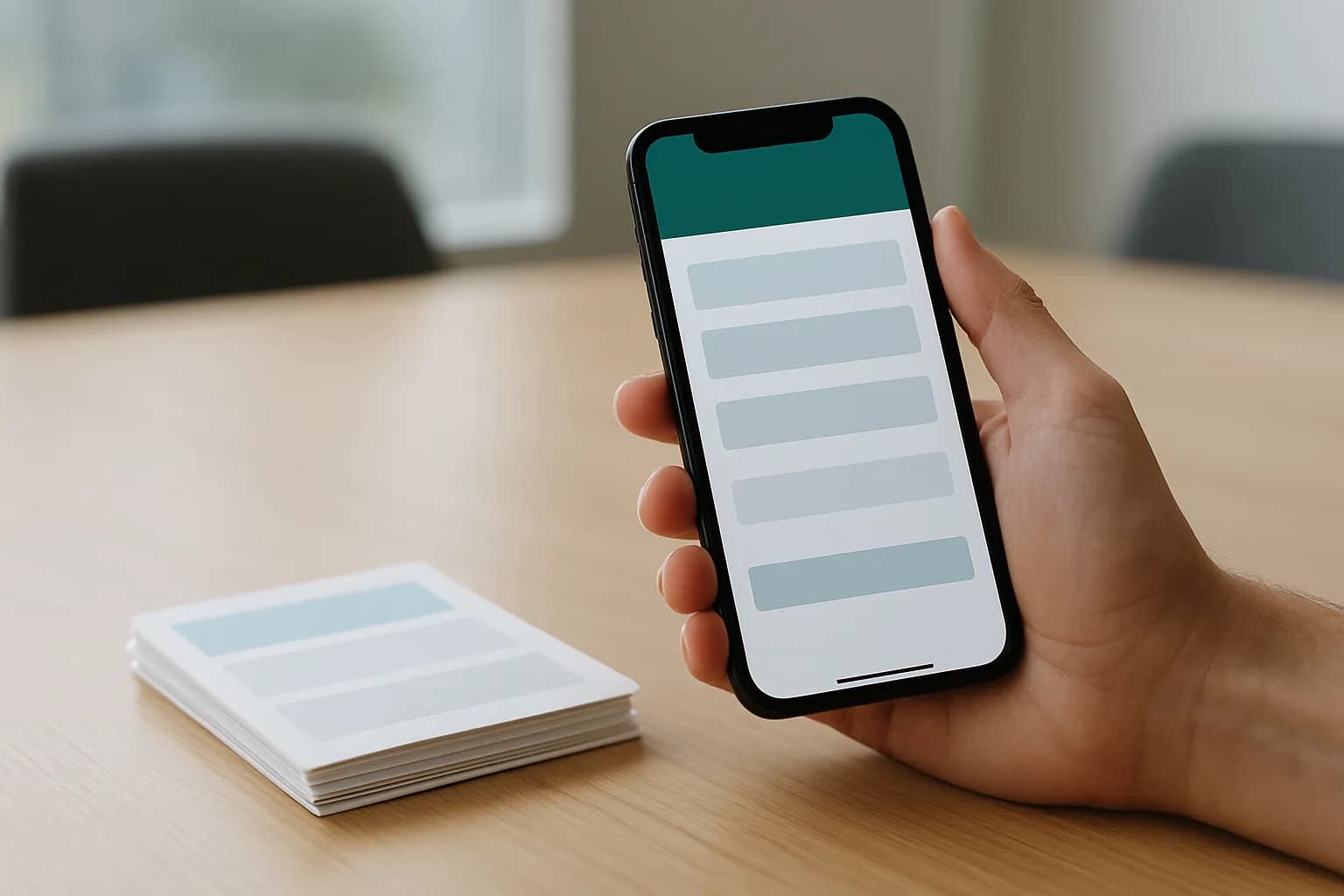
To make a Microsoft Forms feedback survey anonymous, choose who can respond, turn off name recording when that setting appears, and submit a test response through the real sharing link. Check the saved response and export before asking anyone for feedback.
Microsoft Forms anonymous survey settings depend on who can respond
Microsoft Forms can collect feedback without showing a respondent’s name in the survey results, but the setting depends on the audience you choose. Open the form, select Settings, and look under the option for who can fill it out. Choose Anyone can respond if people outside your organization need access and your organization permits that option. According to Microsoft, responses to a form open to anyone do not have names recorded unless the form itself asks for them.
For an employee survey, Only people in my organization can respond keeps the form within the organization. With that option selected, look for Record name and turn it off. The wording and available controls can vary with your organization’s Microsoft 365 settings, so check the settings on the actual form rather than assuming they match another form you made.
Choosing an audience and recording names are separate decisions. An employee may have to sign in to reach an internal form even when Record name is off. If you need to promise that no sign-in is required, use Anyone can respond and verify that the link opens without an organizational account. If that option is unavailable, ask your Microsoft 365 administrator what sharing rules apply before distributing the survey.
Anonymous employee feedback still needs careful question design
Turning off Record name does not make every answer impossible to identify. A comment about a unique shift, a small team, or a specific incident can point to its author. Before sharing an employee feedback survey, remove questions that request names, email addresses, employee IDs, or other details you do not need. Make free-text questions optional when a useful answer does not require a personal account.
Think about the size of the group that will see each result. If only one person works in a particular role, a role question can identify them without a name field. If you need that information to act on feedback, tell respondents who will see their answers and avoid calling the survey fully anonymous. A survey can be useful and private without making a promise its questions cannot support.
The simple option is enough when you need general comments from a broad group: use a short form, switch off name recording where available, and review each question for identifying clues. A QR code check-in form serves a different purpose because attendance records may need to identify people. Do not copy its identity questions into a feedback survey without deciding whether they belong there.
A real-link test shows what respondents must provide
Test the published sharing link with a person who has the same access as your intended respondents. Preview is useful for checking wording, but it may not reveal what someone else experiences when opening the link. Ask a colleague to open it using the account they would normally use, or use an appropriate separate test account. For a form set to Anyone can respond, also check whether the link opens without signing in.
Have the tester report whether Microsoft asks them to sign in, whether the form displays their identity, and whether any question asks for identifying information. Ask them to submit a distinctive but harmless test answer so you can find the saved response. Do not use a real employee concern as test data.
Keep the distinction clear when you describe the survey. A sign-in prompt for an internal form does not, by itself, answer whether the form records a name alongside the response. Conversely, a form that opens without sign-in can still collect a name if you ask for one. If the test shows an unexpected sign-in prompt or identity field, pause distribution. Recheck the audience setting, Record name, and every question, then repeat the test through the same link people will receive.
The saved response answers whether Microsoft Forms records respondents’ names
Check the saved test response before you call the survey anonymous. In Microsoft Forms, open the form’s responses area, find the distinctive test answer, and inspect the details shown with it. If an Excel export is available, open that too. Look for a name or email value associated with the answer, not just a column heading: an export may include fields that do not contain a respondent’s identity.
Check other details that could connect the answer to a person, including the questions you wrote and any timing information shown with the submission. Record name being off addresses the identity information Forms attaches to responses. It does not remove identifying facts a respondent types into an answer, and it is not a promise about every record your organization may keep outside the form.
Run the test before collecting real feedback so the test answer is easy to spot. Once you have checked it, remove the test response if your available controls allow you to do so without removing real submissions. Be especially careful with any command that deletes all responses. If a name or email appears beside the test answer, do not send the survey yet. Return to Settings, confirm the audience and name-recording choices, and test again.
Sharing and automation need the same privacy check
An anonymous response can become identifiable after it leaves Microsoft Forms if you copy it into a system that adds employee details. Decide who can see the form’s results before sharing its link. Give access only to the people who need to review feedback, and explain to respondents where their answers will go if you plan to move or summarize them elsewhere.
If you connect Forms to a spreadsheet or another workflow, inspect a test record at its destination as well as in Forms. Check which fields the workflow copies, whether it adds a submitter identity, and who can open the destination. The Forms to SharePoint list guide covers moving responses; an anonymous feedback workflow also needs this destination check. Avoid putting identifying details into notification messages sent to a wider team.
For a small survey, keeping responses in Forms and reviewing them with a limited group may be simpler than building an automation. Once the settings, real-link test, saved response, and any destination all match your privacy description, share the link with employees. Say whether they must sign in, whether names are recorded with answers, and who will read the responses. Those are more useful statements than an unqualified claim that no one can ever identify a respondent.
Sources consulted
- Microsoft Support (support.microsoft.com)
Frequently asked questions
Does Microsoft Forms record respondents’ names?
Microsoft Forms can record names for a form limited to people in an organization when Record name is on. Turn that setting off if you do not want names attached to responses. Then submit a test answer and inspect the saved response and export. Questions you write can still reveal someone’s identity.
Can an anonymous Microsoft Forms survey require employees to sign in?
Yes. An internal form can require an organizational sign-in while Record name is off. Sign-in controls who can reach the form; name recording controls whether the respondent’s name appears with the answer in Forms. Test the real sharing link and describe both conditions separately to employees.
Why can’t I choose Anyone can respond in Microsoft Forms?
Your organization’s sharing settings may restrict forms to internal respondents. Check the form’s Settings and ask your Microsoft 365 administrator whether external responses are allowed. If you use an internal-only form instead, check whether Record name can be turned off and test the link with an intended respondent.
Is turning off Record name enough for anonymous employee feedback?
No. Review questions for names, email addresses, unique roles, and incidents that could identify someone. Also check the saved test response and any place an automation sends it. Tell employees who can read their answers and whether they must sign in, rather than promising anonymity beyond what you have checked.
For you
Learn to do this with AI, free
Short courses for people who aren't engineers: ChatGPT, Claude, prompting and automation. Every lesson is free, with no card.
Start a free courseFor companies
Make an AI or automation tool?
List it in the directory for $9.99, refunded in full if it isn't approved, or claim its page if it is already here.
Related guides
 Make a Microsoft Forms Quiz That Grades ItselfCreate a Microsoft Forms quiz with answer keys, points and feedback, then check which responses need review before releasing scores.
 AI Data Privacy Training: Eight Steps That WorkBuild AI privacy training employees can use this week, with a route comparison, tool checks, safe practice tasks and failure tests.
 Send Microsoft Forms Responses to a SharePoint List AutomaticallySend every Microsoft Forms response into a SharePoint list with Power Automate, tell the right person, and handle question types that don't map.
Drafted with AI assistance and checked automatically before publishing. Tools and prices change; check the official source before you act.
Get the next one by email
One email, most weeks: what changed in AI for people who use it at work, and what to do about it.