
Create a Shared Microsoft Bookings Page for Your Team
By Anu Verma
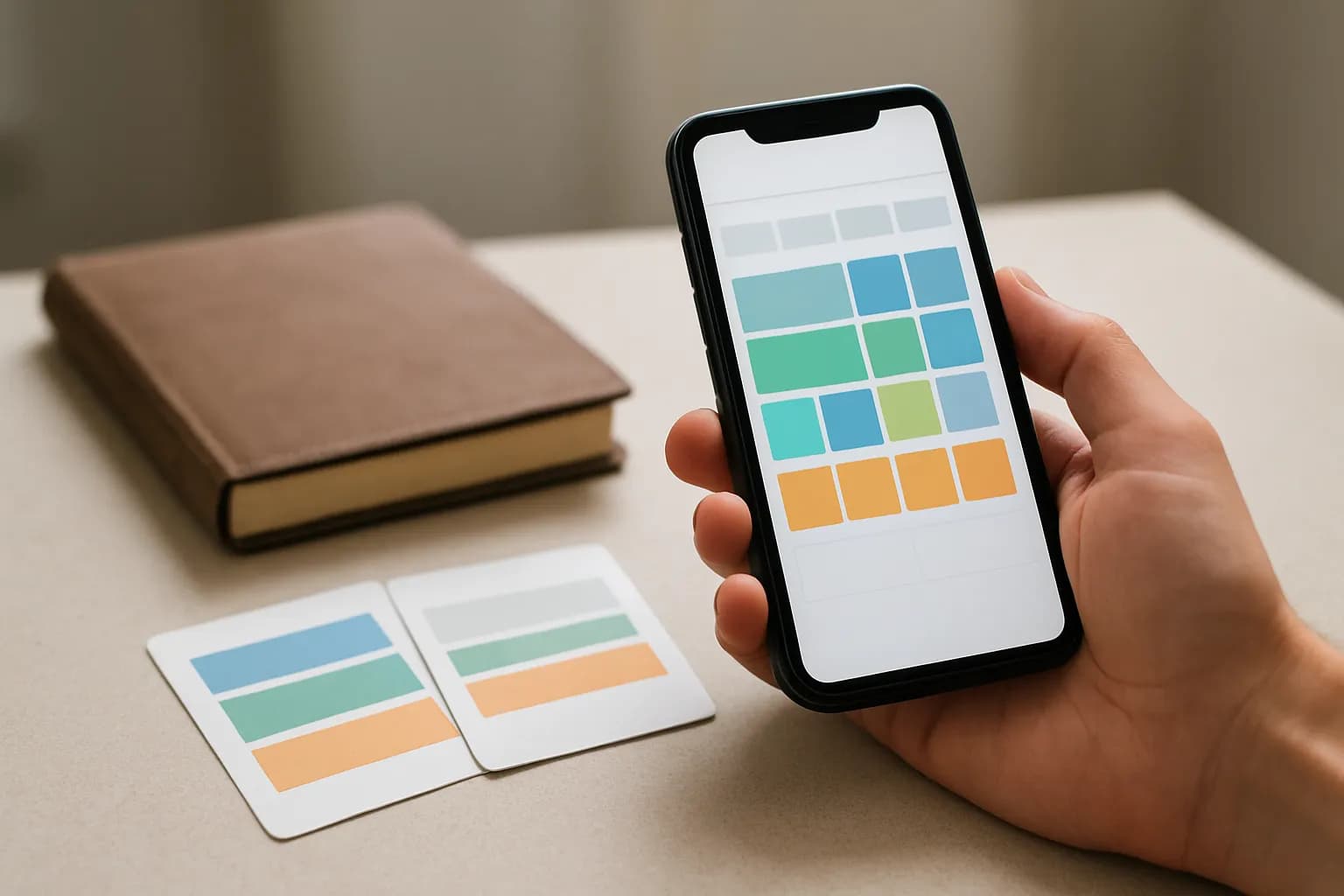
A shared Microsoft Bookings page lets customers schedule with an available team member without opening anyone’s private calendar. Add staff, assign them to a service, set when appointments can happen, then test the customer-facing page before sharing it.
A shared Microsoft Bookings page lets customers schedule with an available team member without opening anyone’s private calendar. Add staff, assign them to a service, set when appointments can happen, then test the customer-facing page before sharing it.
Shared Bookings is the right option for a team page
Use a shared Microsoft Bookings page when customers need to schedule an appointment with a team rather than a particular person. Bookings is an appointment scheduling tool within Microsoft 365. Its shared option brings services, staff and a customer-facing booking page together, so customers can choose from offered times instead of asking to see a colleague’s calendar.
Before creating the page, decide what customers are booking. A service should describe a real appointment, such as an initial call or an equipment collection, with a duration and a group of people who can handle it. If only one person takes the appointments, a personal booking page may be enough. A shared page becomes useful when several people can cover the same service or an office needs to manage bookings together.
Check that your organisation makes Microsoft Bookings available to your account. An administrator may control access and sharing settings. If Bookings is missing or a setting cannot be changed, ask the person who manages Microsoft 365 rather than working around the restriction. You can set up the page without code, but its availability still depends on your organisation’s Microsoft 365 configuration.
The shared page needs clear business settings
Create a shared booking page in Microsoft Bookings and give it a name customers will recognise. Add the contact details, location and general business hours that apply to the appointments you plan to offer. Those hours describe when the service could operate; they do not replace each staff member’s own availability.
Think of the page as the public front door to your scheduling rules. Its name and customer-facing details should make sense without an internal team nickname. If you serve customers remotely, make the appointment location or meeting instructions clear. If appointments happen in person, check that the location matches where staff will actually be available. Review any booking policy settings, such as how far ahead customers may book or how much notice the team needs.
Do not publish the page immediately just because it exists. Add staff and a service first, then inspect the page as a customer would. If an administrator restricts public booking pages, you may need their help before customers outside the organisation can use yours. The page should be shared only after its visible details and available times match what the team can deliver.
Staff availability combines working hours and calendar conflicts
Add each person who can take appointments to the shared Bookings page, then set their working hours and availability. A person who is listed as staff is not necessarily assigned to every service, so adding the team is only part of the setup.
For each person, check their Bookings role, appointment hours and whether events on their Microsoft 365 calendar affect availability. Calendar conflict checking helps prevent a time from being offered when that person is busy. It does not mean customers can read their calendar. For the check to help, the person must use the relevant calendar consistently and mark time they cannot take bookings as busy. A blocked lunch or absence that is not reflected in the hours or calendar may still leave a bookable opening.
People without a suitable connected calendar, including some external staff, may need availability maintained directly in Bookings. Confirm what applies before relying on automatic conflict checks. Keep page management access limited to colleagues who need it: permission to manage bookings is a different decision from whether a customer can book an appointment. For planned absences, coordinate the page with an out-of-office handover so appointment coverage is not left to guesswork.
A service can offer any available team member
Create a service for each kind of appointment, assign everyone qualified to provide it, and set the service’s duration and availability. To let customers book any available team member, use the service setting that prevents customers from choosing a particular staff member. Bookings can then offer times based on the assigned staff who are available under the page and service rules.
Check the service’s scheduling details as carefully as its name. Set a realistic duration, add time around appointments if staff need it, and specify when the service can be booked if its hours differ from the page’s general hours. A colleague who handles only some appointment types should be assigned only to those services. If no one is assigned, or the service hours do not overlap with staff availability, customers may see no suitable times.
Not choosing a staff member is not the same as concealing their identity. An appointment or confirmation may identify the person who will handle it. If staff names must not appear in customer messages, inspect the complete booking flow and your organisation’s available settings before publishing. For a small team with straightforward appointments, one shared service is often enough; separate services help when the work needs different staff, lengths or locations.
Customers see offered times, not private calendar entries
A shared Bookings page presents appointment options without granting customers access to staff calendars. Calendar events can affect whether a slot is offered, but a customer choosing a time should not see the subject or contents of someone’s private meeting. Keep that boundary clear when explaining the page to colleagues: Bookings uses availability to schedule, rather than sharing a diary with visitors.
Before distributing the link, review what the page asks customers to provide and what appears in its service description and confirmation. Request only information needed to prepare for the appointment. Do not put internal notes, staff schedules or sensitive client details in public service text. Check whether a visitor can reach the page under your organisation’s sharing rules and whether the available dates reflect the hours you intended.
Share the customer-facing booking link, not an administrative invitation or access to a calendar. If colleagues need to take over page maintenance, give them the appropriate Bookings access separately. Put ownership and maintenance of the page into your team’s onboarding checklist so changes in staffing do not leave old appointment options in place.
A trial booking catches gaps before customers do
Test the published booking page as a customer before inviting real appointments. Use the customer-facing link in a private browser window if your organisation’s sharing policy allows it. Check that the right service appears, that the offered times fit your intended hours, and that the page does not ask visitors to choose a person when the team is meant to share the work.
Make a trial appointment at a time an assigned staff member can take, then check where it appears and which notifications are sent. Cancel the trial booking afterward. Also check a time that should be unavailable because of working hours, a calendar conflict or an absence. If it appears as open, revisit the assigned staff, their availability settings, calendar conflict checking and the service’s booking rules. If no times appear, check those same settings for an accidental restriction.
Give someone responsibility for updating staff assignments when people join, leave or change duties. Review service hours when opening hours change. Shared appointment scheduling in Microsoft 365 stays dependable only when the booking rules reflect the team’s real capacity; creating the page is not a substitute for maintaining it.
Sources consulted
- Microsoft Support (support.microsoft.com)
- Microsoft Learn (learn.microsoft.com)
Frequently asked questions
How do I let customers book any available team member in Microsoft Bookings?
Use a shared Bookings page, assign all eligible staff to the same service, and set that service so customers do not choose a particular person. Then check each person’s hours and calendar conflict settings. Test the customer page to confirm it offers suitable times and assigns the appointment to an available staff member.
Can customers see my team’s private calendars through the booking page?
No. A customer-facing Bookings page shows appointment options, not staff calendar entries or meeting details. Calendar conflicts can remove unavailable times from the options shown. Customers may still see the assigned staff member’s name in booking information, so inspect the page and confirmation if names are sensitive.
Why does my shared Bookings page show no available times?
Check that the service has staff assigned and that its hours overlap with their working hours. Then review calendar conflicts, notice requirements and any limits on how far ahead people can book. A page can be published while its scheduling rules leave no times available to customers.
Does every staff member need access to manage the booking page?
No. Being assigned to provide a service and having permission to manage the shared page are separate matters. Give management access to the colleagues responsible for services, staffing and bookings. Check your organisation’s Microsoft 365 policies and each person’s Bookings role before granting broader access.
Related guides
 Get a Slack Alert When a Supplier Availability Page ChangesMonitor the availability part of a supplier page and send relevant changes to Slack without alerting your team about every page edit.
 Send Calendly Appointment Reminders AutomaticallyUse Calendly’s built-in reminders for ordinary bookings, and add an automation only when reminders depend on information outside Calendly.
 Send Microsoft Forms Responses to a SharePoint List AutomaticallySend every Microsoft Forms response into a SharePoint list with Power Automate, tell the right person, and handle question types that don't map.
Drafted with AI assistance and checked automatically before publishing. Tools and prices change; check the official source before you act.