
Take Offline AI Notes for an In-Person Meeting on a Mac
By Anu Verma
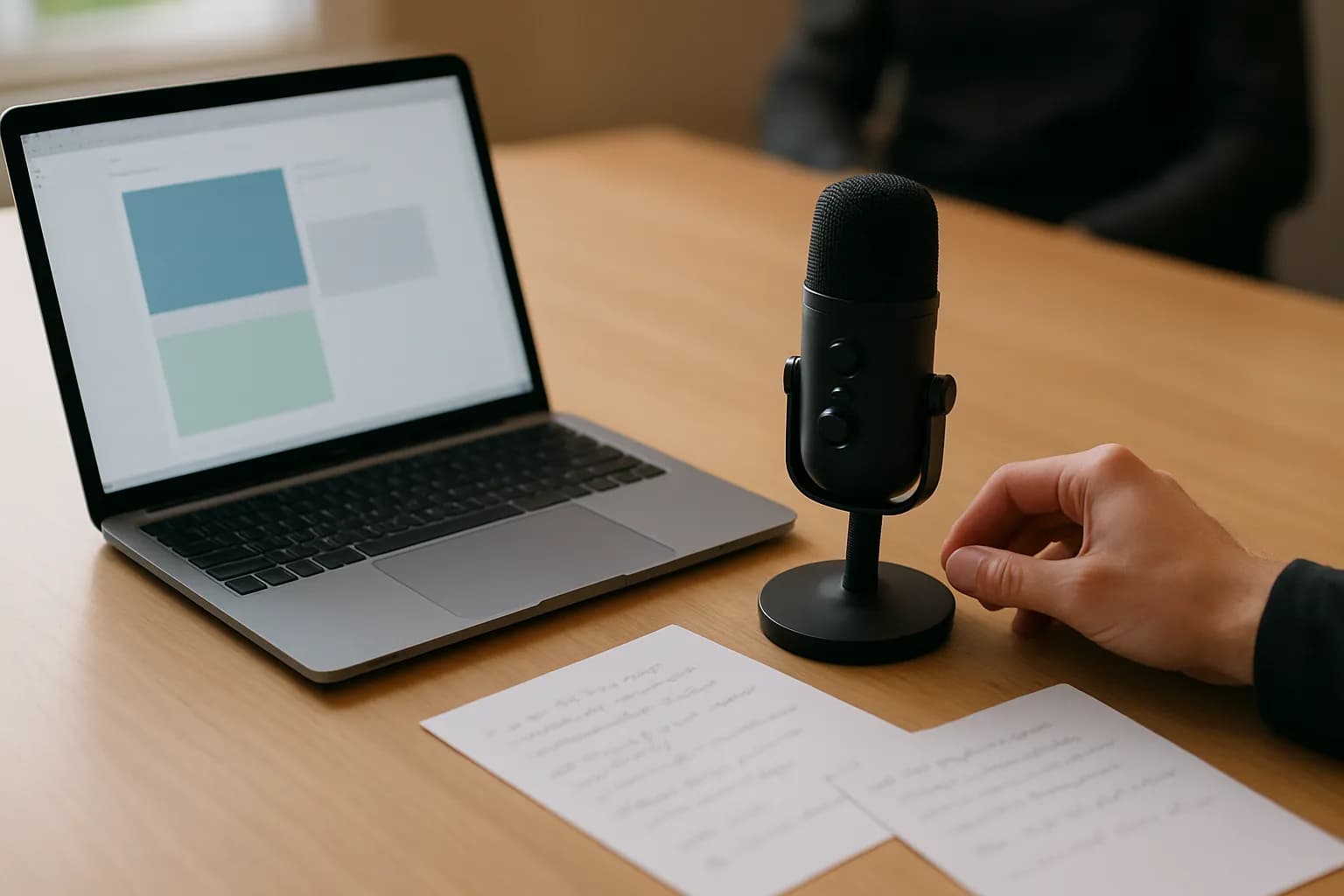
Offline AI meeting notes on a Mac start with a consented local recording. Use an on-device transcription app, draft notes from its transcript, then replay the audio to verify names, decisions and owners.
Offline AI meeting notes on a Mac start with a consented local recording. Use an on-device transcription app, draft notes from its transcript, then replay the audio to verify names, decisions and owners.
Offline meeting notes need a local workflow from start to finish
Offline AI meeting notes on a Mac require local recording, local transcription and, if AI drafts the summary, a local summarising tool. A recording saved on the Mac is not enough if the transcription app later uploads it. Likewise, an offline transcript does not make the finished notes private if you paste them into an online assistant.
For a first attempt, keep the workflow simple: capture audio, turn it into a timestamped transcript, draft a short account of decisions and actions, and check the draft against the recording. A local speech-to-text app is the main tool you need. You can write the final notes yourself if you do not have an on-device summariser. That is often enough for a short meeting and gives you fewer settings to check.
Before choosing a private meeting transcription app for Mac, read its documentation for the exact feature you plan to use. Look for on-device processing, offline operation after setup and control over where recordings and transcripts are stored. Check transcription and summarising separately. If the app needs an account or a connection to process audio, do not treat that workflow as offline.
Consent and recording rules come before the microphone
Get clear permission to record the in-person meeting before starting audio capture. Tell participants why you are recording, who will receive the notes and how long the audio will be kept. Workplace policy and local recording rules may impose further requirements, so check them rather than assuming permission from the meeting invitation.
A practical opening is to ask whether everyone agrees to an audio recording for drafting and checking meeting notes. Give people a real chance to object. If someone does, stop and take written notes instead, or agree on another method before continuing. If a participant joins late, pause and bring them into the same decision.
Consent to recording is not automatically consent to send the audio to an outside service. If you plan to use an app that processes files on its own servers, say so and follow your organisation's rules. For a local-only workflow, explain that the recording stays on the Mac during processing, while avoiding a promise you have not checked against the app's settings and your Mac's storage setup. Decide who can access the file before the meeting begins.
A Mac can record the room without an internet connection
You can record an in-person meeting without internet on a Mac using QuickTime Player's audio recording feature. Open QuickTime Player, choose File, then New Audio Recording, select the intended microphone, and make a brief test recording. Play it back before the meeting so you can hear whether people across the room are intelligible.
Place the Mac where it can pick up speakers without sitting beside a noisy fan or being blocked by papers. A suitable external microphone can help in a larger room, but clear placement matters even with extra equipment. Tell everyone when recording begins, then leave the Mac undisturbed. When the meeting ends, stop and save the audio to a folder you control.
Check the save location rather than assuming a file on the Mac is local-only. Desktop and Documents may sync through iCloud if that feature is enabled. Choose a folder outside any cloud-synced location if the recording must stay on the device. A short rehearsal with Wi-Fi off is useful: confirm that recording, saving and playback all work, and check that the Mac has enough free storage for the meeting.
Local transcription needs preparation before the meeting
An on-device transcription app can turn the saved recording into text without an internet connection, but its language model may need to be downloaded first. Install the app, obtain any required model and test an imported recording while offline before relying on it at work. Check whether importing audio, transcription and transcript export all work without a connection.
After the meeting, import the saved file and choose the appropriate language if the app asks. Keep timestamps when the app offers them. They let you return to the audio when a name, commitment or disputed phrase needs checking. Speaker names produced by transcription software are guesses; people who interrupt or speak from across the room can be mixed up. Do not assign an action to someone solely because a speaker label says it was theirs.
Save the transcript locally and keep the original audio unchanged during review. If the tool offers a meeting summary, confirm that summarisation also runs on the Mac before using it. Otherwise, read the transcript and write a short summary yourself. If you later choose an online assistant for drafting, treat that as a separate, non-offline workflow and check whether the meeting content may be shared with it.
Names and decisions must be checked against the audio
Treat the transcript and AI notes as drafts, not as the meeting record. Start by marking every person, organisation, decision, deadline and action owner in the draft. For each marked item, go to the matching transcript timestamp and replay the surrounding audio. Listen beyond the single sentence: a suggestion may have been rejected, or an owner may have changed later in the conversation.
Use a simple test for decisions: can you hear the group settling on an outcome, or does the recording only contain a proposal? Write an unresolved proposal as an open question, not a decision. For action items, confirm both the task and the person who accepted it. If the audio is unclear, ask the participants to confirm rather than filling the gap with a plausible name.
Once those checks are complete, write notes that separate decisions, actions and unresolved questions. You can use the approach in turning meeting notes into clear action items for the final structure. If you later use an online tool to draft a follow-up, the ChatGPT meeting notes workflow addresses a different setup; review what you are permitted to share before switching workflows.
Sharing and deletion are part of an offline workflow
An offline process does not end when the transcript appears. Decide whether colleagues need the verified notes, the full transcript or neither. Share the least material needed for the work. A transcript can include side remarks and personal information that do not belong in meeting minutes, while an audio file can expose everything said in the room.
Before sending notes, check them for unsupported statements and remove material outside the agreed purpose. Ask the people responsible for decisions or actions to confirm any point you could not establish from the audio. Keep the original recording only as long as your workplace rules and the agreed purpose require. Delete local copies and exported transcripts when they are no longer needed, while recognising that synced folders and backups may hold separate copies.
If this is becoming a repeatable team process, write down who records, where files are saved, who verifies the notes and when files are removed. The first-workflow implementation checklist can help you make those responsibilities explicit. For an occasional meeting, a consented recording, a local transcript and careful manual review may be the better option than adding automation.
Frequently asked questions
Can I transcribe an in-person meeting without internet on a Mac?
Yes, if you record the meeting locally and use a transcription app that processes audio on the Mac. Download any required speech model and test recording, importing and transcription with Wi-Fi off beforehand. An app that uploads the file for processing will not meet an offline requirement.
Is a private meeting transcription app for Mac always offline?
No. An app may offer privacy controls while still processing audio on its servers, or it may transcribe locally but use an online service for summaries. Check the app's documentation and settings for each function you will use, then test the workflow without a connection.
Do I need an AI summariser to make offline meeting notes?
No. A local transcript with timestamps and a manually written summary can be enough. If you want AI to draft the summary, use a tool that explicitly supports on-device summarising and test it offline. Either way, replay the audio to verify decisions and names.
What should I do if the recording does not make an action owner clear?
Leave the owner unconfirmed in your draft and ask the relevant participants to clarify. Do not rely on an automatic speaker label or infer ownership from who spoke last. Keep the disputed item out of the final action list until someone confirms the responsibility.
Related guides
 Set Up Google Meet to Take Notes AutomaticallySet up Google Meet AI notes before a meeting, check when note-taking starts, find the document, and review access before sharing it.
 How to Use ChatGPT for Meeting Notes and a Follow-Up EmailTurn a meeting recording or transcript into a five-bullet summary, decisions with owners and a follow-up email, plus a check for decisions AI invented.
 Turn Messy Meeting Notes into Clear Action Items with AILeave every meeting with decisions, owners and next steps: paste your raw notes into an AI chat and get back a clear list of who does what next.
Drafted with AI assistance and checked automatically before publishing. Tools and prices change; check the official source before you act.