
Sync Airtable Deadlines to Google Calendar Without Duplicates
By Anu Verma
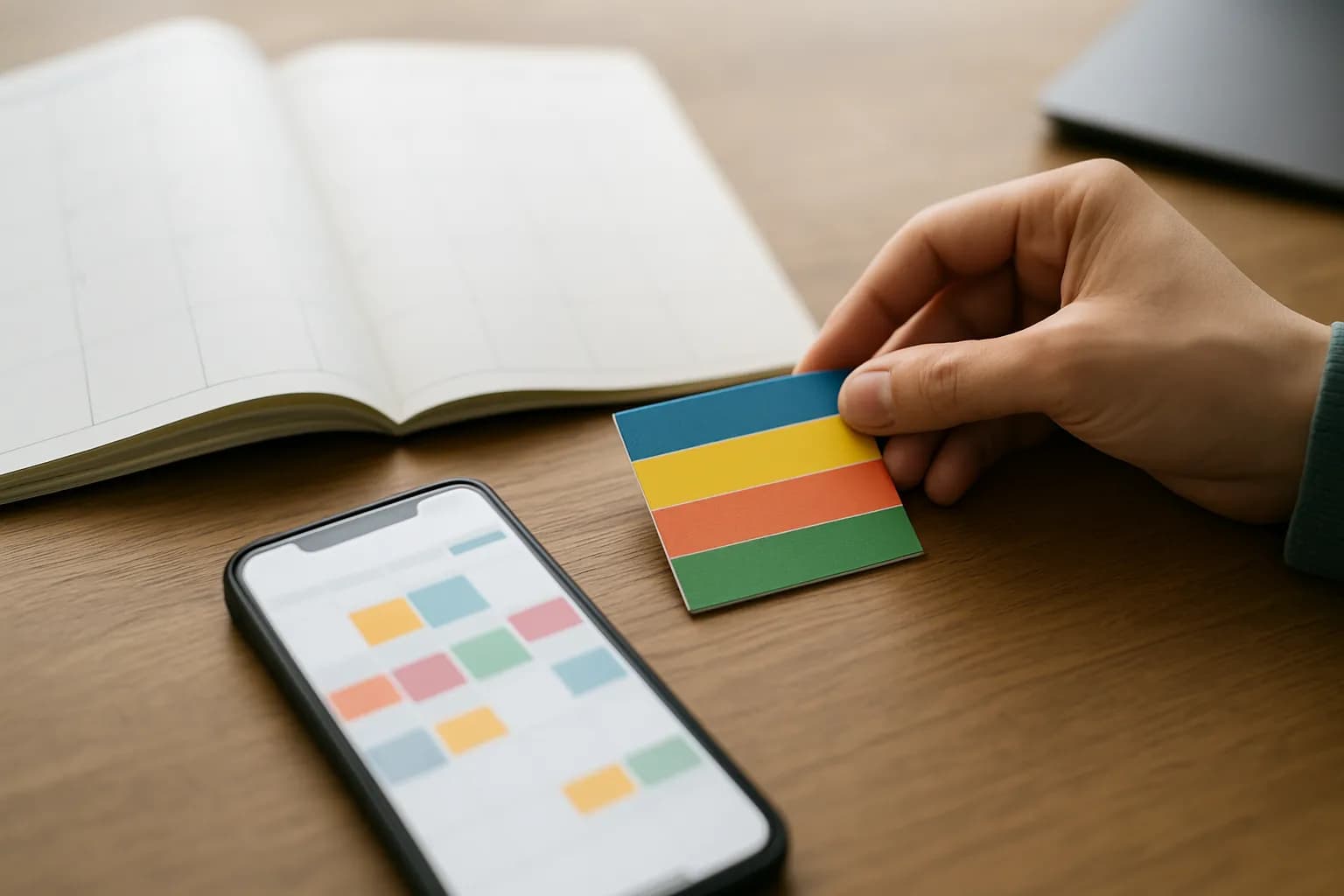
An Airtable to Google Calendar deadline sync needs a way to recognize an existing event. Save the Google Calendar event ID on its Airtable record, then update or remove that event when the deadline changes instead of creating another one.
An Airtable to Google Calendar deadline sync needs a way to recognize an existing event. Save the Google Calendar event ID on its Airtable record, then update or remove that event when the deadline changes instead of creating another one.
The right sync depends on who needs to edit the event
A calendar subscription is enough when people only need to see Airtable deadlines in Google Calendar and can tolerate a delay before changes appear. If your Airtable calendar view offers a subscription link, check how it behaves with a sample deadline. Google controls when subscribed calendars refresh, so do not treat this option as an immediate reminder system.
Use a no-code automation tool when you need to create calendar events from Airtable records, update them after a date change, or remove them after cancellation. The important difference is ownership: the automation must know which Google Calendar event belongs to each Airtable record. A rule that simply creates an event whenever a record changes has no such memory and will make duplicates.
Choose one place to manage deadlines. The workflow below treats Airtable as the source and Google Calendar as its display. Calendar edits made by hand will not necessarily flow back to Airtable, and a later automation run may overwrite them. If the team needs to edit dates in either place, pause before building: that is a two-way sync with conflicts to resolve, not a simple deadline reminder.
The Airtable fields that keep records and events paired
Each Airtable project record needs a deadline, a clear event title, and a field for its Google Calendar event ID. Add a status field that distinguishes active work from cancelled work. A sync status field can also help staff spot records that need attention, but it should not replace the event ID.
In a no-code automation tool such as Zapier or Make, connect Airtable and Google Calendar using an account allowed to edit the intended calendar. Decide which calendar receives the events before turning the workflow on. If the destination later changes, an event ID from the old calendar may not identify an event in the new one.
Keep the calendar title useful but avoid placing confidential client details in an event description just because they exist in Airtable. People with access to the calendar may see them. Decide whether the deadline is an all-day date or a timed appointment, and use that choice consistently. For timed events, check the time zone in both tools. For all-day events, check the displayed day in Google Calendar after a trial run. These small decisions are easier to fix before many records have been synced.
The create rule runs only when no event ID exists
The create rule should run for an active Airtable record with a deadline and no saved Google Calendar event ID. Its actions are to create the calendar event, take the ID returned by Google Calendar, and write that ID back to the same Airtable record. Use the Airtable record ID to target that write, rather than searching by project name, which may not be unique.
Choose a trigger that can notice both new records and later edits. A trigger based only on a record entering a view may miss changes made while the record remains in that view. Check the trigger options in your automation tool and test the actual edit you expect staff to make. Filter out records with no deadline, cancelled records, and records that already have an event ID before the create action.
Writing the event ID back to Airtable may itself count as a record update. The create rule must check for an empty event ID so that this write does not create another event. If you have existing deadlines, start with a small sample rather than turning on the rule for the whole base. A one-time event, such as the one in this Google Forms calendar workflow, does not need the same update path.
The update rule changes the event already on the calendar
When an Airtable deadline changes, the update rule should pass the saved event ID to Google Calendar's event update action. Map the current deadline, title, and any other calendar fields you intentionally maintain. Do not use the create action for a record that already has an event ID, even if the project name or date has changed.
Set the trigger and filters around meaningful edits, such as changes to the deadline or event title. Some no-code tools watch selected fields; others check records on a schedule or react to broader updates. In either case, make sure writing a sync status back to Airtable does not start an endless cycle of updates. The exact controls vary by tool, so inspect a test run to see which field change started it.
If the update cannot find the event, do not immediately create a replacement. The event may have been deleted by hand, moved to another calendar, or made inaccessible when the connected account changed. Mark the record for review and check the saved ID and destination calendar. Only after deciding where the event should live should you clear the old ID and allow a new event to be created. That pause prevents a temporary access problem from turning into a duplicate.
Cancellation needs an explicit event removal rule
An Airtable deadline sync needs a cancellation rule if cancelled projects should disappear from Google Calendar. Keep the Airtable record, change its status to cancelled, and have the automation delete the calendar event identified by the saved event ID. Once deletion succeeds, clear the ID or record the outcome in a way that prevents repeated deletion attempts.
Do not rely on deleting the Airtable record to remove its event. A workflow that watches existing records may never receive a useful record update after the record is gone. Keeping cancelled records until the calendar action finishes also gives staff a way to check what happened. If your team prefers to retain cancelled events for context, update the event title or appearance instead of deleting it, and make that policy clear.
A cleared deadline needs its own decision. Treat it as a cancellation, or leave the last calendar event in place while flagging the record for review. Never let an empty date flow into an update action without checking what the tool will do. Calendar event drafts made from labeled Gmail messages serve a different purpose: a continuing project sync must account for the event after its initial creation.
A small test reveals duplicates before a full rollout
Test the sync with a project record that can safely appear on the chosen calendar. Create a deadline and confirm that one event appears. Check that the event ID was saved to the correct Airtable record. Change the deadline, then confirm that the original event moved rather than a second event appearing. Change its title, cancel the project, and check that the calendar reflects the removal policy you chose.
Also test an empty deadline, a date-only deadline, and a timed deadline if your base uses both kinds. Try changing a field unrelated to the event; that edit should not create an extra calendar entry. If practical, remove a test event by hand and see whether the workflow flags the failed update instead of silently creating a new one.
Before enabling the workflow for existing projects, inspect the destination calendar for events already entered by hand. The automation will not know they belong to Airtable records unless you pair them deliberately, for example by saving each existing event's ID on its record. Assign someone to review failed runs and records awaiting attention. An event ID is the link between the tools, but a visible failure process is what keeps the calendar trustworthy.
Sources consulted
- Google Calendar Help (support.google.com)
- Zapier (zapier.com)
- Make (make.com)
Frequently asked questions
Can I sync an Airtable calendar view without an automation tool?
A calendar subscription may be enough if your Airtable calendar view offers one and you only need to see deadlines in Google Calendar. Test how edits and cancellations appear, and allow for refresh delays controlled by Google. Use a no-code automation tool when you need to create, update, and remove individual events as records change.
Why does changing an Airtable deadline create another Google Calendar event?
Your workflow is probably running a create action for every record change. Save the ID returned when the event is first created. On later edits, use that ID with an event update action, and filter the create action so it runs only when the Airtable record has no event ID.
What happens if I delete a project record in Airtable?
Deleting the record may leave its calendar event behind because the automation can lose the saved event ID and may not receive an actionable update. Mark the project cancelled first, let the workflow remove or change the event, and delete the record only after confirming the calendar result if your retention practices allow it.
Should people change deadlines in Airtable or Google Calendar?
For a simple one-way sync, change deadlines in Airtable. The automation uses that record to maintain the Google Calendar event. Hand edits in Google Calendar may be overwritten later, while deleted events can cause update errors. If both places must accept edits, you need a separate process for deciding which change wins.
Related guides
 Create Google Calendar Events From Google Form ResponsesConnect Google Forms to Google Calendar with a no-code automation, then check missing times, time zones and repeat submissions before sending invites.
 Turn Labeled Gmail Messages Into Calendar Event DraftsUse a Gmail label to collect meeting emails, extract dates and time zones into a review queue, and create Google Calendar events only after approval.
 Create Client Folders From New Airtable RecordsCreate a client folder and standard Drive subfolders from an Airtable record, then save their links so retries can reuse what already exists.
Drafted with AI assistance and checked automatically before publishing. Tools and prices change; check the official source before you act.