
Automate Abandoned-Cart Emails in Shopify Without Code
By Anu Verma
Set up Shopify abandoned-cart emails with AI, choose the right trigger, avoid discount mistakes, and test every link before sending.
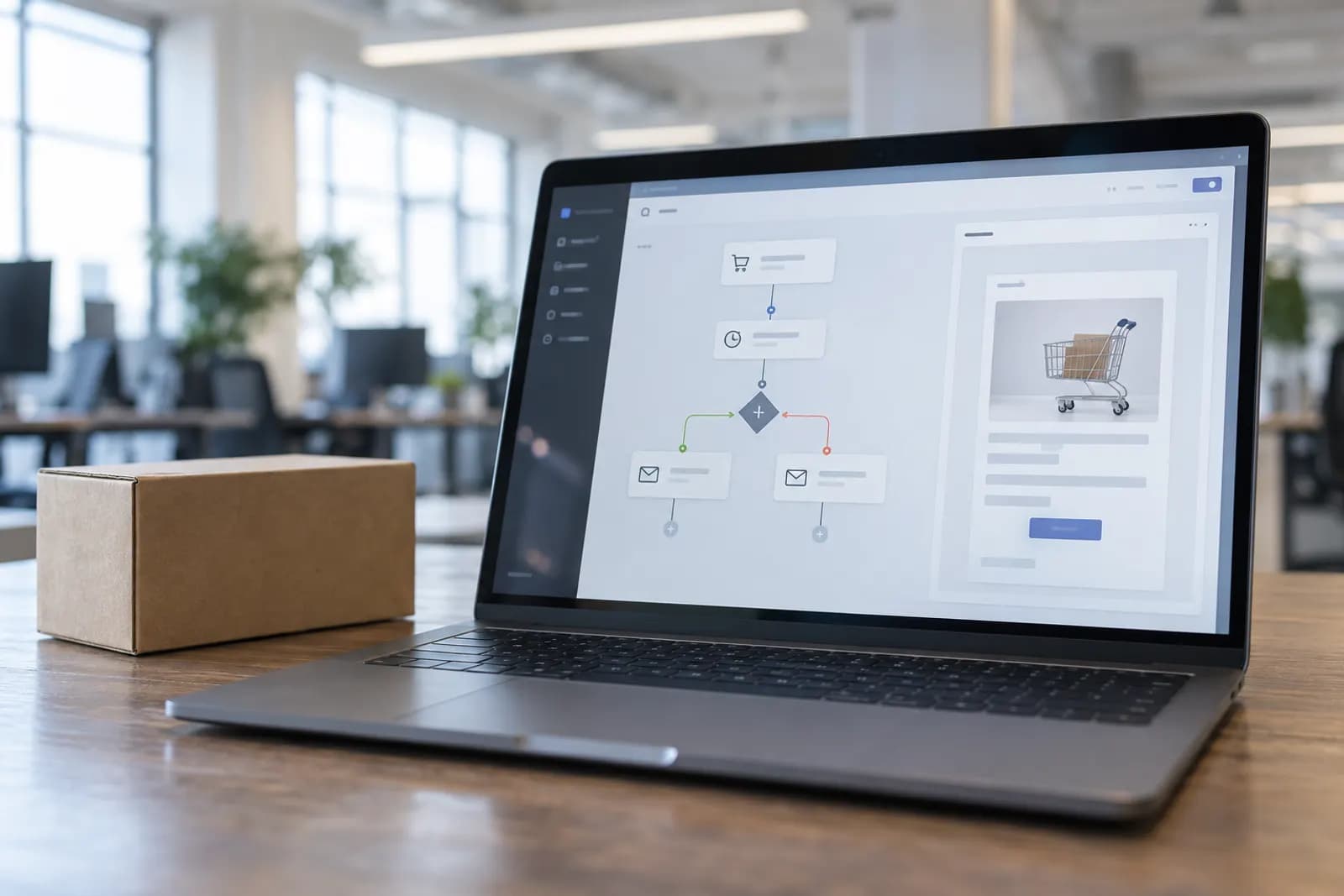
Use Shopify’s built-in abandoned-checkout automation, have AI draft one short recovery email, and keep the trigger, discount, timing, and checkout link under your control.
Set up abandoned-cart emails in Shopify without code
The simplest setup uses Shopify’s built-in abandoned-checkout automation, with AI used only to draft the message. You don’t need to connect ChatGPT to Shopify or build a Zapier workflow.
Open your Shopify admin and look under the marketing or automation area for an abandoned checkout or abandoned cart template. Shopify changes menu names and available templates, so use the admin search if the label isn’t where you expect. Select the template, review its trigger and audience, and choose the email channel available to your store.
Ask ChatGPT to draft a plain-text recovery email using your product, customer, shipping, and return details. Paste the approved copy into Shopify’s email editor, then set the sender, subject line, preview text, and call-to-action. Keep the first version to one email rather than building a sequence.
Before activating it, confirm that the email links back to the customer’s saved checkout, not your home page. Send yourself a test, abandon a checkout with a test address, and inspect the message on both a phone and a computer. The automation should remain off until the full path works.
Should you use Shopify’s built-in automation or Zapier?
Use Shopify’s native automation first, because abandoned checkouts already live inside Shopify and usually need no extra connection. A third-party tool is justified only when you need an action Shopify doesn’t provide, such as logging each event in another system or notifying a sales team, or when you want the whole flow on your own infrastructure, which is what a three-email abandoned cart flow built in n8n with Claude does.
Native automation gives you fewer moving parts. Shopify can identify the abandoned checkout, preserve the checkout context, and handle the customer-facing email in one place. Fewer connections mean fewer opportunities for a missing permission, broken field, duplicate message, or expired checkout link.
Zapier or Make can be useful when your process has a real handoff. For example, a high-value abandoned checkout might create a review task in a shared workspace, while the customer email still comes from Shopify. Don’t use a connector merely to add AI copy generation. Generated text can be approved and pasted manually faster than troubleshooting a multi-step workflow.
Check Shopify’s current automation features, plan requirements, and messaging limits before choosing a route. Those details change. Automate Basics’ practical default is native Shopify automation for the customer email, with an external tool added only for a measurable operational need.
What AI writes, and what must stay fixed
AI should write the subject line and helpful explanation, while you should lock every factual promise before publishing. Give the model the exact product name, price, delivery information, return policy, support address, and discount rules it may mention.
A useful prompt is: “Write three short abandoned-checkout emails for a Shopify store selling [product]. Use a calm, direct tone. Mention [verified benefit], [verified delivery detail], and [support contact]. Don’t invent stock levels, discounts, deadlines, guarantees, reviews, or customer details. Keep each email under 100 words and end with a clear checkout link call to action.”
Treat AI output as a draft, not a data source. Remove claims about limited stock, rising prices, free shipping, or expiring offers unless your store actually enforces them. Replace generic praise with a concrete reason to finish, such as saved cart contents or a clear returns explanation.
Keep the call to action unambiguous. “Return to your checkout” is safer than promising that an item is reserved. Read the email as a customer who has forgotten the purchase, not as the person who designed the product.
Which shoppers receive the email
Send the first email only to shoppers who reached Shopify checkout and provided an email address but did not complete the order. That audience is narrower and more useful than everyone who added something to a cart.
An abandoned checkout usually gives Shopify stronger context than an anonymous cart, because the shopper has entered enough information for the store to identify a reachable contact. A person who only viewed a product or clicked Add to cart may not have supplied an email, and forcing those people into a recovery campaign can create poor targeting and consent problems.
Exclude customers who have already completed the order, refunded the order, or received a later recovery message for the same checkout. Exclude internal test addresses and addresses that have opted out of marketing. Review whether transactional and marketing messages are treated differently in your region and customer setup.
Choose one audience rule before you write the copy. If you target all abandoned checkouts, write a general reminder. If you narrow the audience to a particular product or customer group, make the message specific. The common failure is writing a product-specific email and then sending it to shoppers who abandoned unrelated items.
When the email should send
Start with one message after enough time has passed for a genuine interruption, then adjust timing using your store’s results. Sending immediately can feel like a surveillance alert, while waiting too long lets the shopper forget the product or find an alternative.
The right delay depends on the buying decision. A low-cost, familiar item can support a shorter delay. A considered purchase may need more time, especially if shipping, fit, compatibility, or approval is part of the decision. Don’t solve every timing question by adding more emails. One relevant reminder is easier to judge than a sequence with overlapping triggers.
Check whether Shopify’s template lets you set the delay and whether a checkout that becomes an order is automatically removed from later sends. Rules and available controls can change, so verify the current Shopify documentation and the settings shown in your admin.
Avoid using a fake deadline to force urgency. If you offer a real promotion, make the end condition accurate and keep it consistent with the store’s checkout. Record the chosen delay in your campaign notes. Without that record, later changes can make performance comparisons meaningless.
Stop discounts and links going wrong
Leave the discount out of the first email unless you have a clear margin-based reason to use one. Discounts can recover a sale, but they can also train shoppers to abandon checkout while waiting for a code.
If you include an offer, decide whether it applies to the abandoned items, the whole order, or selected products before asking AI to mention it. Create or verify the discount in Shopify first, then paste the exact code and conditions into the email. Test the code with the same product, customer status, shipping destination, and cart combination a real shopper would use.
The checkout link is equally important. Use Shopify’s recovery link or the link generated by the native automation rather than copying a general product URL. A product page makes the customer rebuild the cart and may lose the context that made the recovery email useful. Check whether the link still works after the checkout is completed, canceled, or aged.
Review every dynamic field, including first name, product title, price, and discount code. Missing fields can produce blank greetings or misleading copy. The safest first launch uses a fixed greeting, no discount, and one tested recovery link.
Test the automation before turning it on
Test the complete customer journey with a real Shopify test checkout before activating the automation. A preview of the email alone won’t prove that the trigger, audience filter, recovery link, and suppression rule work together.
Use a test product or a normal product with a test payment method, if your store supports one. Enter a test email address, leave checkout without ordering, and wait for the configured delay. Confirm that the message arrives from the intended sender, displays correctly on a phone, and contains the expected product, price, and call to action.
Click every link. Check that the checkout opens with the correct items and that the discount, if any, behaves as promised. Then complete the test order and verify that the abandoned-checkout message does not continue afterward. Run a second test that exits before providing an email, because that confirms the store isn’t attempting to email an unreachable shopper.
Inspect the unsubscribe option and reply address as well. Ask someone who didn’t build the workflow to read the email and explain what they should do next. Confusion usually reveals a copy or link problem before customers find it.
What to measure and change after launch
Measure completed orders from abandoned-checkout recipients first, then use clicks and replies to diagnose why the email is or isn’t helping. An open or click alone doesn’t prove that the automation recovered a sale.
Record the launch date, audience rule, delay, subject line, offer, and email copy. Compare later versions against that record instead of changing several settings at once. If customers click but don’t buy, inspect the checkout experience, shipping cost, payment options, discount conditions, and product information before blaming the subject line.
If few people open the message, test a clearer subject line and sender identity. If people reply with questions, use those questions to improve the product page or email. If orders appear but margins fall, remove the discount or restrict it to products where the economics work. Check for duplicate messages before increasing send volume.
Review results over a consistent period long enough to avoid reacting to one unusual day. Shopify’s reports and automation details can change, so confirm which events each report includes. Automate Basics’ useful role here is to help you make the workflow repeatable, but the store owner must decide which customer behavior is good enough to keep.
Sources consulted
- Shopify Help Center (help.shopify.com)
- OpenAI Help Center (help.openai.com)
Frequently asked questions
Is an abandoned cart the same as an abandoned checkout in Shopify?
No. A cart can exist before a shopper enters checkout or provides an email address. An abandoned checkout usually means the shopper started Shopify checkout but did not complete the order. Shopify’s available recovery automation may focus on abandoned checkouts, so confirm the trigger in your admin before writing the email.
Do I need ChatGPT connected to Shopify to write the email?
No. For a first setup, ask ChatGPT to draft the subject and body, check every factual claim, and paste the approved copy into Shopify’s email editor. Connecting an AI tool adds permissions and failure points without improving the basic abandoned-checkout trigger.
Should every abandoned checkout receive a discount?
No. Start without a discount so you can learn whether a reminder and clearer checkout path are enough. Add an offer only when the margin, conditions, and customer segment justify it. Test the code in the exact checkout conditions you plan to send to customers.
Why did my abandoned-cart email send after the customer ordered?
The trigger or suppression rule may not be configured as expected, or the test order may not match the abandoned checkout. Check whether the automation excludes completed orders, whether the order used the same email address, and whether a second workflow is sending a duplicate message.
Can Shopify send abandoned-cart emails to visitors who never entered an email?
Usually not through an email automation, because the store needs a reachable email address and must follow applicable messaging rules. A visitor who only added an item to a cart may be anonymous. Check the audience definition and current Shopify documentation before assuming every cart is recoverable.
For you
Learn to do this with AI, free
Short courses for people who aren't engineers: ChatGPT, Claude, prompting and automation. Every lesson is free, with no card.
Start a free courseFor companies
Make an AI or automation tool?
List it in the directory for $9.99, refunded in full if it isn't approved, or claim its page if it is already here.
Related guides
 How to Automate Email Classification Without CodingUse Gmail or Outlook, an AI step, and a human review queue to sort email safely without writing code.
 How to Automate Emails With Attachments Using AIEmail each person the right file from a spreadsheet row, using Gmail or Outlook with Zapier, Make or n8n, and a check that stops the wrong attachment.
 Ask Shopify Customers for Reviews After DeliveryUse a delivery signal, check the order again before sending, and keep a customer-level record so cancelled orders and repeat requests stay out.
Tools in this piece
Drafted with AI assistance from our own research and Search Console data, and reviewed by the Automate Basics team before publishing. Tools and prices change; check the linked official source before you act.
Get the next one by email
One email a week: what changed in AI for people who use it at work, and what to do about it.